Run a bracket
Each bracket match is played in one of your event rounds. You schedule it into a round, which puts the two players (or teams) in their own group; they score as usual, and the bracket shows how the match stands hole by hole. When it is over you confirm the result, and the winner moves on.
Before you start:
- The bracket is active (Create a bracket).
- The players are registered for the event you’ll schedule their match in, and aren’t already in a group for that round.
- The event’s course has default tees.
-
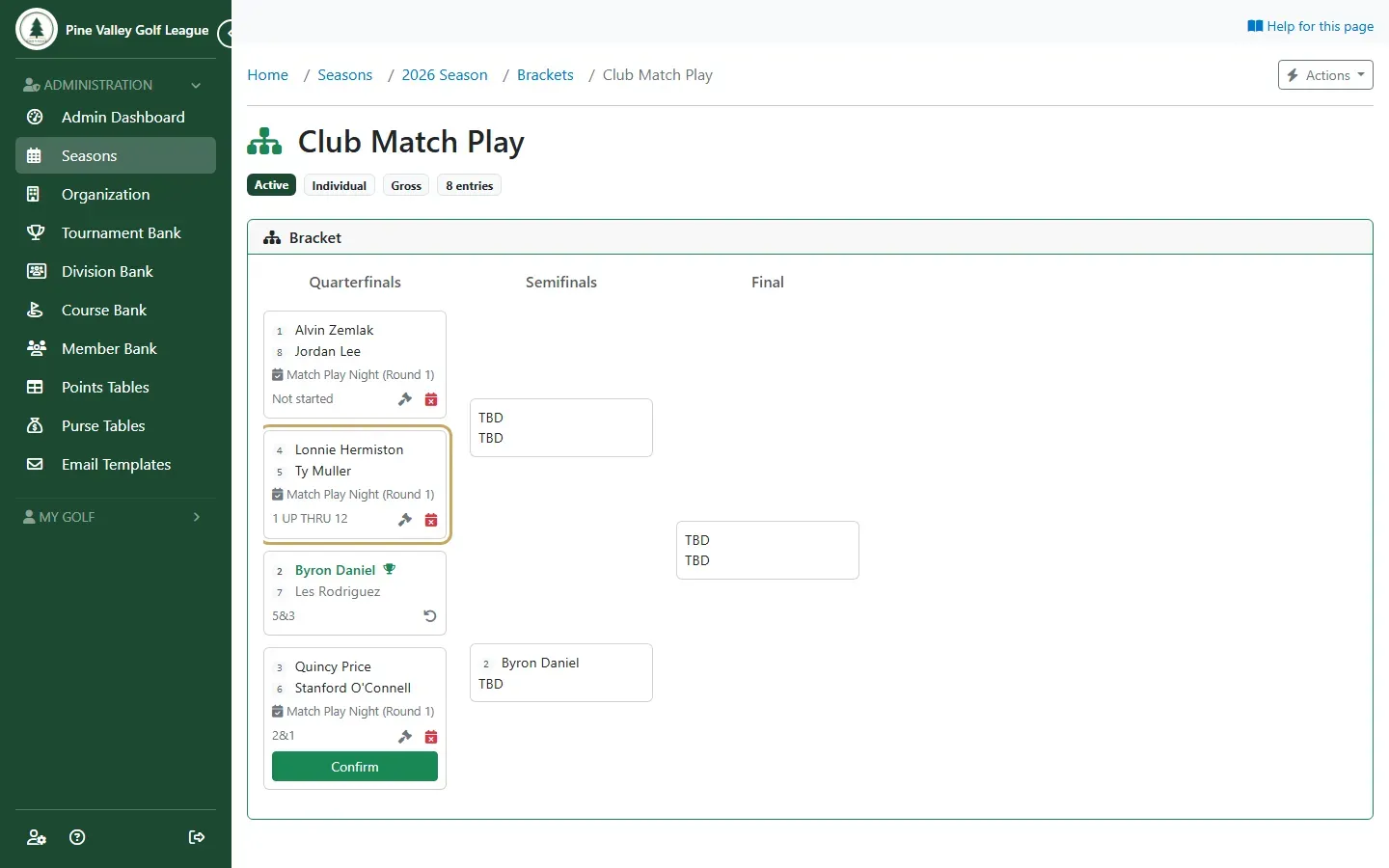
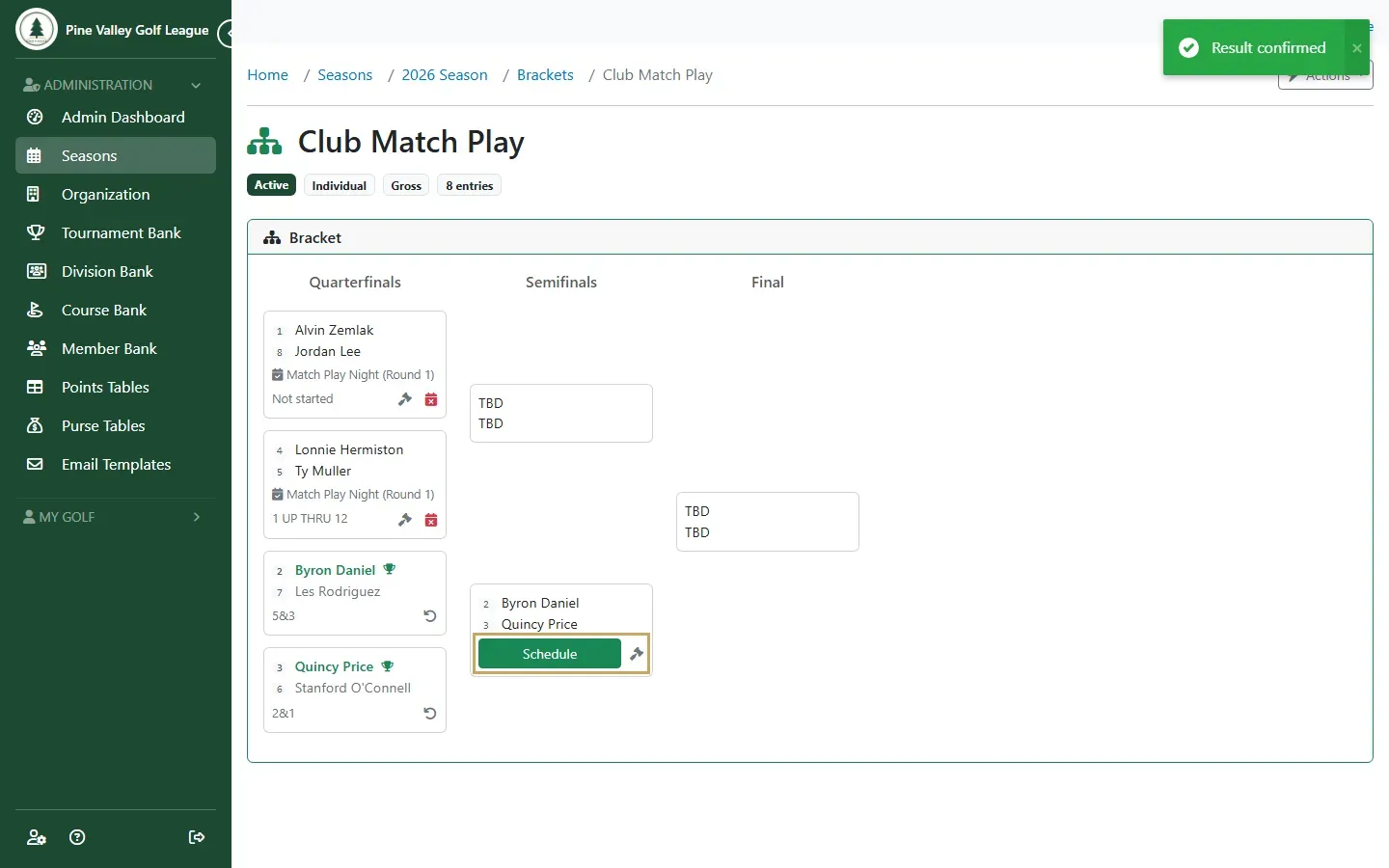
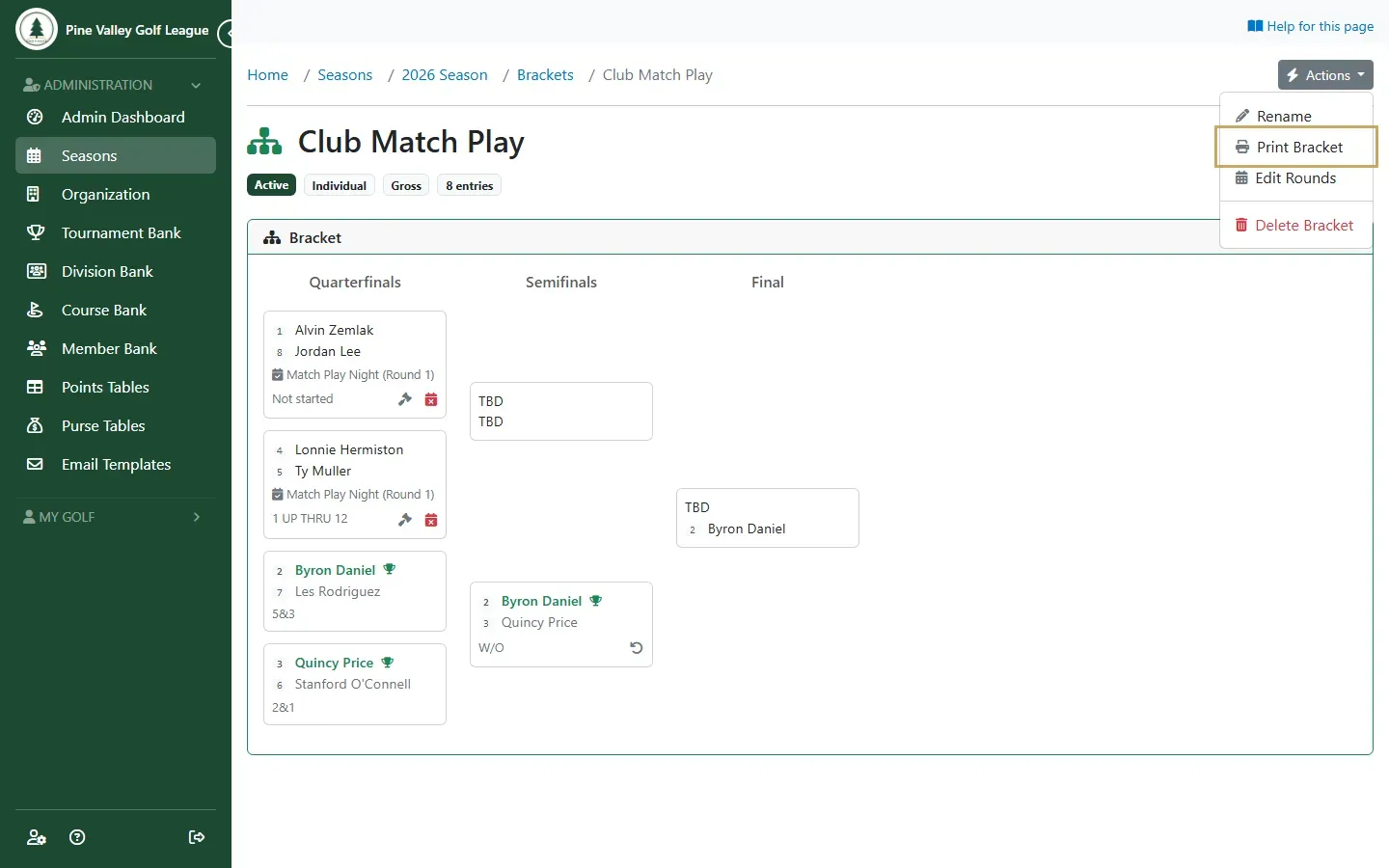
Open the season’s Brackets tab and the bracket. Each match shows where it is scheduled and how it stands: 2 UP THRU 12 while it’s being played, 3&2 or 1 UP when it’s over, AS — halved when it ends all square.
-
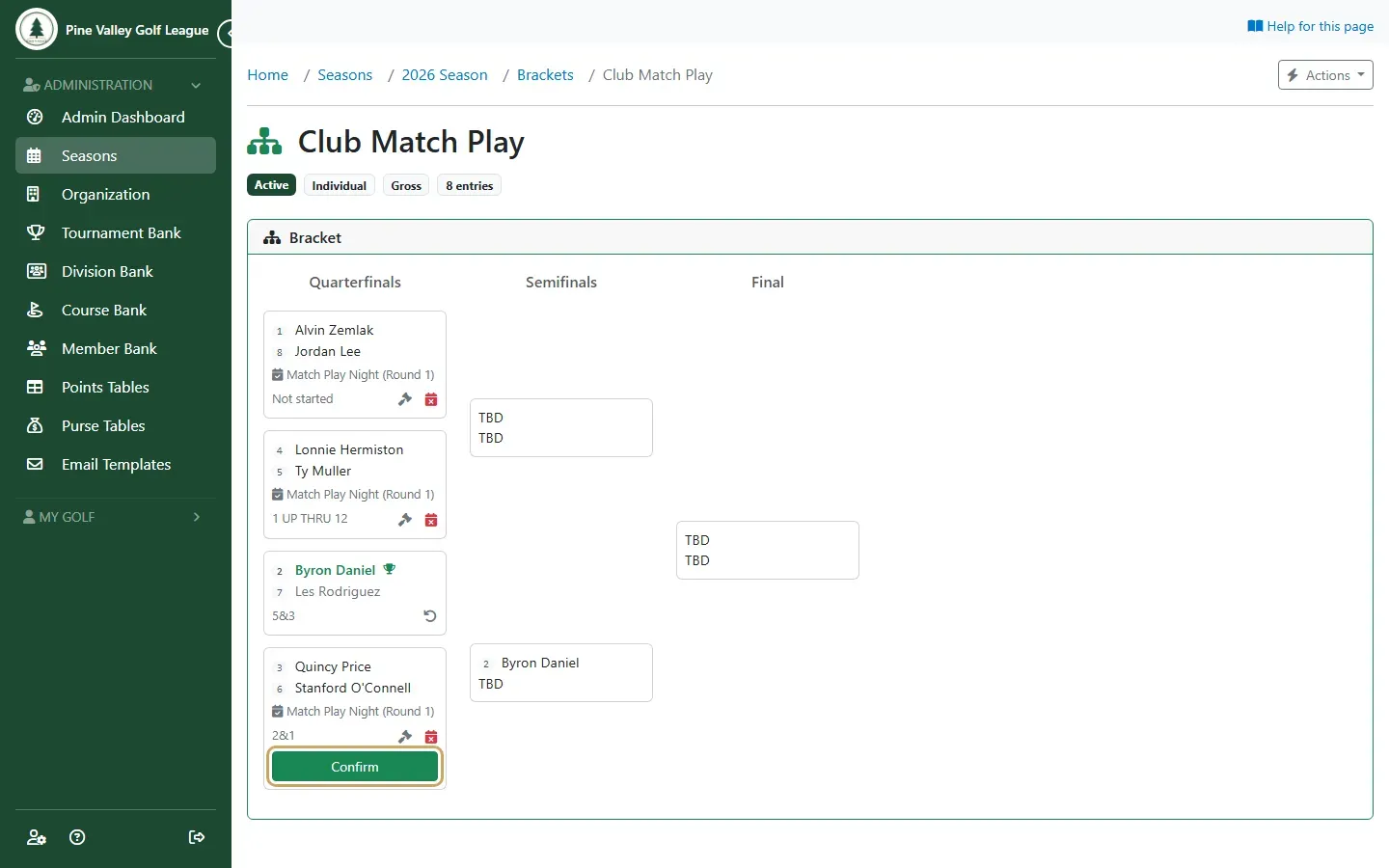
When a match is over, select Confirm. The winner moves into the next round.
-
Once both players of a match are known, it shows Schedule and the gavel button.
-
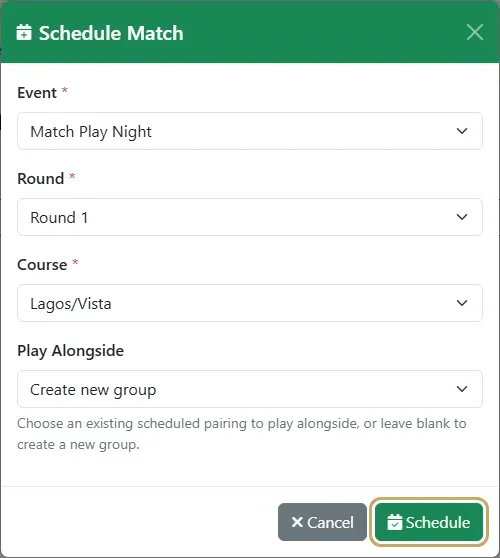
Select Schedule and choose the Event, the Round and the Course. If you set dates for the bracket’s rounds, rounds outside them are marked (outside window). Play alongside puts this match in the same group as another of the bracket’s matches, for a group of four. Select Schedule.
-
The players now have their own group in that round and enter scores the usual way: from their phone, with a group code, or by you on the round’s Scores tab. They’re left out of the round’s other tournaments.
-
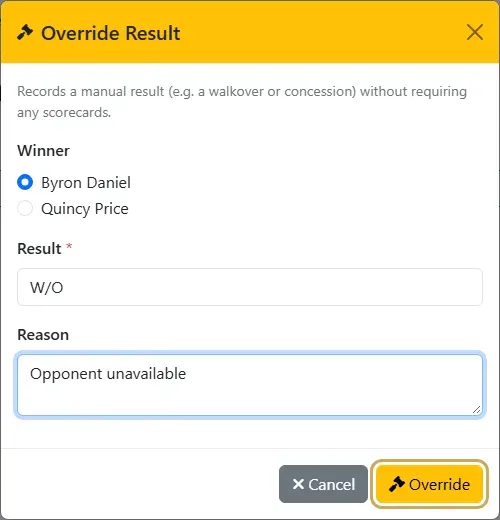
To record a result without scores, such as a walkover or a concession, select the gavel. Choose the winner, type the result to show (for example W/O or Conceded), add a reason if you like, and select Override. You don’t need to schedule the match first.
-
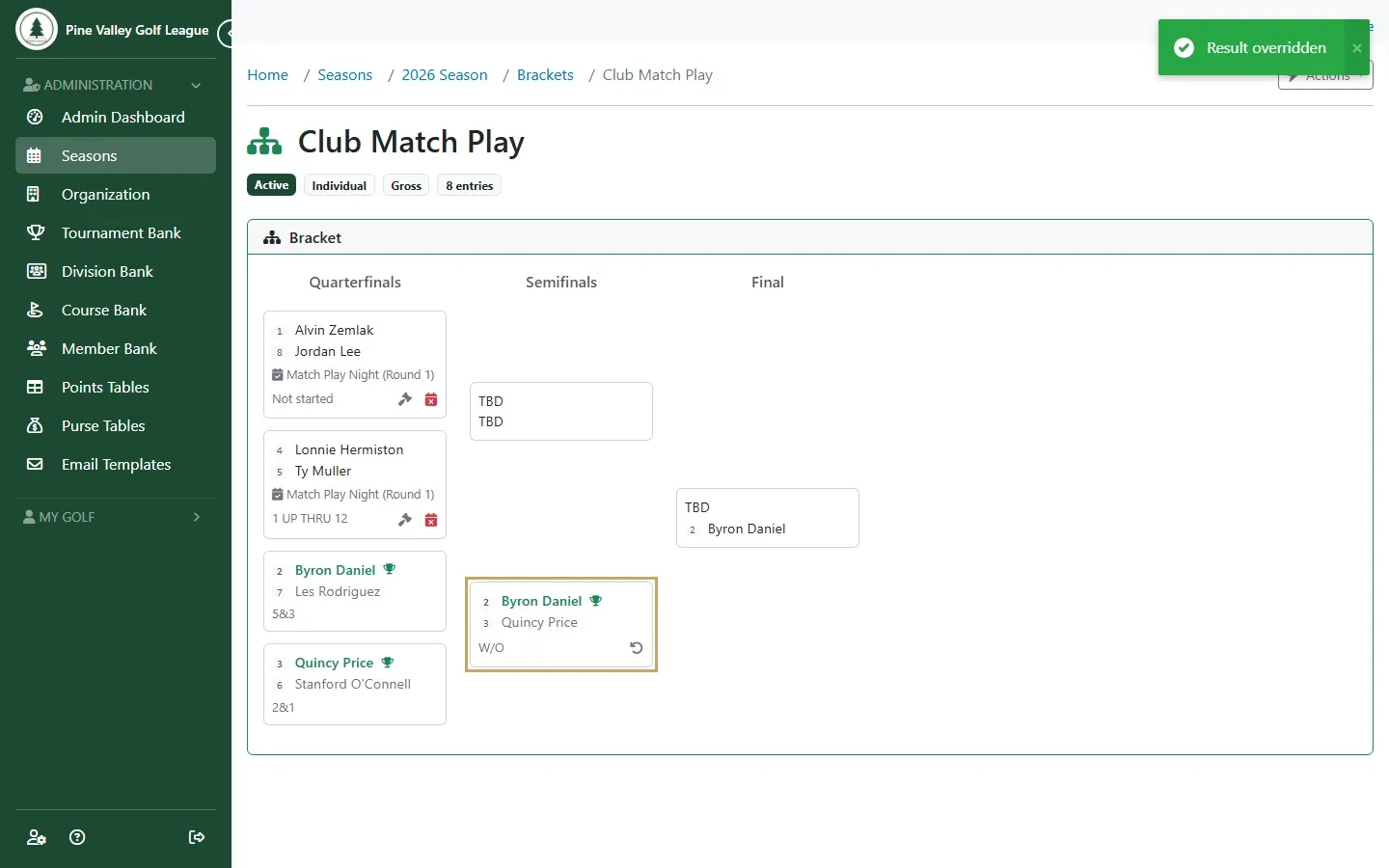
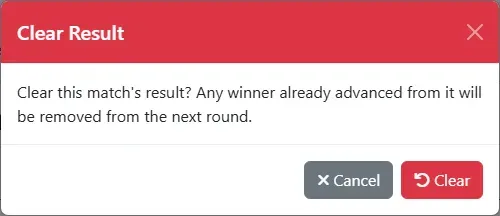
The winner moves on. To undo a result, select the undo button on the match. You can only undo it while the next match hasn’t been scheduled or played.
-
Repeat round by round. Confirming the final crowns the winner and completes the bracket. With a third-place match, the bracket completes once that match is decided too.
Round names, dates and the printout
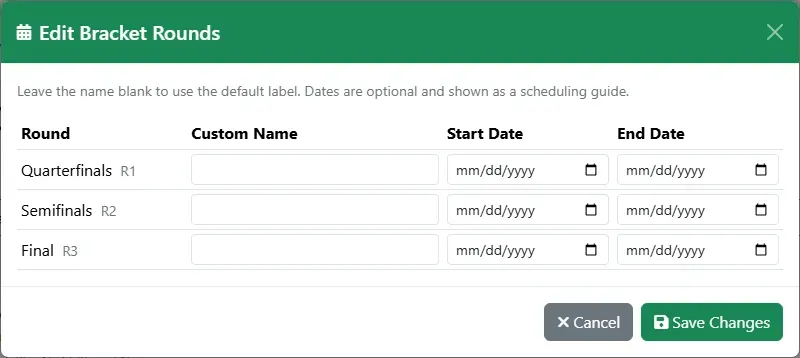
Section titled “Round names, dates and the printout”Open Actions and choose Edit Rounds to name the bracket’s rounds and give each one dates to play by. The dates are a guide: they show when you schedule a match.
Print Bracket, also in Actions, opens the bracket as a PDF for the clubhouse wall. With flights, Edit Flights names each flight.
Bracket matches on the Pairings page
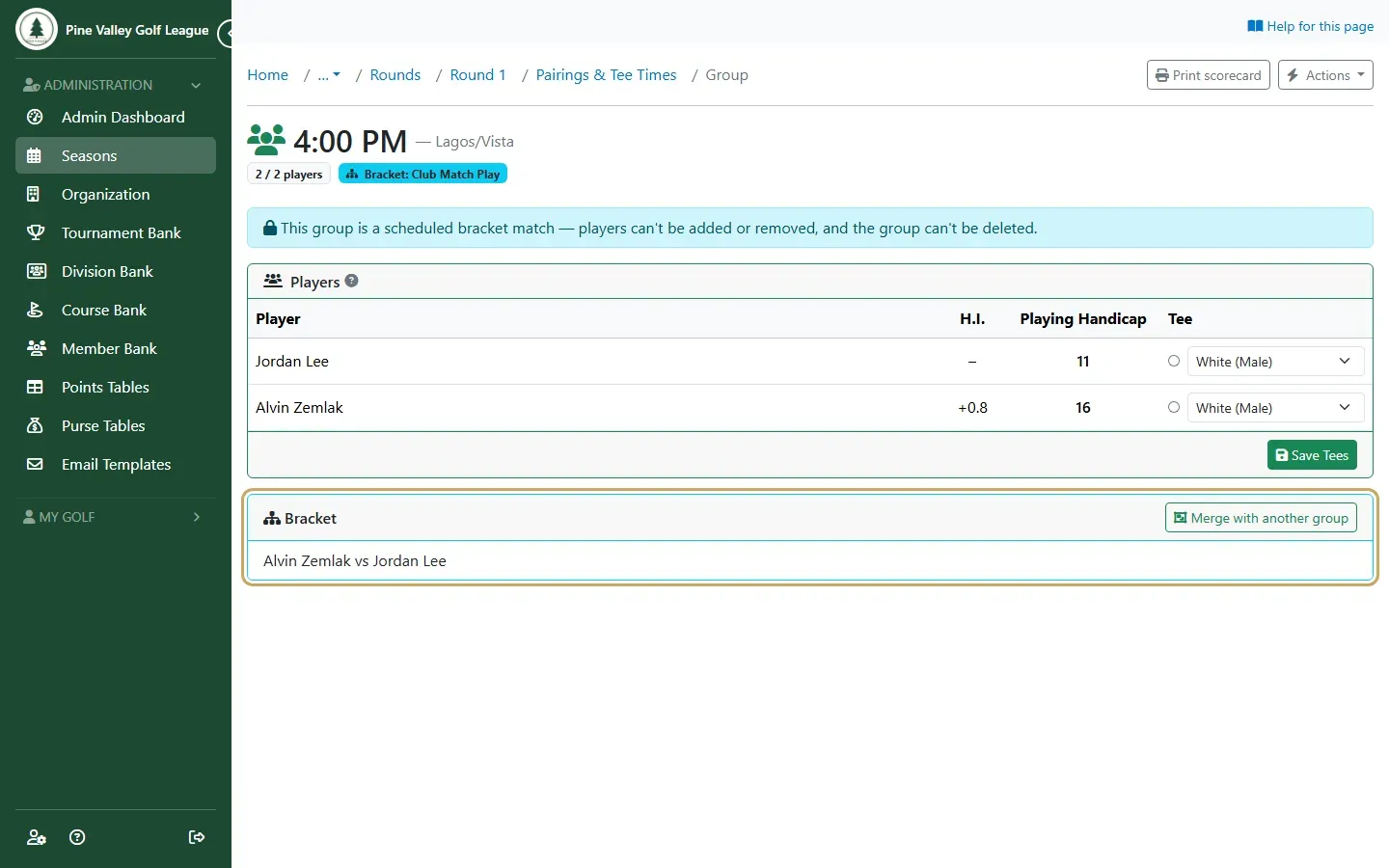
Section titled “Bracket matches on the Pairings page”A scheduled match appears on the round’s Pairings tab as a group, with its tee time like any other.
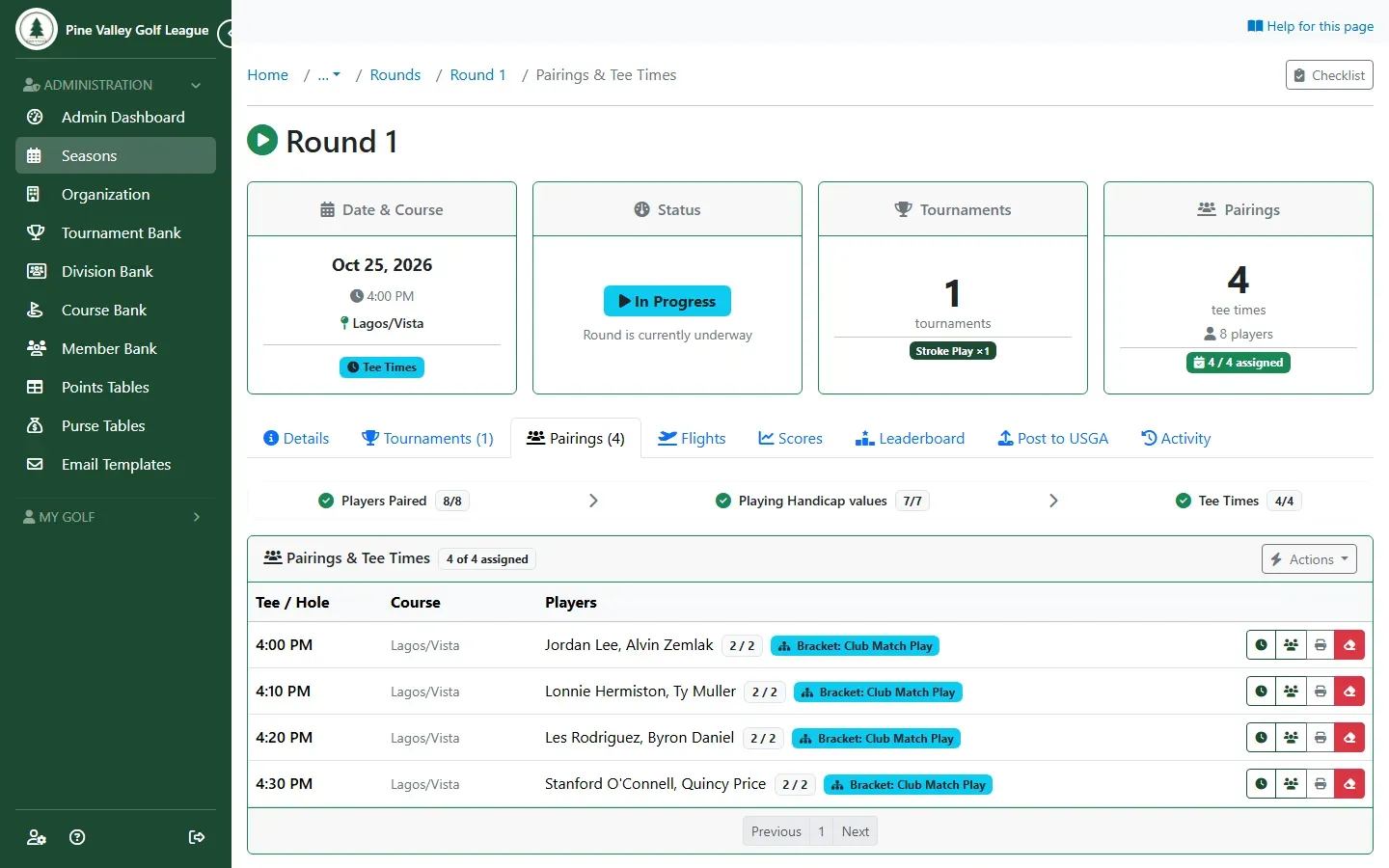
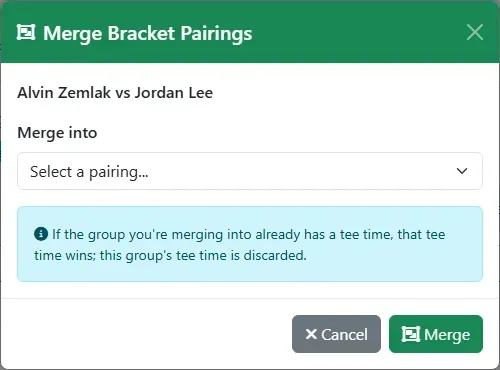
The group is locked to the match: players can’t be added or removed, and it can’t be deleted. Unschedule the match from the bracket (the calendar button) to free it. For individual brackets, Merge with another group puts two matches in one group of four, sharing a tee time, and Split gives a match its own group again.