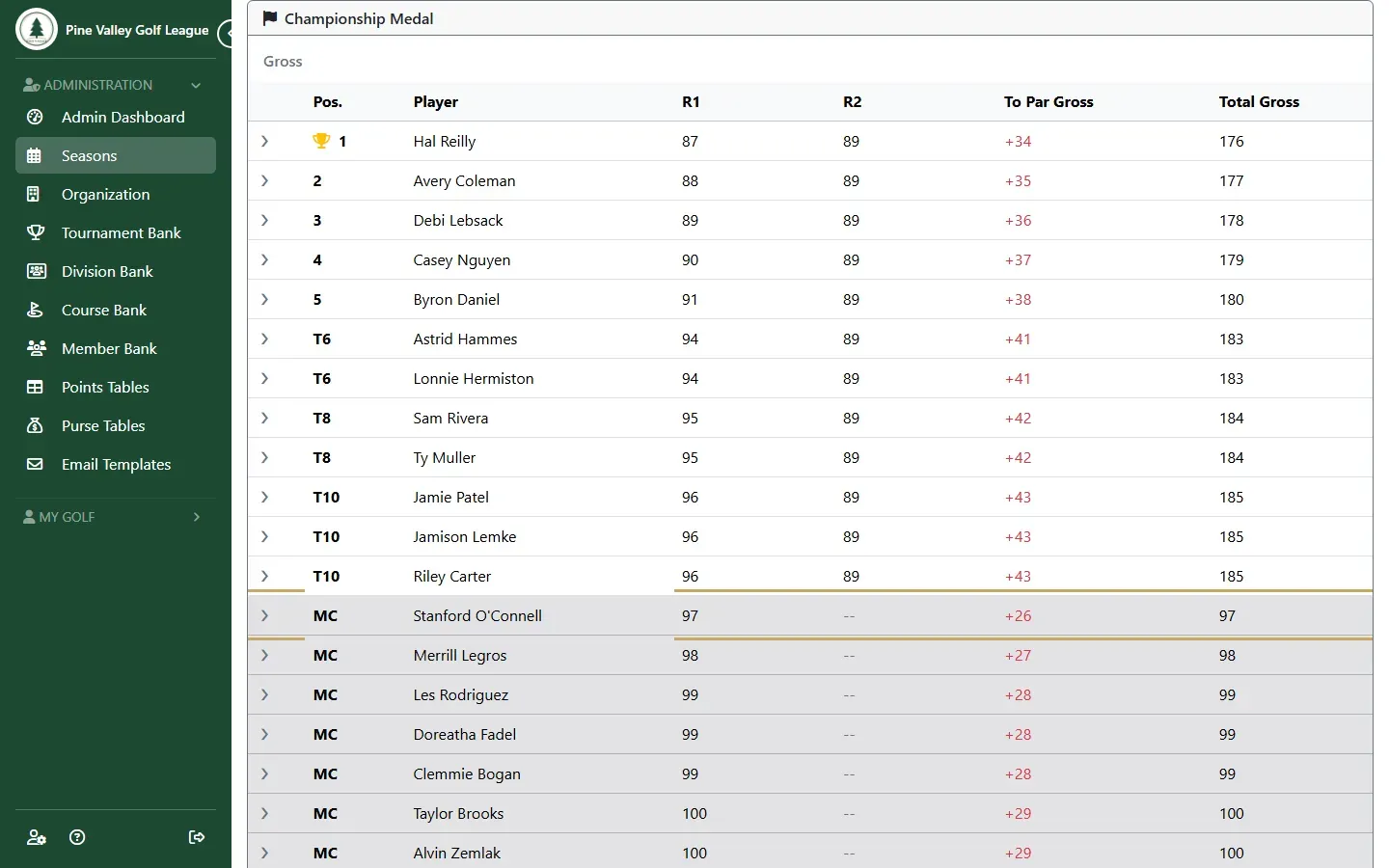
Add a cut
A cut keeps only the leaders after a round: for example, the top 12 after round 1 play round 2. You set the cut on the event’s multi-round tournament, complete the cut round, then apply the cut. Players who miss it are left out of the next round’s groups and finish below everyone who made it.
Before you start:
- The event has a multi-round tournament covering at least two rounds (Set up a multi-round event).
- That tournament is Gross only or Net only. A Gross and Net tournament can’t have a cut: import one of each if you need both.
- Cuts are on the Eagle plan and up.
-
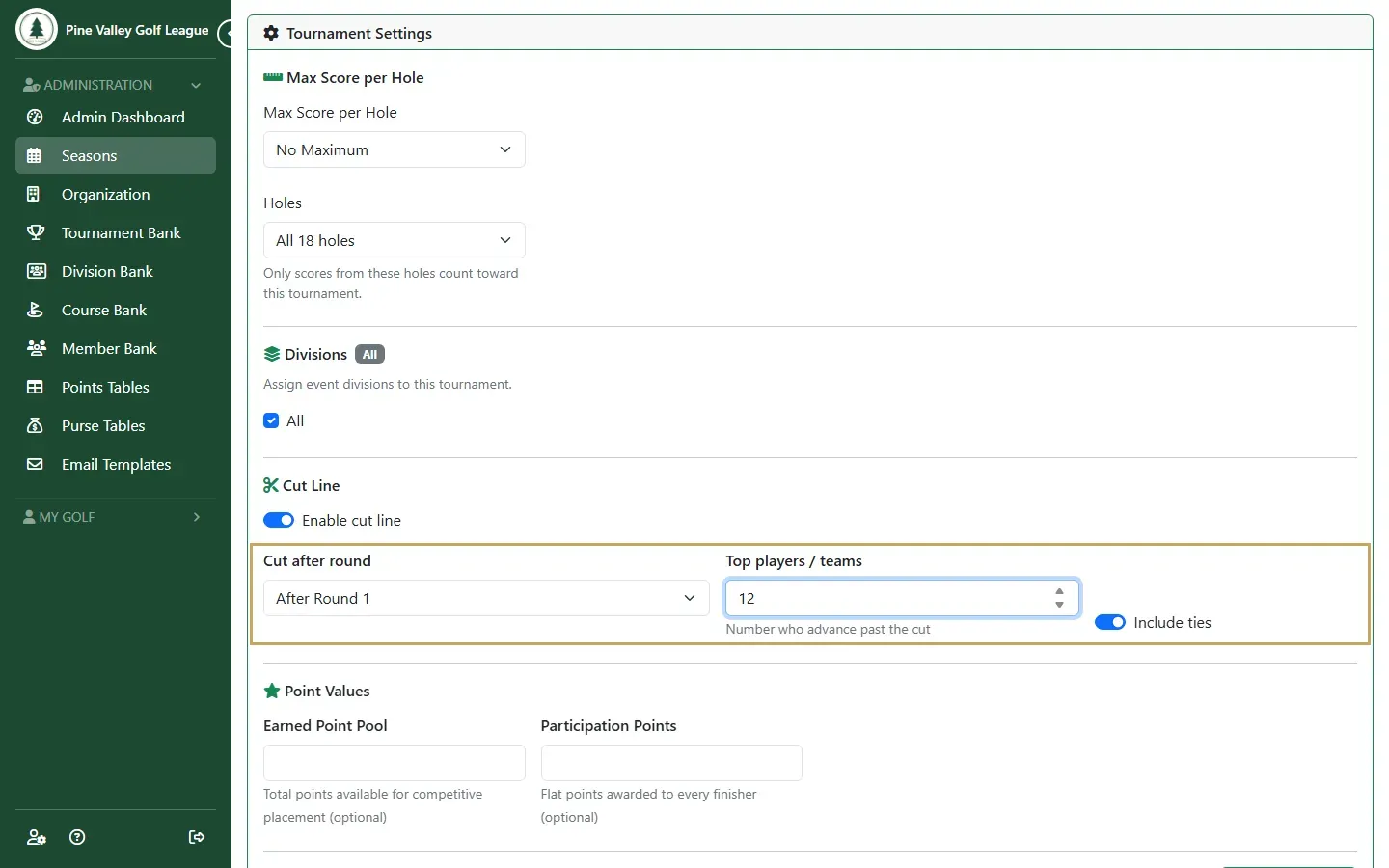
On the multi-round tournament’s Settings, turn on Enable cut line. Choose the round in Cut after round, how many make it in Top players / teams, and whether Include ties lets everyone tied on the last place through. Select Save Changes at the bottom of the page.
-
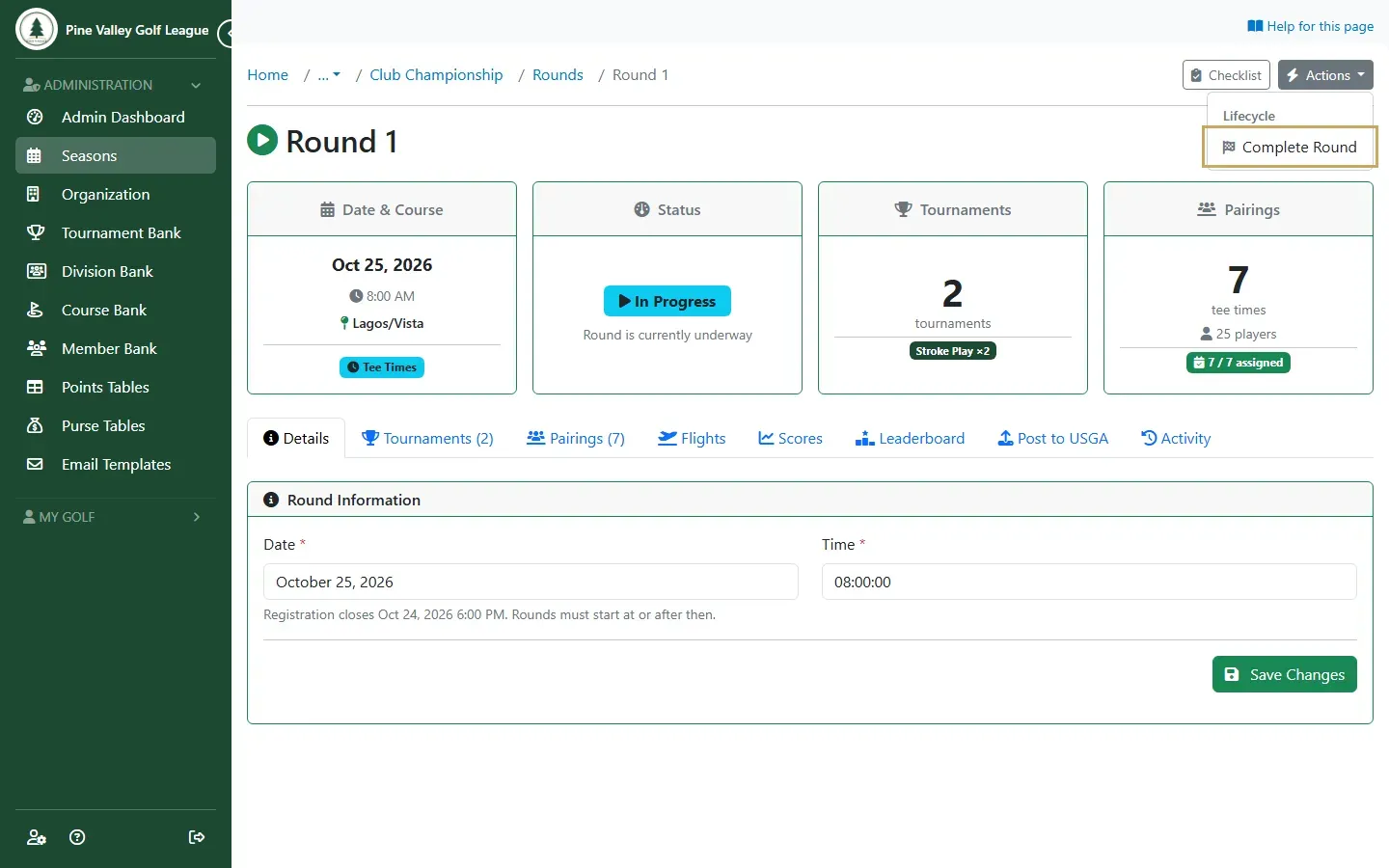
When the cut round has been played, complete it: open the round, open Actions and choose Complete Round. A cut can’t be applied before its round is completed.
-
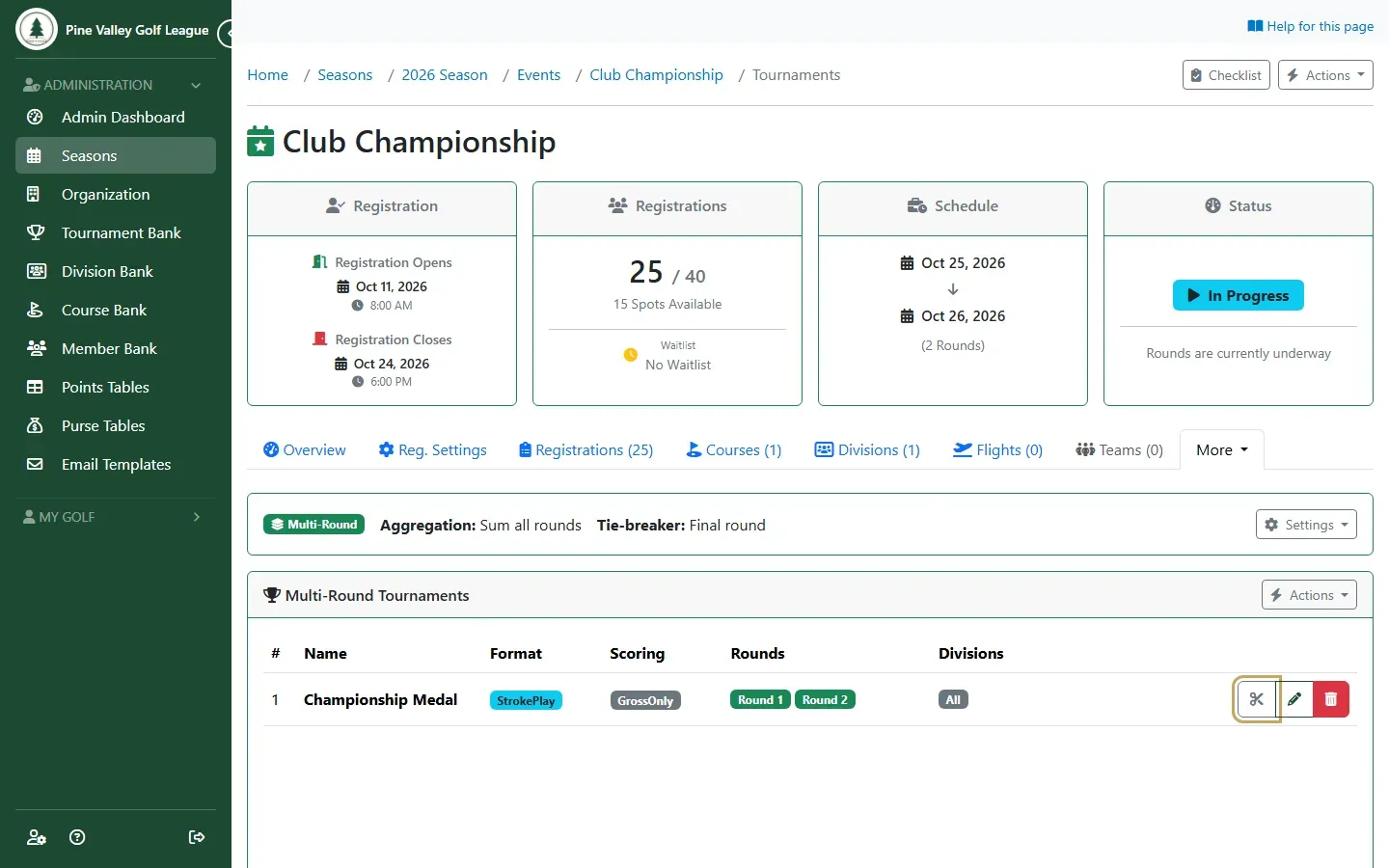
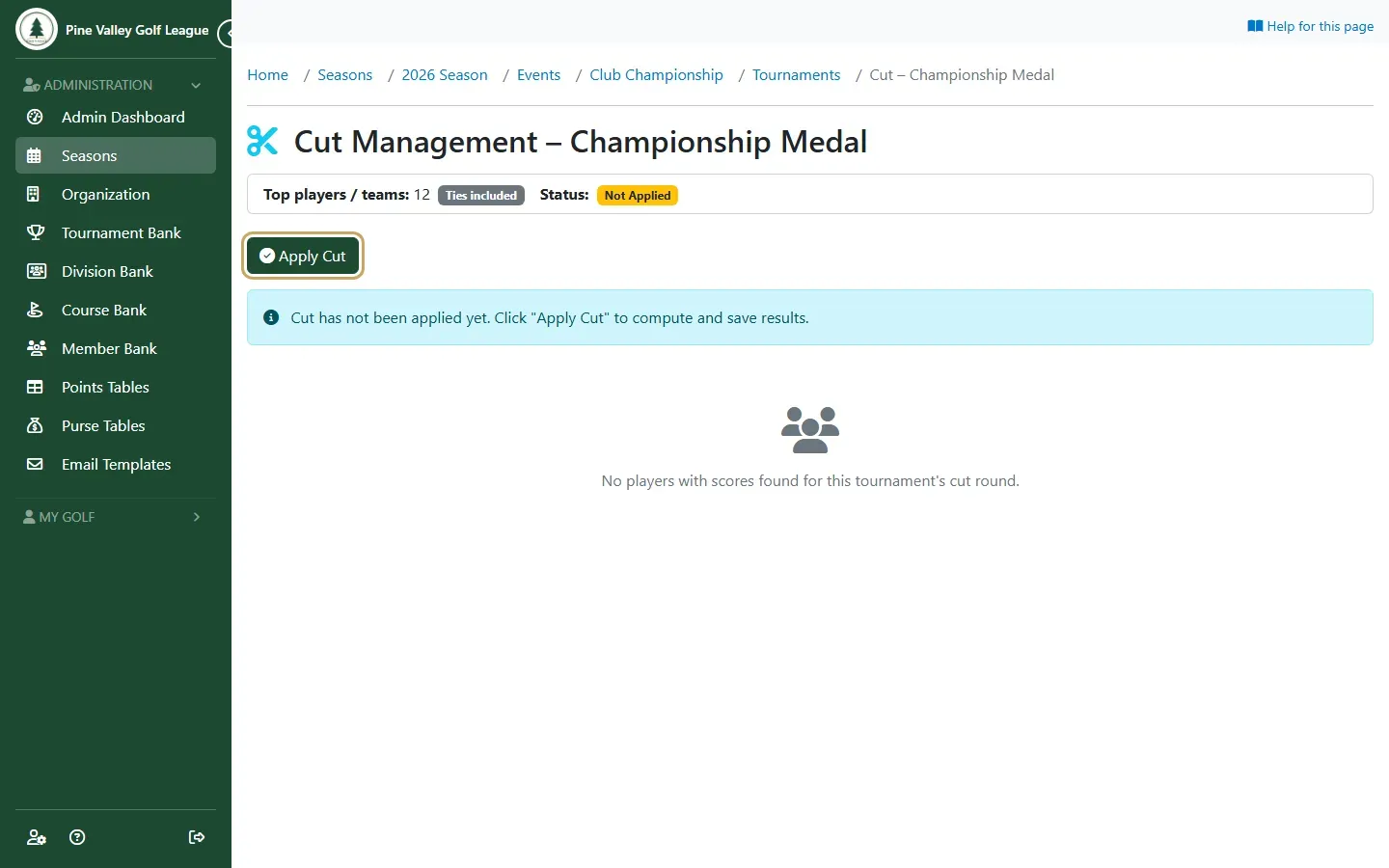
Open the event’s Multi-Round tab and select the scissors button on the tournament to manage its cut.
-
Select Apply Cut.
-
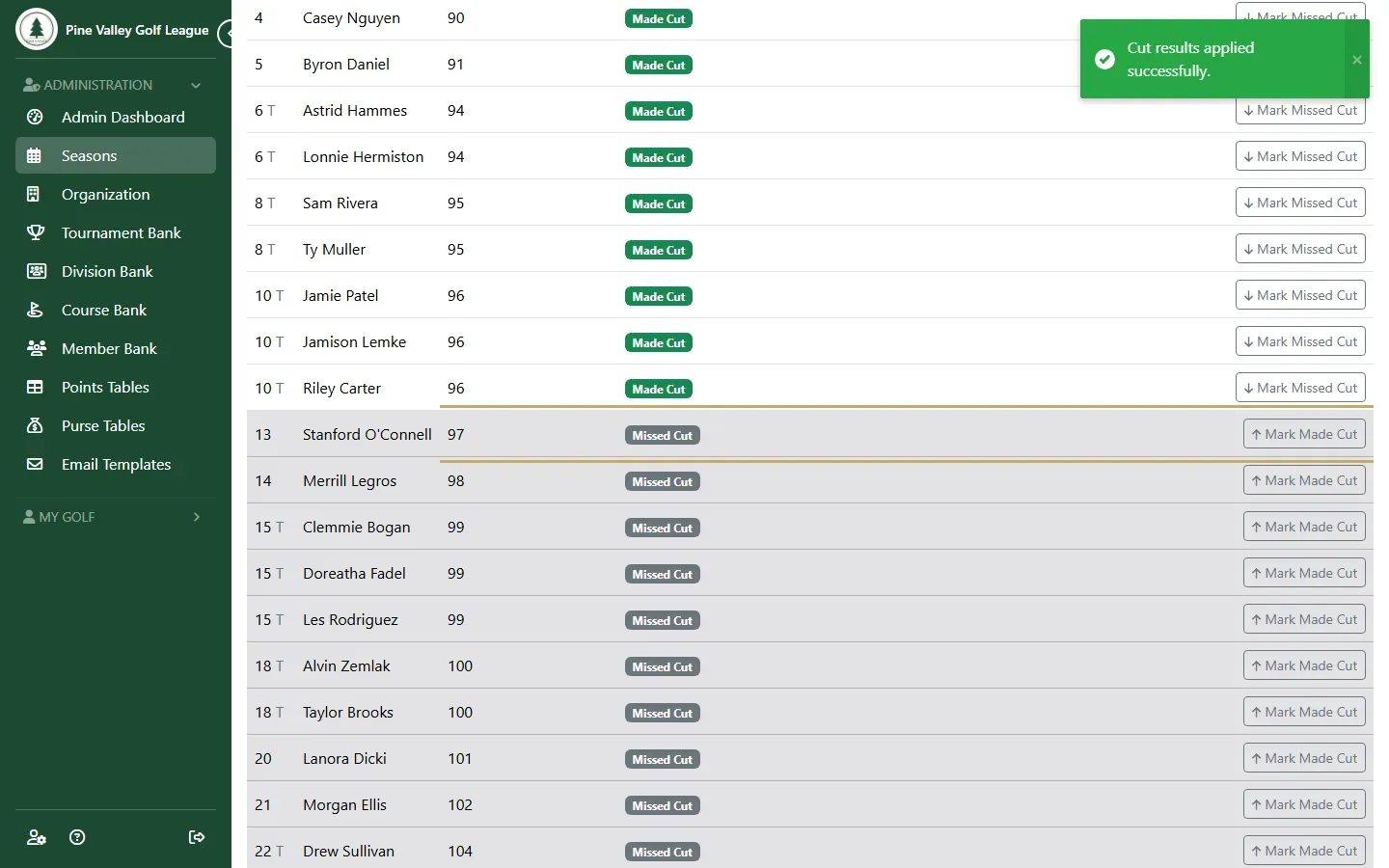
Each player shows Made Cut or Missed Cut. To change one, use Mark Missed Cut or Mark Made Cut on their row; Clear Overrides & Reapply undoes those changes. Applying the cut again keeps your changes.
-
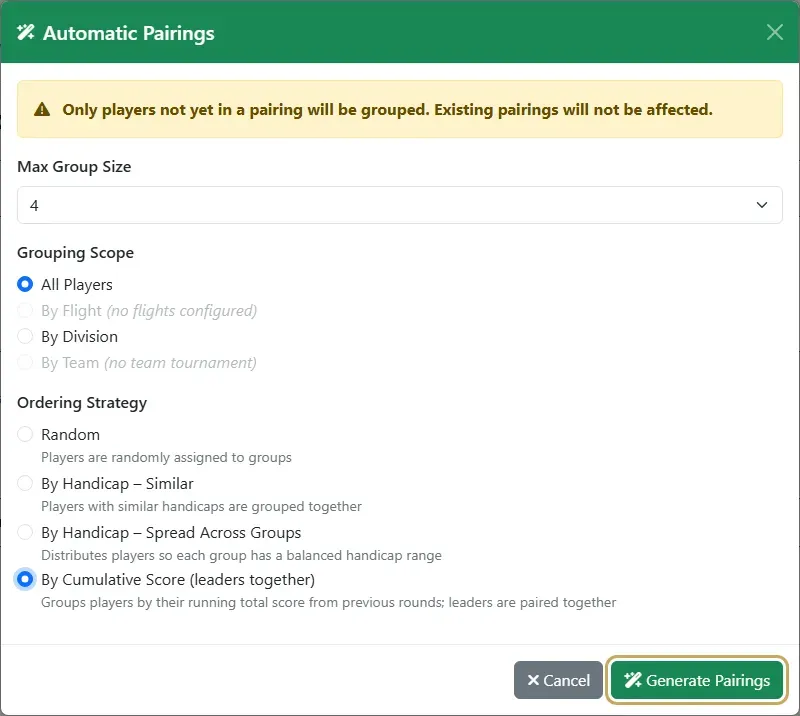
Pair the next round as usual: on its Pairings tab open Actions, choose Automatic Pairings and select Generate Pairings. Only the players who made the cut are grouped. By Cumulative Score (leaders together) puts the leaders in the same groups.
-
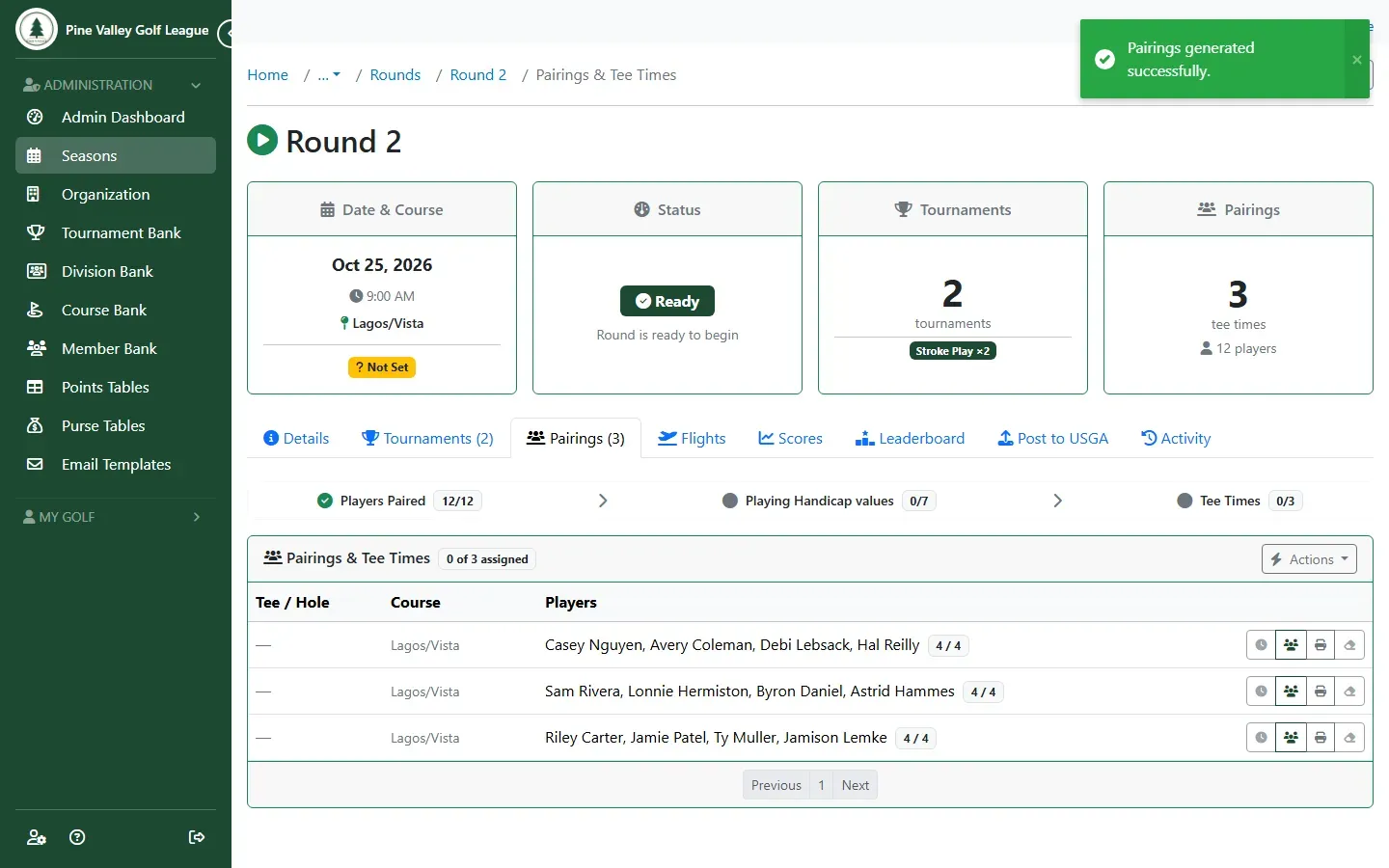
The round’s groups hold only the players who made the cut, and its scores can be entered once they’re all in a group.
On the Results tab, the players who missed the cut are listed after everyone who made it, marked MC, with no position, points or purse. On the live board they show CUT.