Add your members
Every player in your league lives in the Member Bank. This guide adds members, from a spreadsheet or one by one, links each golfer’s GHIN number so RELM Golf can look up their Handicap Index from the USGA, and refreshes those Handicap Indexes.
Before you start: have your member list ready, with at least each member’s first name, last name and email. GHIN numbers are optional. To link GHIN numbers and refresh Handicap Indexes, turn on USGA GHIN in Organization → Integrations first.
-
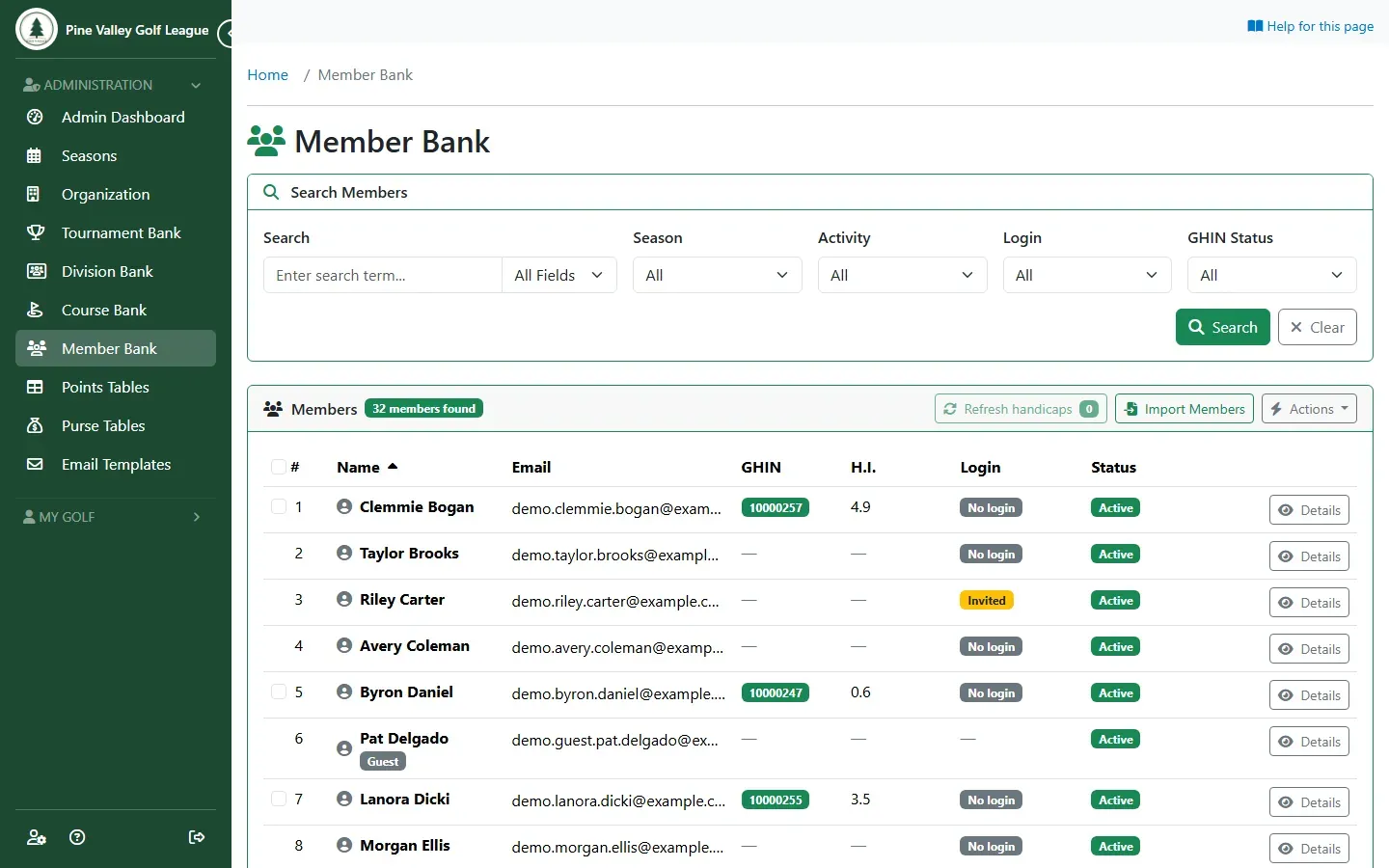
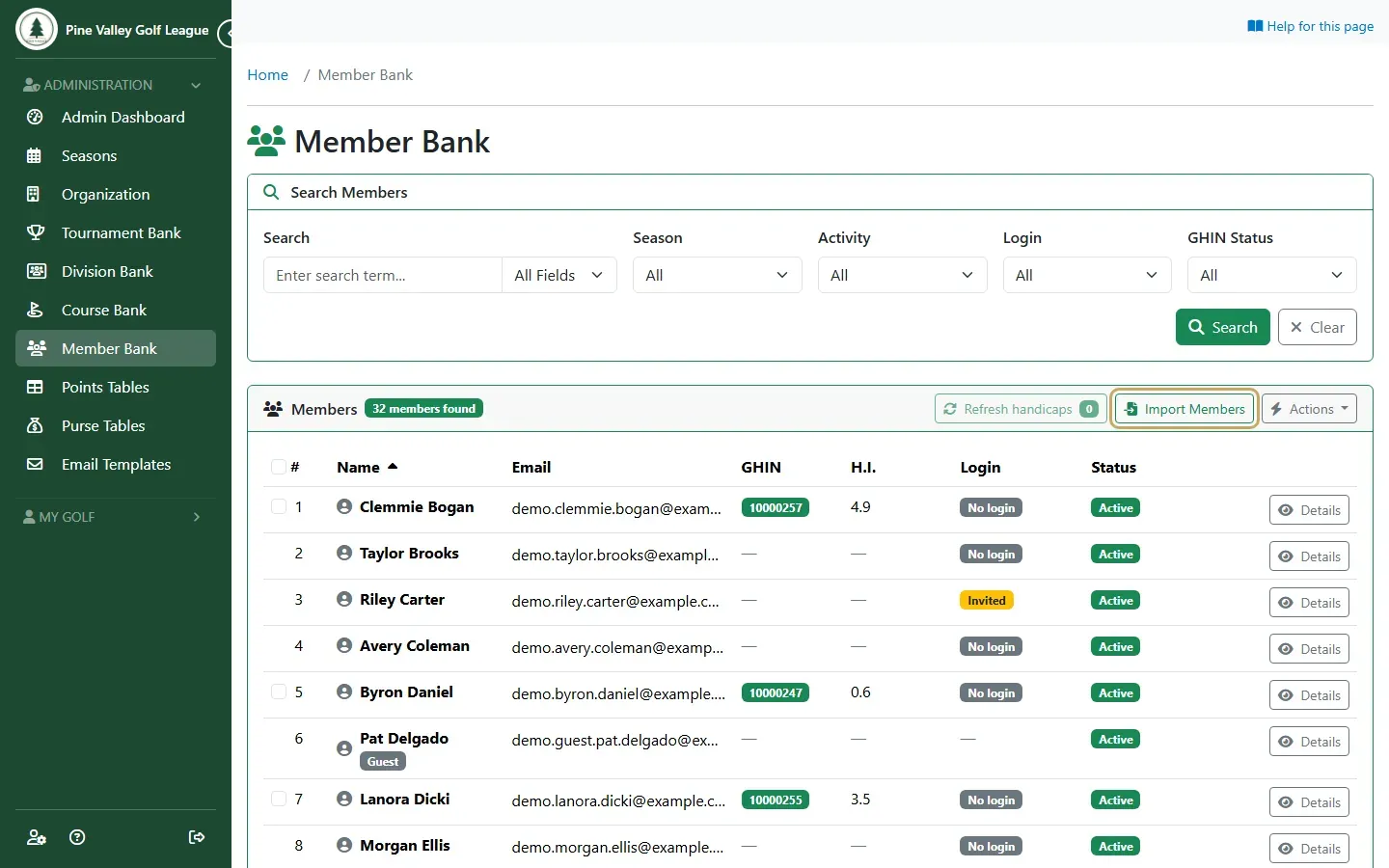
Select Member Bank in the menu. It lists every member with their email, GHIN number, Handicap Index (H.I.), login and status. To add many members at once, select Import Members.
-
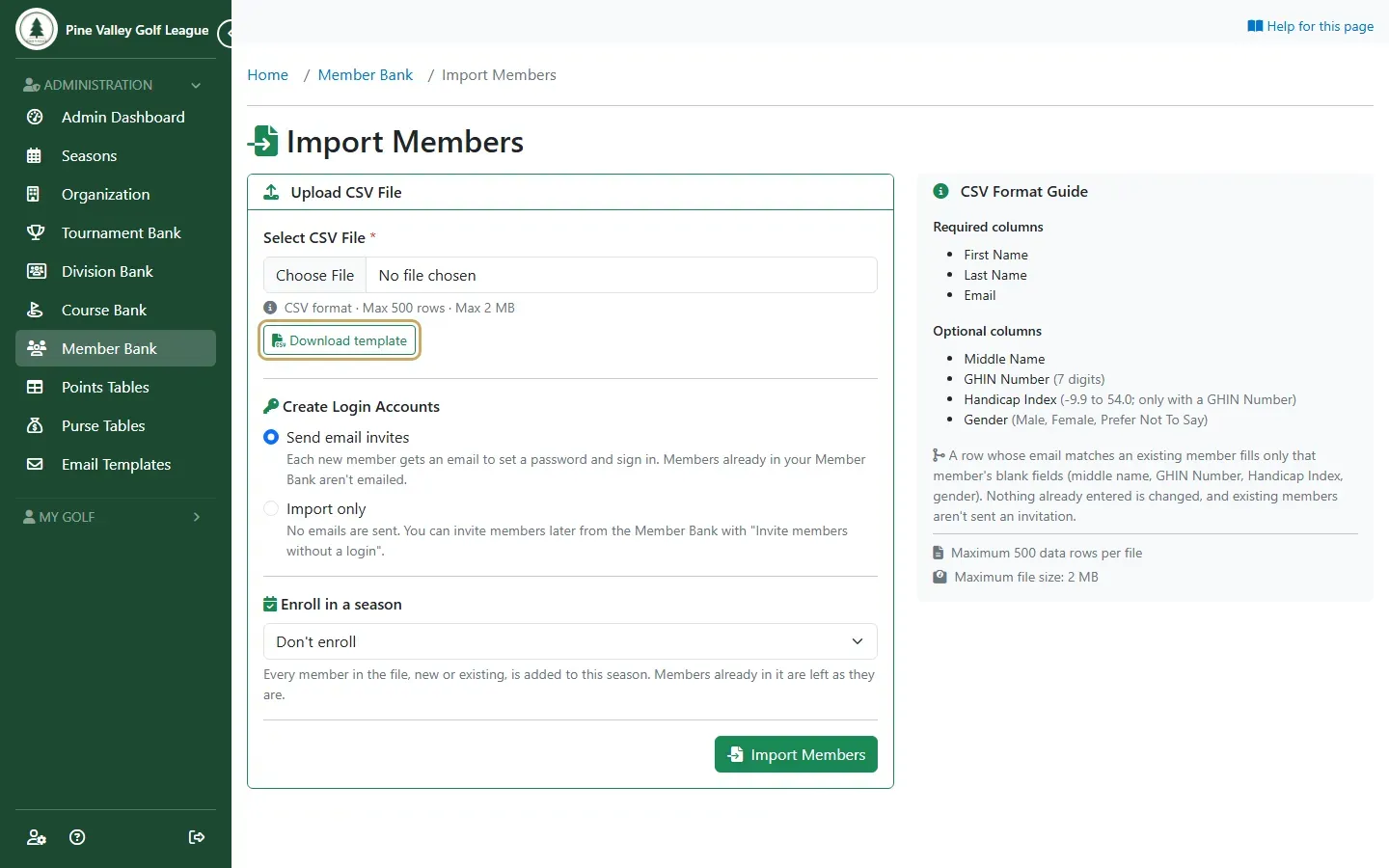
Select Download template for a CSV file with the right columns. First Name, Last Name and Email are required; Middle Name, GHIN Number, Handicap Index and Gender are optional. Fill it in with your spreadsheet program, save it as CSV, and choose it under Select CSV File. Then choose:
- Create Login Accounts: Send email invites emails each new member a link to set a password and sign in. Import only sends nothing, and you can invite them later.
- Enroll in a season: adds everyone in the file to a season as well.
Select Import Members.
-
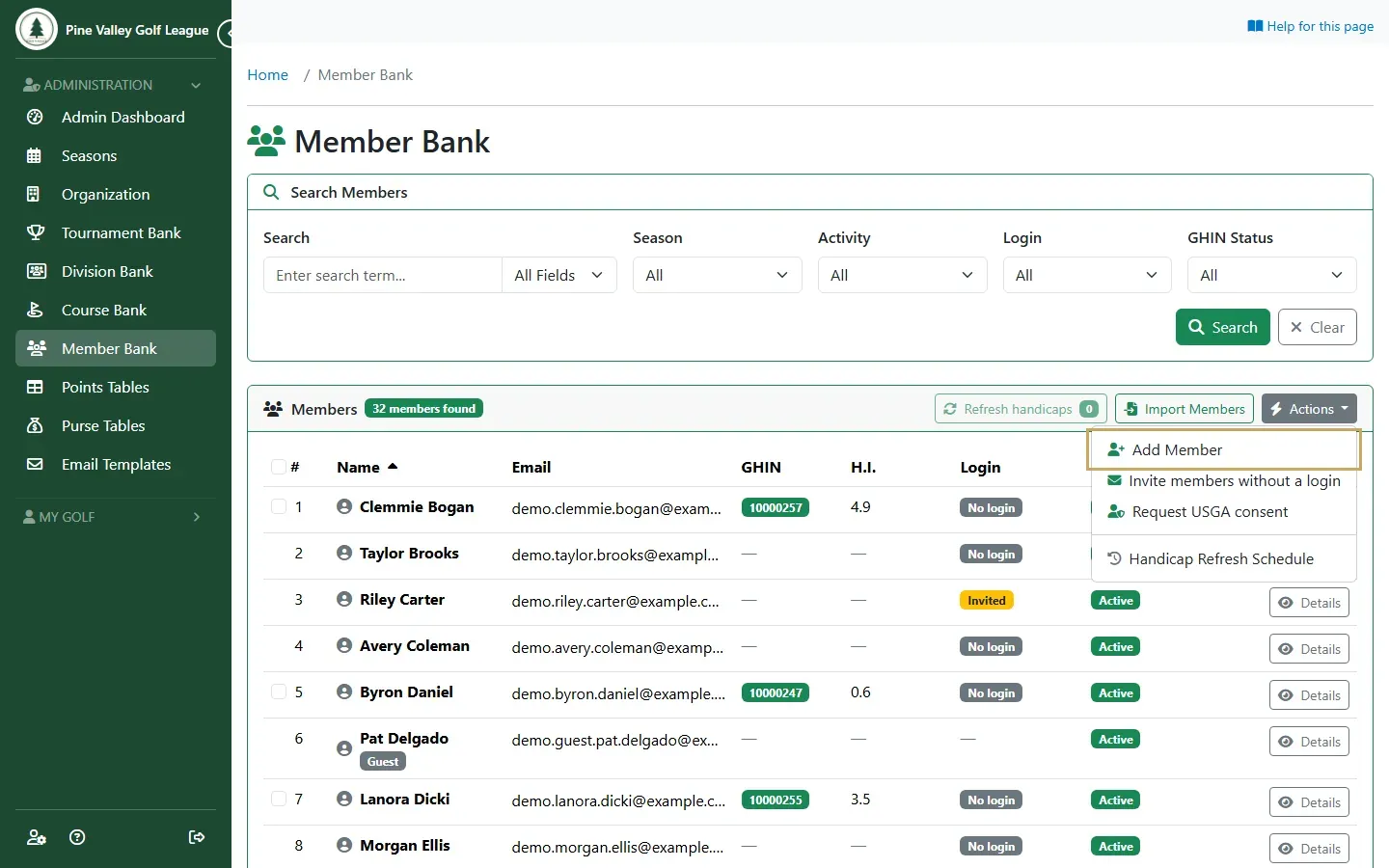
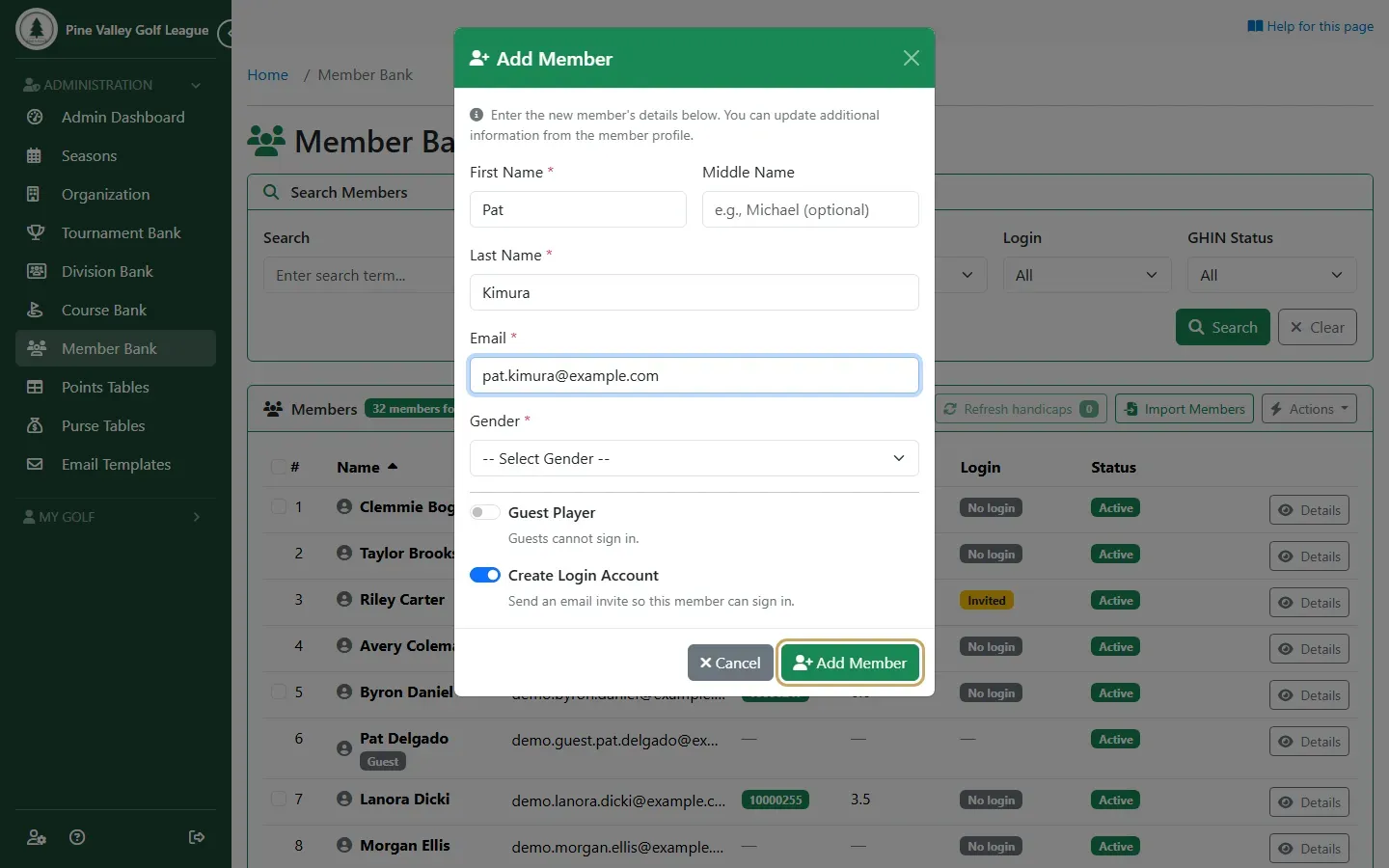
To add one member instead, open Actions on the Member Bank and choose Add Member.
-
Enter the member’s name, email and gender. Create Login Account is on, so they get an email invite to sign in; turn it off to add them without one. Select Add Member.
-
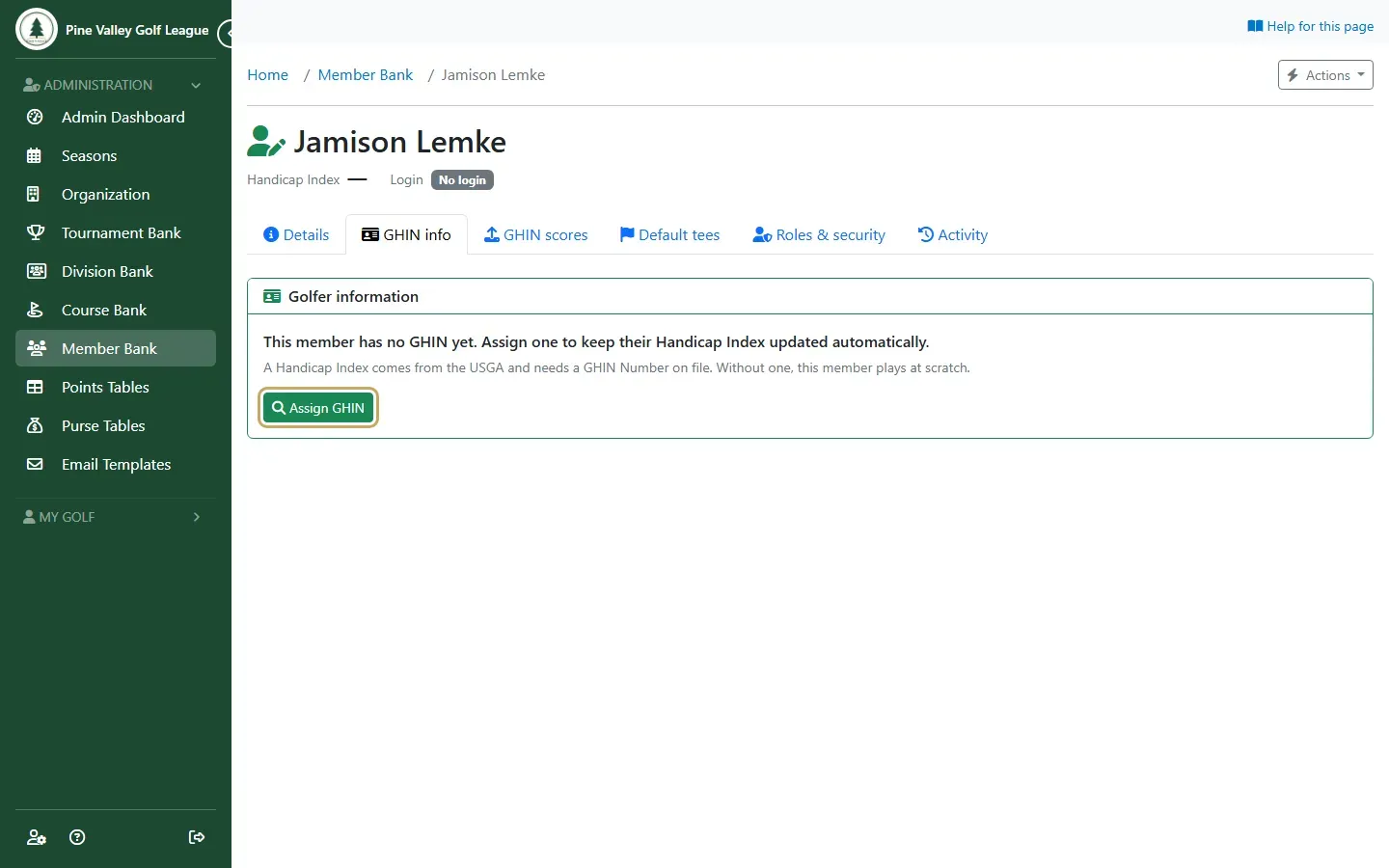
To link a member’s GHIN number, open their Details in the Member Bank, go to the GHIN info tab and select Assign GHIN.
-
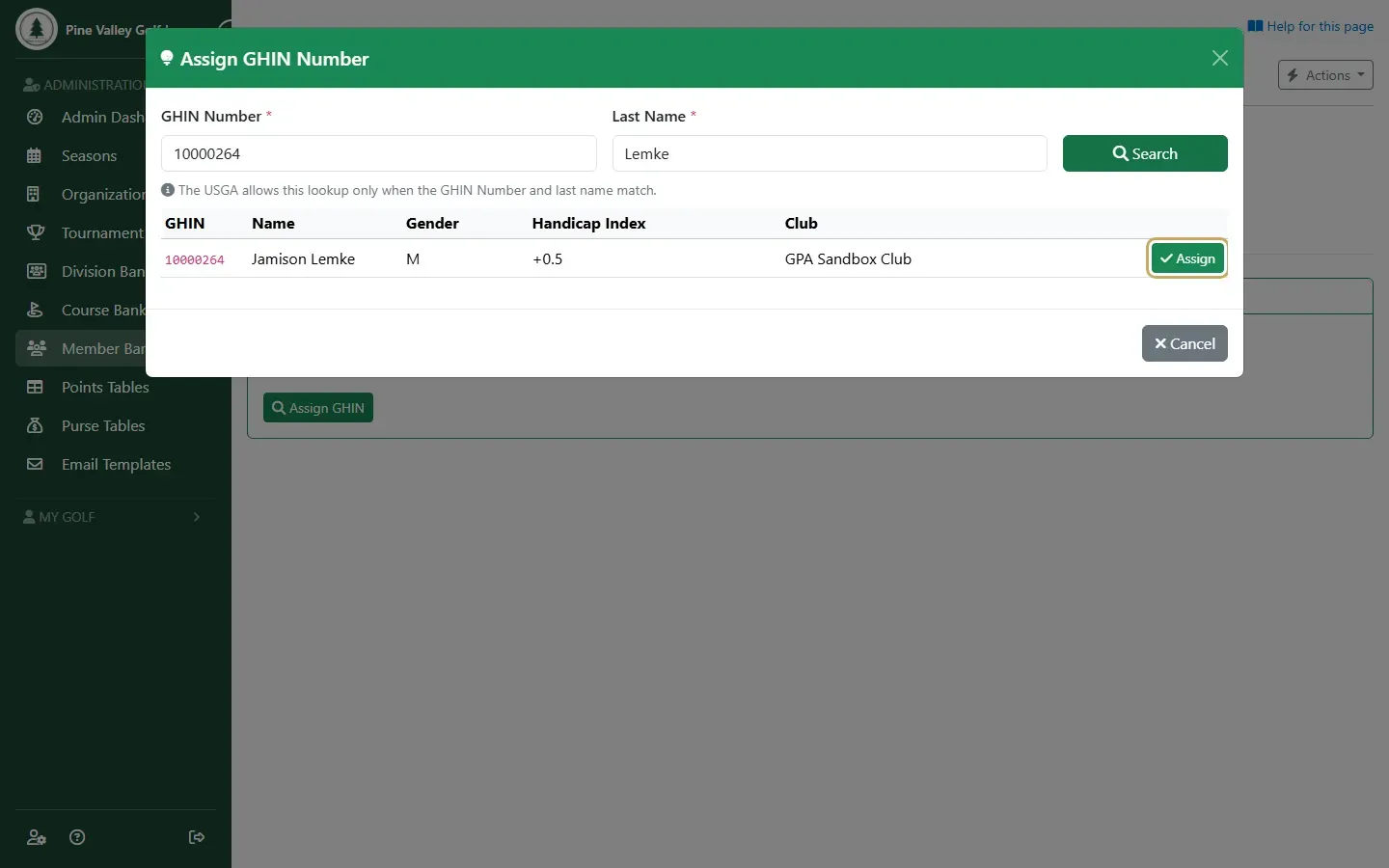
Enter the GHIN Number and the golfer’s Last Name exactly as the USGA has it, and select Search. The USGA only answers when the two match. Check it’s the right golfer and select Assign.
-
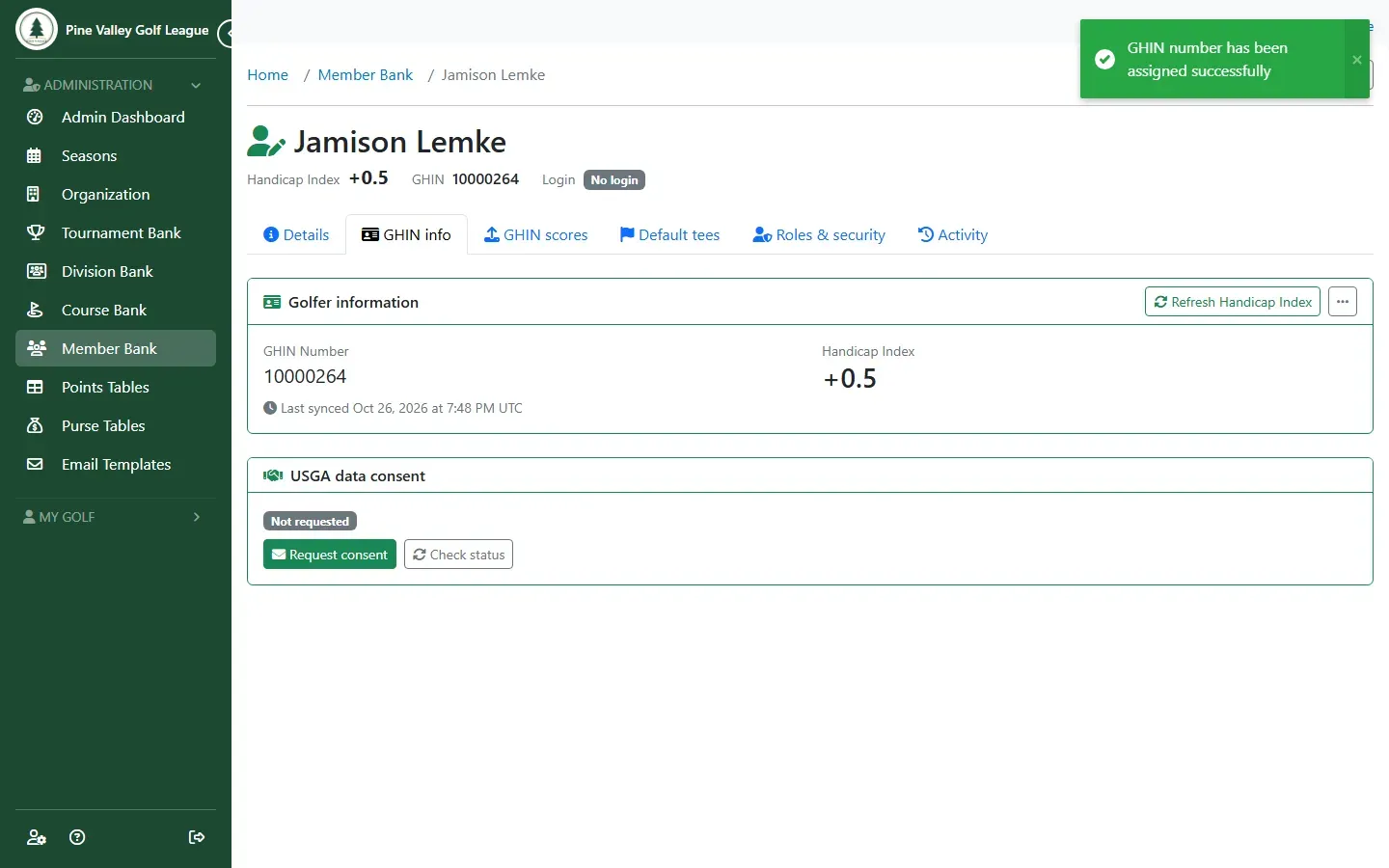
The member’s GHIN number and Handicap Index now show at the top of their page.
-
Handicap Indexes change as golfers post scores. To update everyone’s at once, open Actions on the Member Bank, choose Handicap Refresh Schedule, go to the Run History tab and select Refresh Now. The Schedule tab sets up automatic refreshes, daily, weekly or before each round.
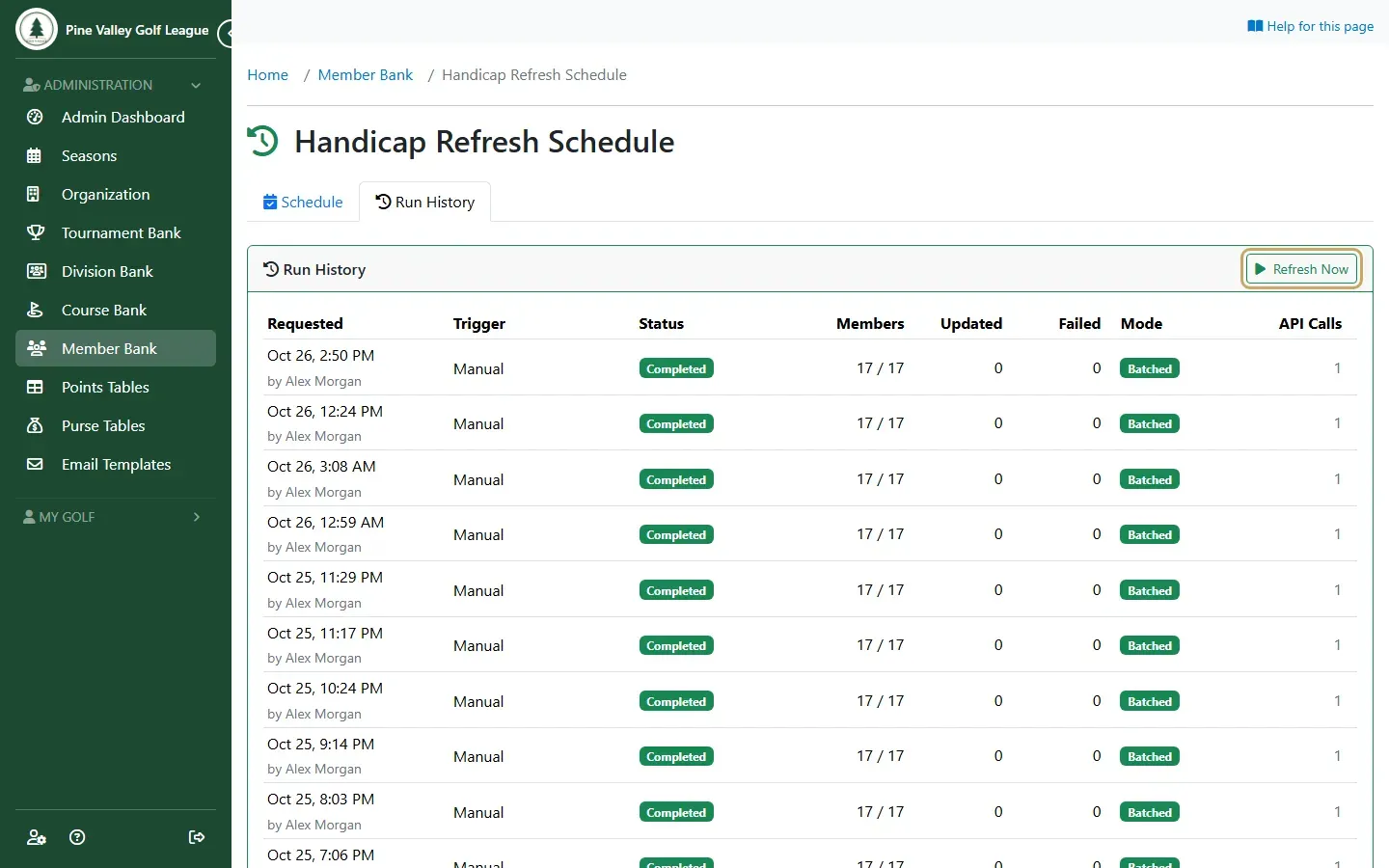
-
When the run finishes, the Member Bank shows each linked member’s current Handicap Index.