Season dues
Each season can have a fee, the dues every member pays to play in it. RELM Golf keeps track of who has paid. You can mark payments yourself (cash, a check, a bank transfer), or connect your league’s own Stripe account and let members pay online with a card. The money goes straight to your league, not to RELM Golf.
Before you start: create the season and enroll its members.
Set the fee
Section titled “Set the fee”-
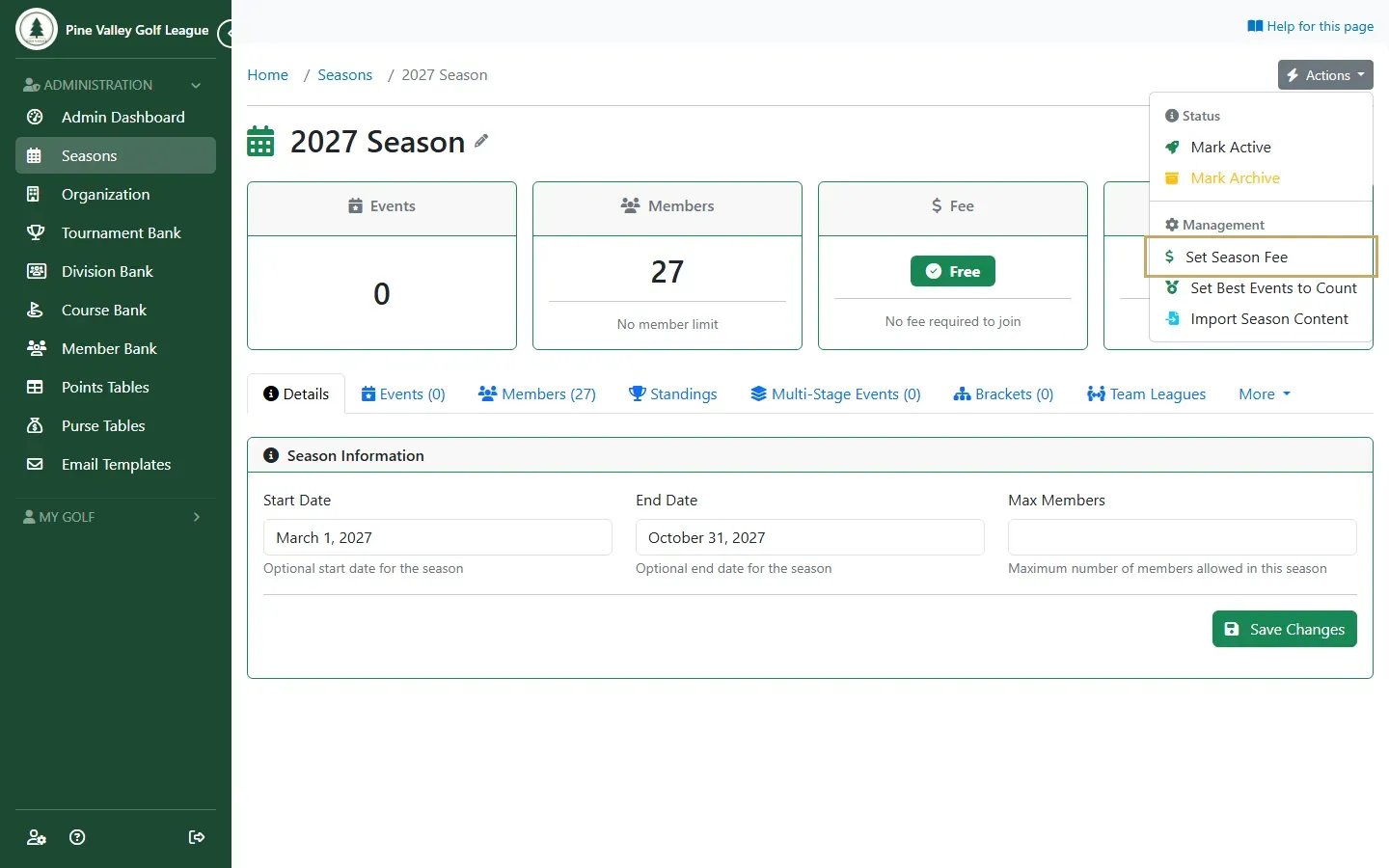
Open the season, then Actions and choose Set Season Fee.
-
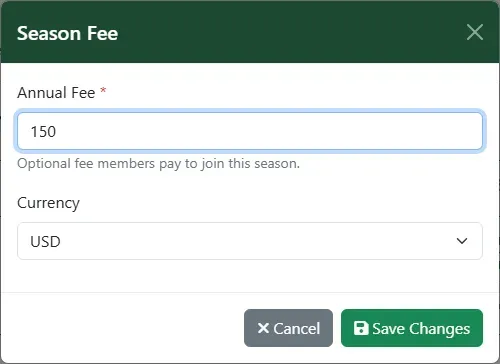
Enter the Annual Fee, check the Currency and select Save Changes. The fee shows on the season’s page, and its Members tab gains a Dues column and filter.
Track payments by hand
Section titled “Track payments by hand”-
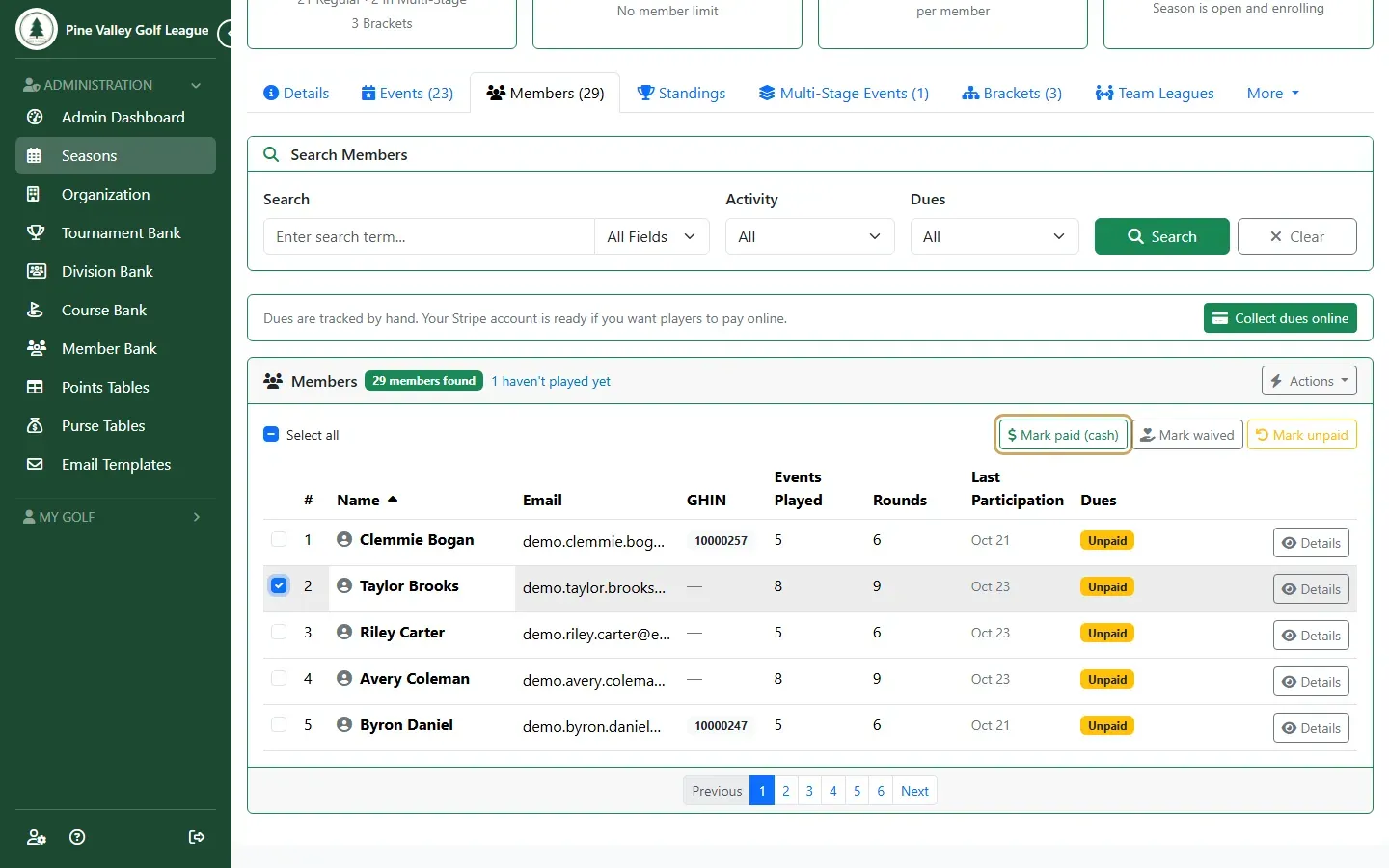
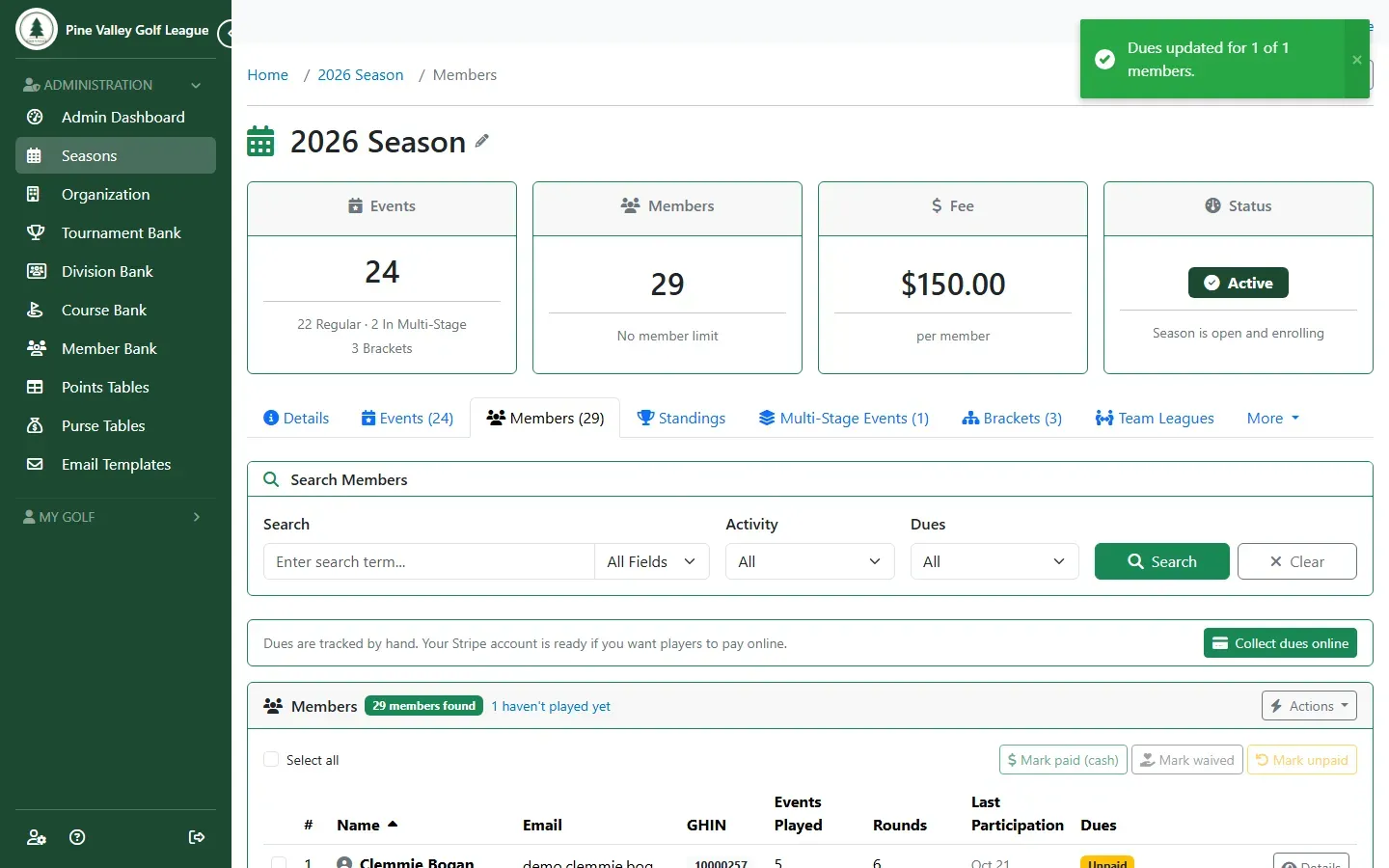
On the season’s Members tab, tick the members who have paid and select Mark paid (cash). Use Mark waived for anyone who doesn’t have to pay, and Mark unpaid to undo either.
-
Their Dues now read Paid (cash). The Dues filter above the list shows who still owes.
Collect dues online
Section titled “Collect dues online”Players pay with a card on Stripe’s secure checkout page, and the money goes straight to your league’s own Stripe account. RELM Golf never holds it, and adds no fee of its own (Stripe charges its card fee).
-
First, connect your league’s Stripe account: Organization → Payments → Connect Stripe, then follow Stripe’s sign-up. When it’s done, the account shows Ready to accept payments.

-
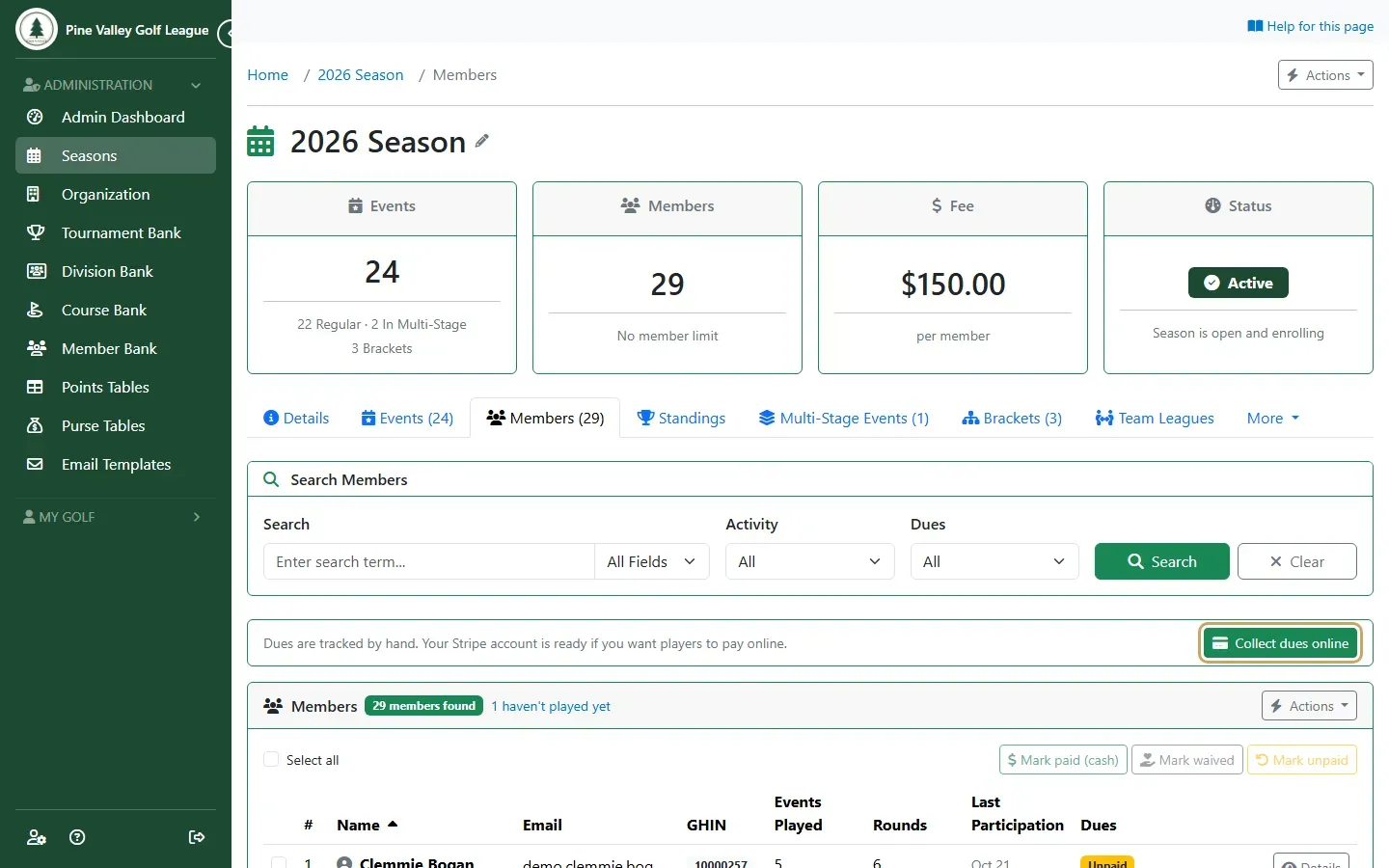
Open the season’s Members tab and select Collect dues online.
-
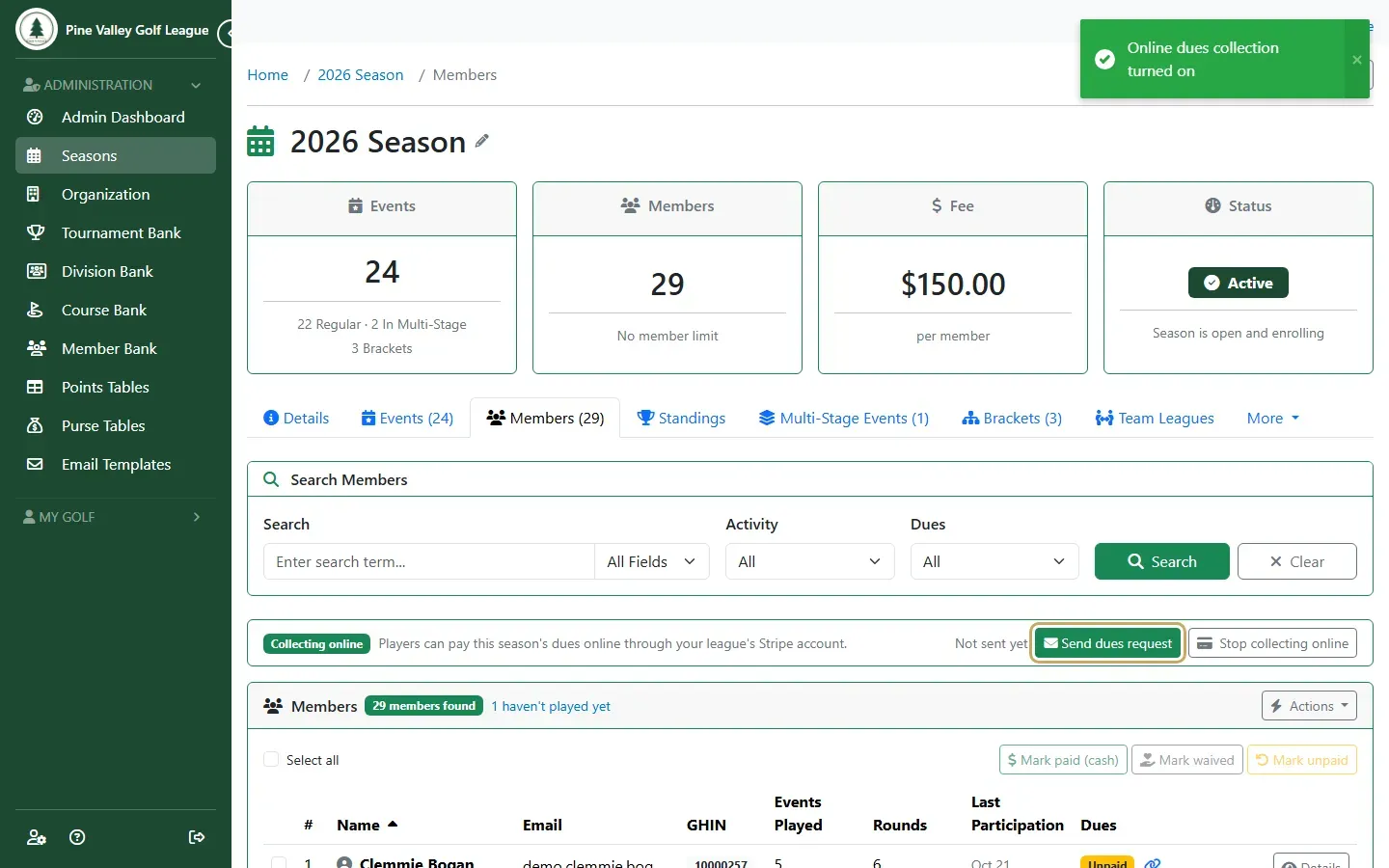
The season now shows Collecting online. To let players know, select Send dues request. Stop collecting online turns it off again.
-
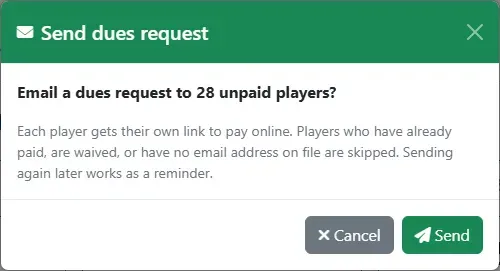
The dialog says how many unpaid players will get the email. Players who have paid, are waived or have no email address are skipped. Select Send. You can send it again later as a reminder.
-
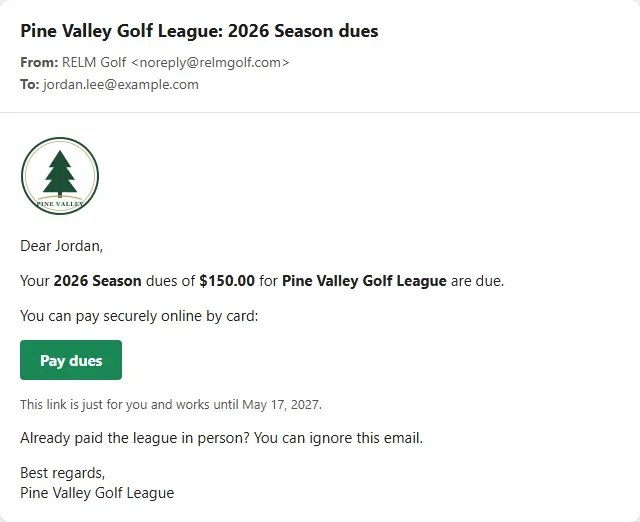
Each player gets an email with their own Pay dues link. When they pay, their Dues change to Paid (online) by themselves. Pay your dues online shows it from their side.