
Create and start a season
A season holds a year of your league: its events, its standings and its dues. A new season starts as a Draft that only admins can see. You enroll your members, add its first event, and then activate it. This guide walks through each step.
Before you start: add your members to the Member Bank.
-
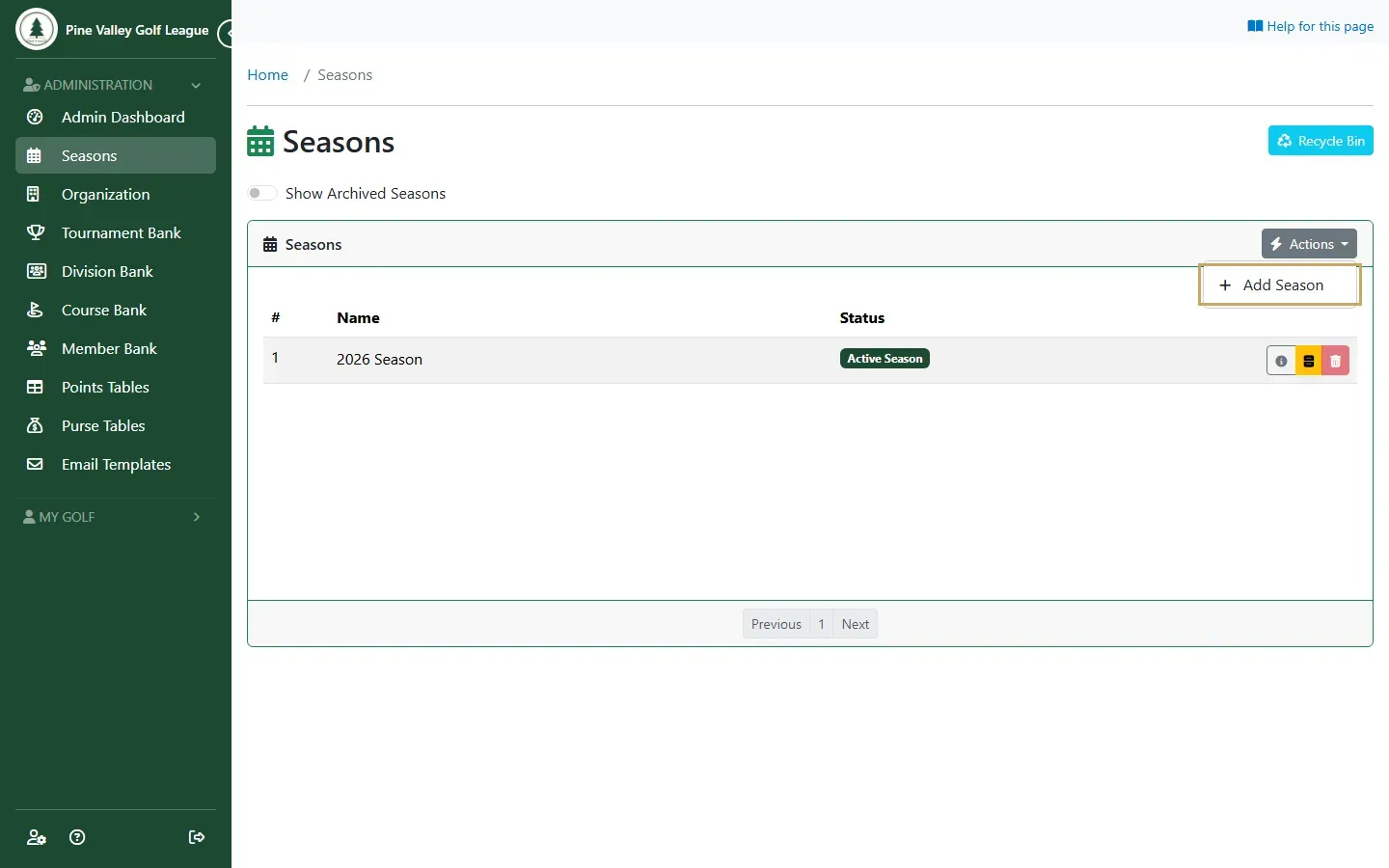
Select Seasons in the menu, open Actions and choose Add Season.
-
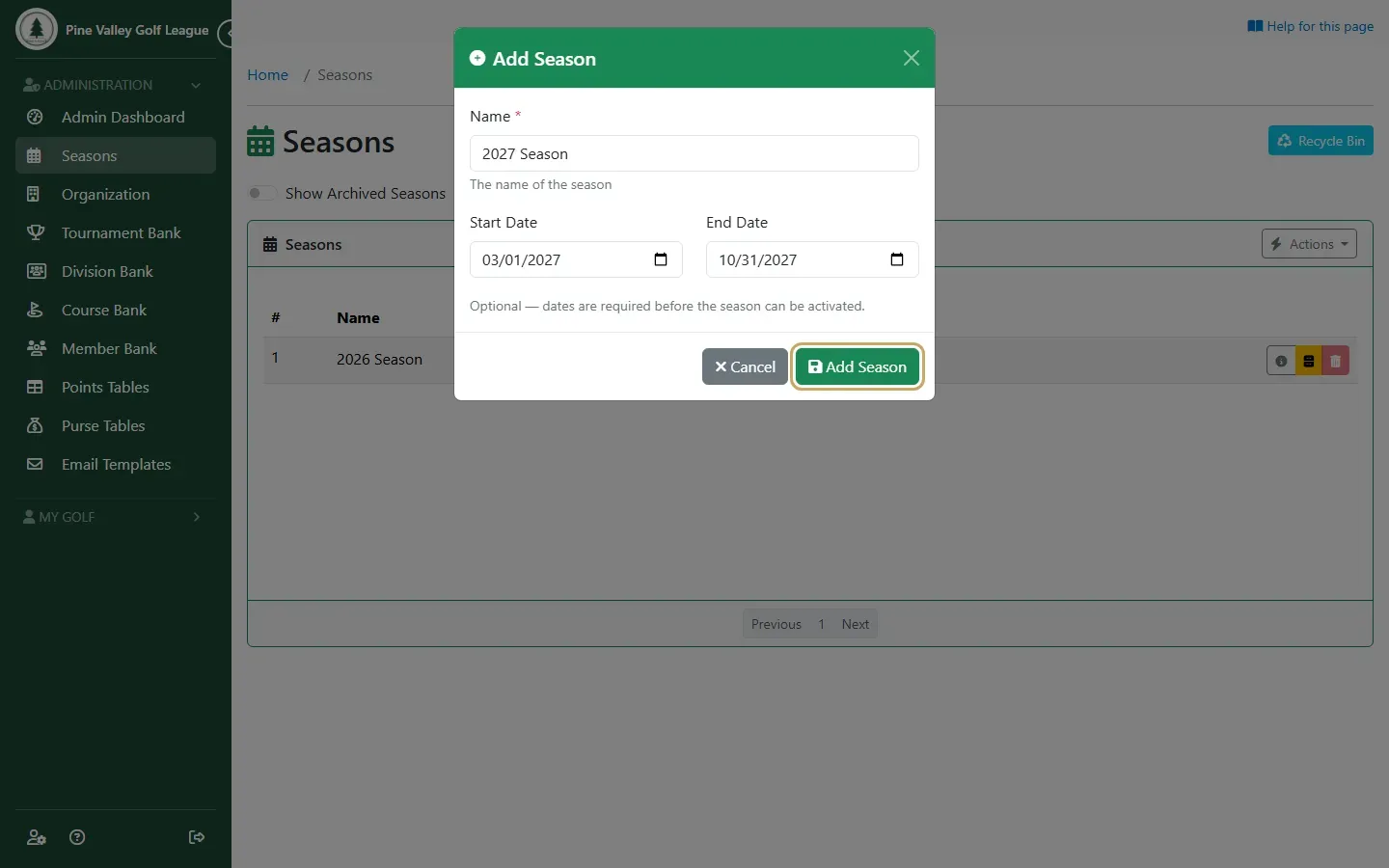
Give the season a Name and its Start Date and End Date. The dates are optional for now, but a season can’t be activated without them. Select Add Season.
-
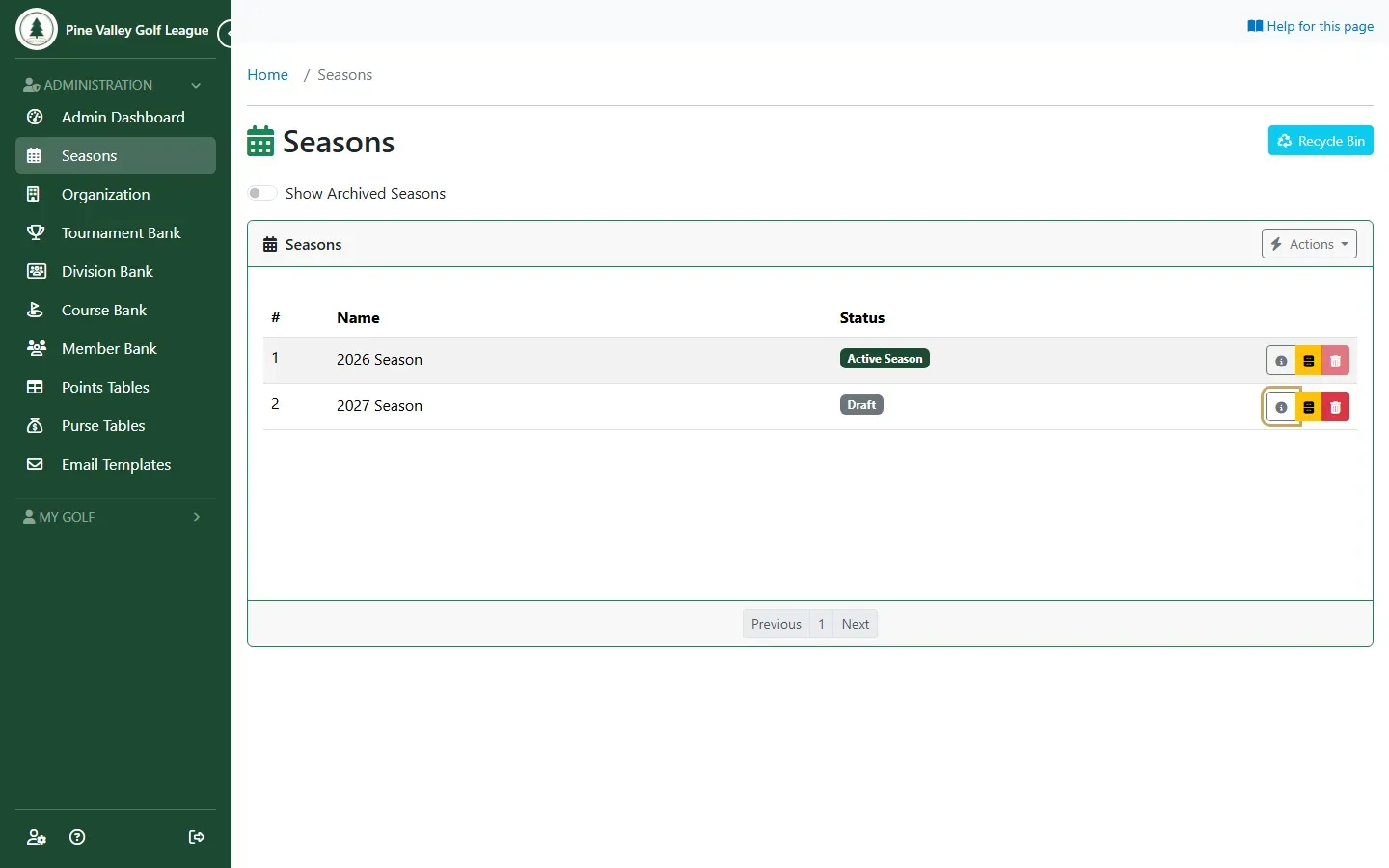
The new season appears in the list as a Draft. Select its details button to open it.
-
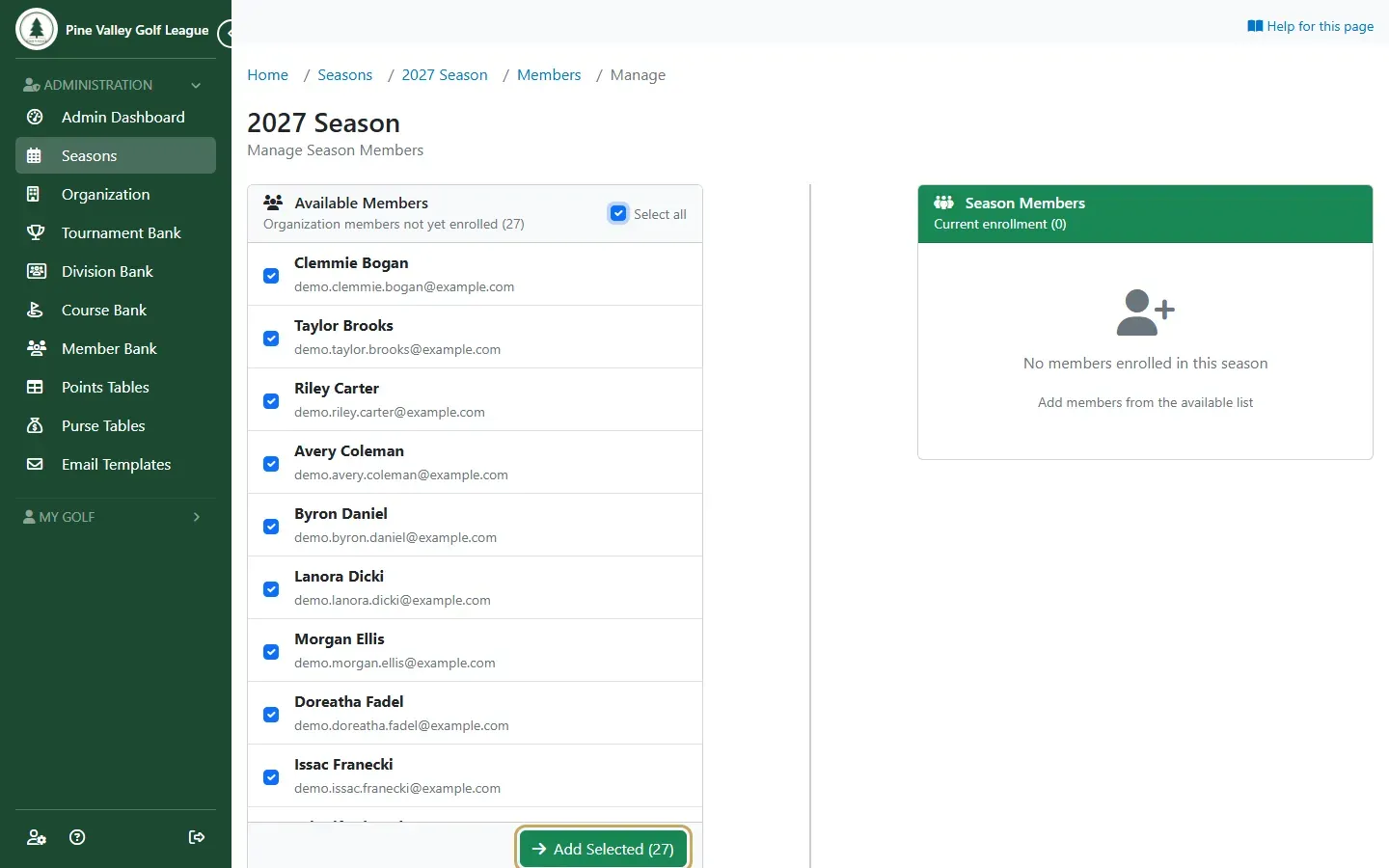
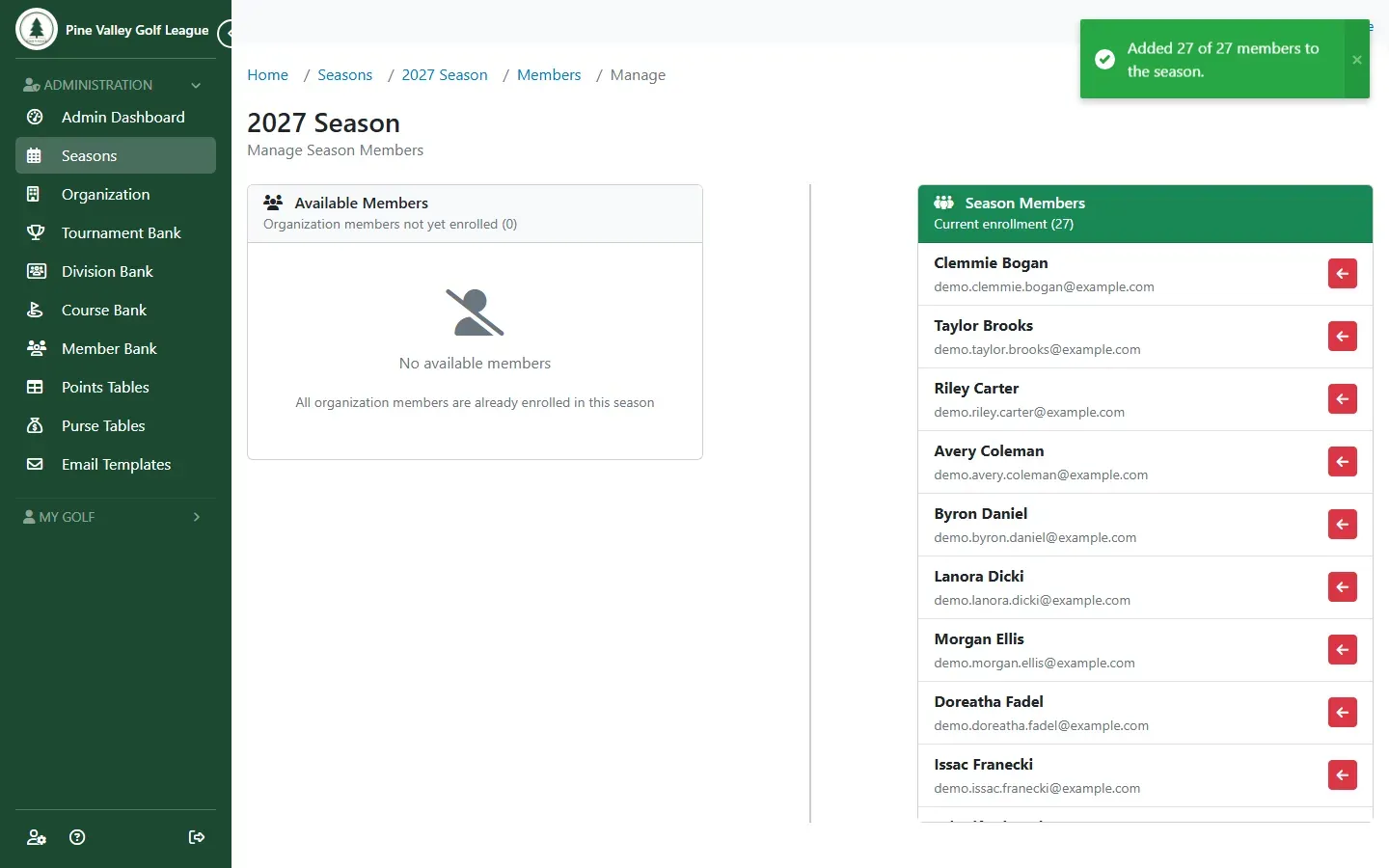
Go to the season’s Members tab, open Actions and choose Manage Members. Tick the members to enroll, or Select all, and select Add Selected. Guests aren’t listed here: they join the season when you approve their request or register them for an event (Open an event to guests).
-
The enrolled members move to Season Members on the right. To take someone out of the season, use the red button next to their name.
-
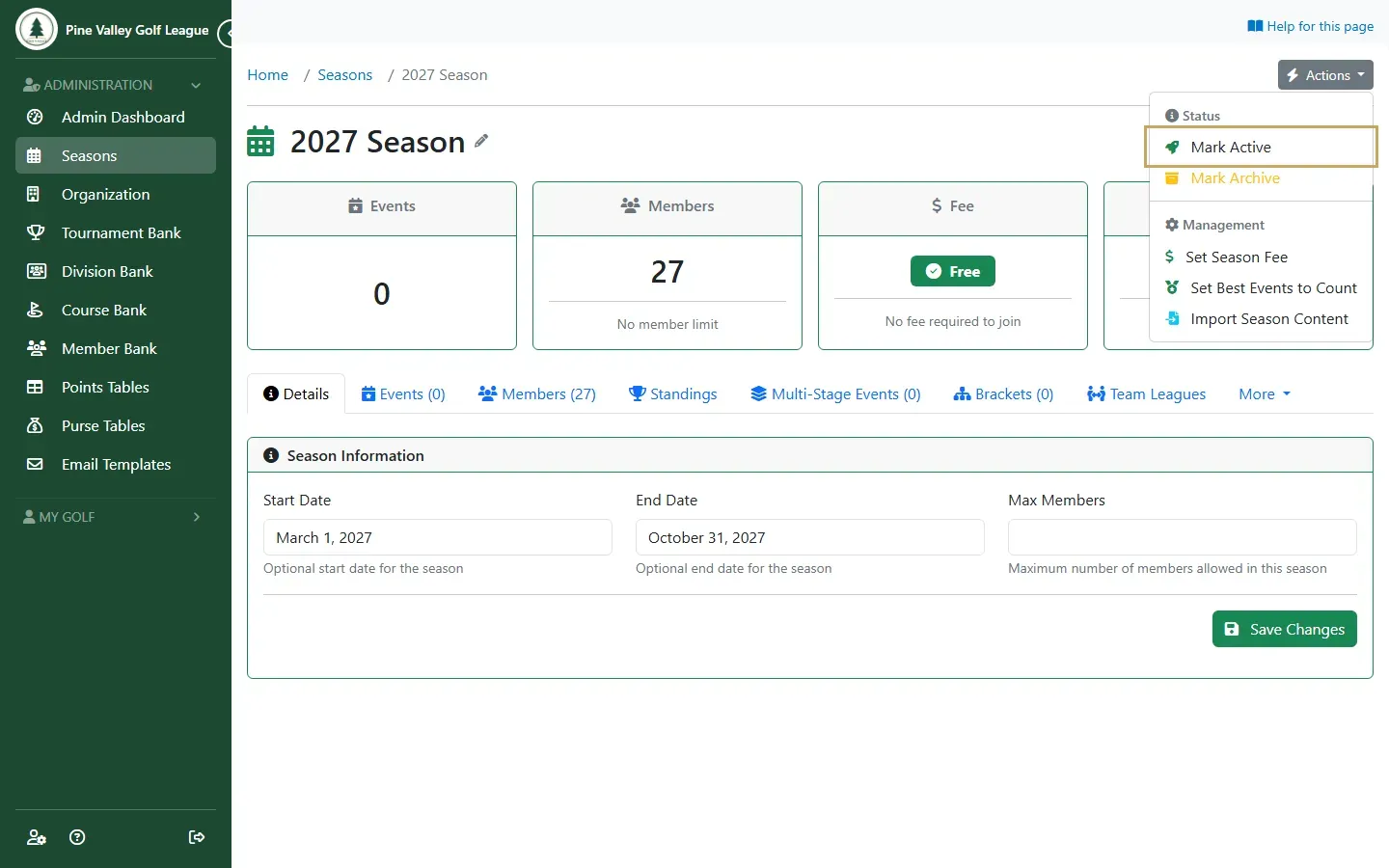
Create the season’s first event. Then open the season’s Actions and choose Mark Active.
-
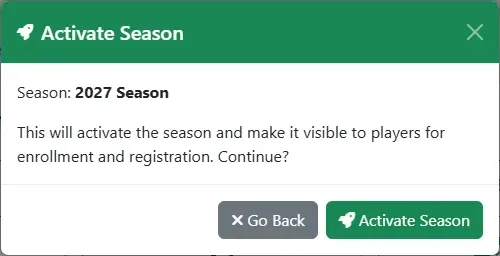
Select Activate Season. The season becomes Active: your members can see it and register for its events.
Next: for a weekly league, generate the season’s schedule in one go.