Pairings and tee times
Each round needs its players in groups, and each group needs a start: a tee time, or a hole for a shotgun start. RELM Golf can do both for you in a couple of clicks, and then email every player their group and time.
Before you start: get your players registered. To group players by flight, build the flights first.
-
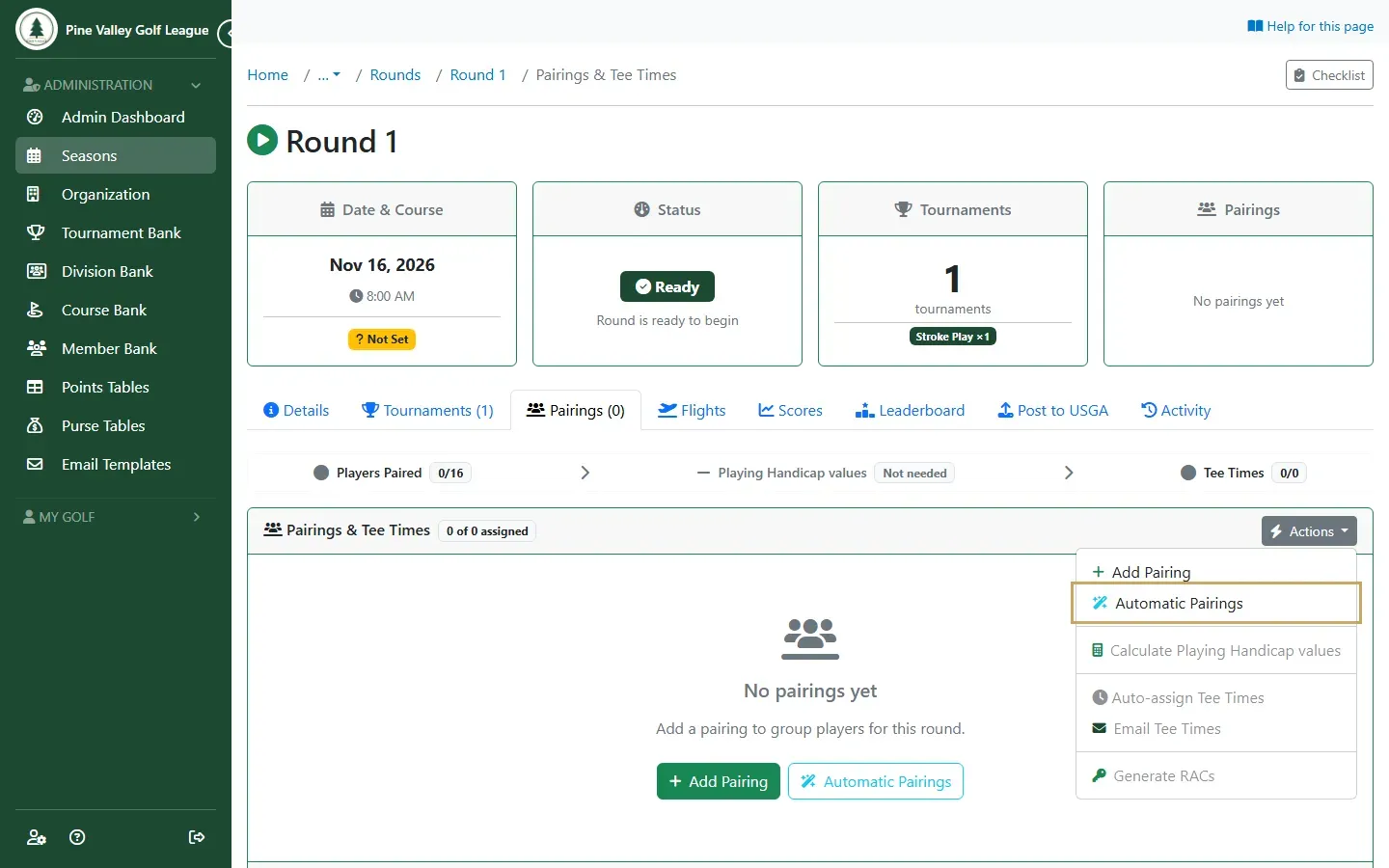
Open the round (the event’s Rounds tab, then the round) and go to its Pairings tab. Open Actions and choose Automatic Pairings.
-
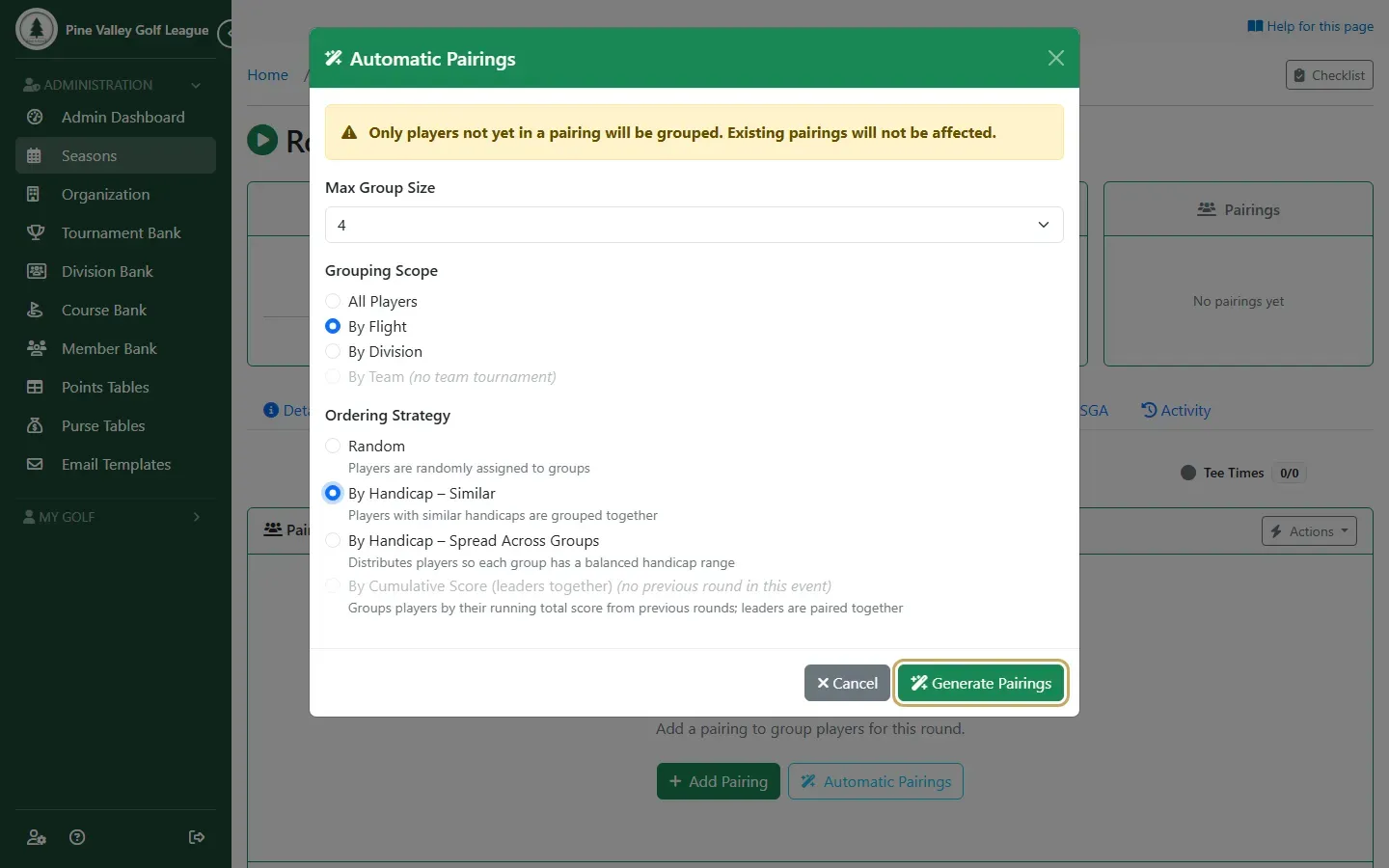
Choose the Max Group Size, then:
- Grouping Scope: All Players together, or keep groups within each flight (By Flight) or each division.
- Ordering Strategy: Random, By Handicap – Similar (similar handicaps play together), or By Handicap – Spread Across Groups (each group gets a mix).
Select Generate Pairings. Only players who aren’t in a group yet are placed, so groups you made by hand stay as they are.
-
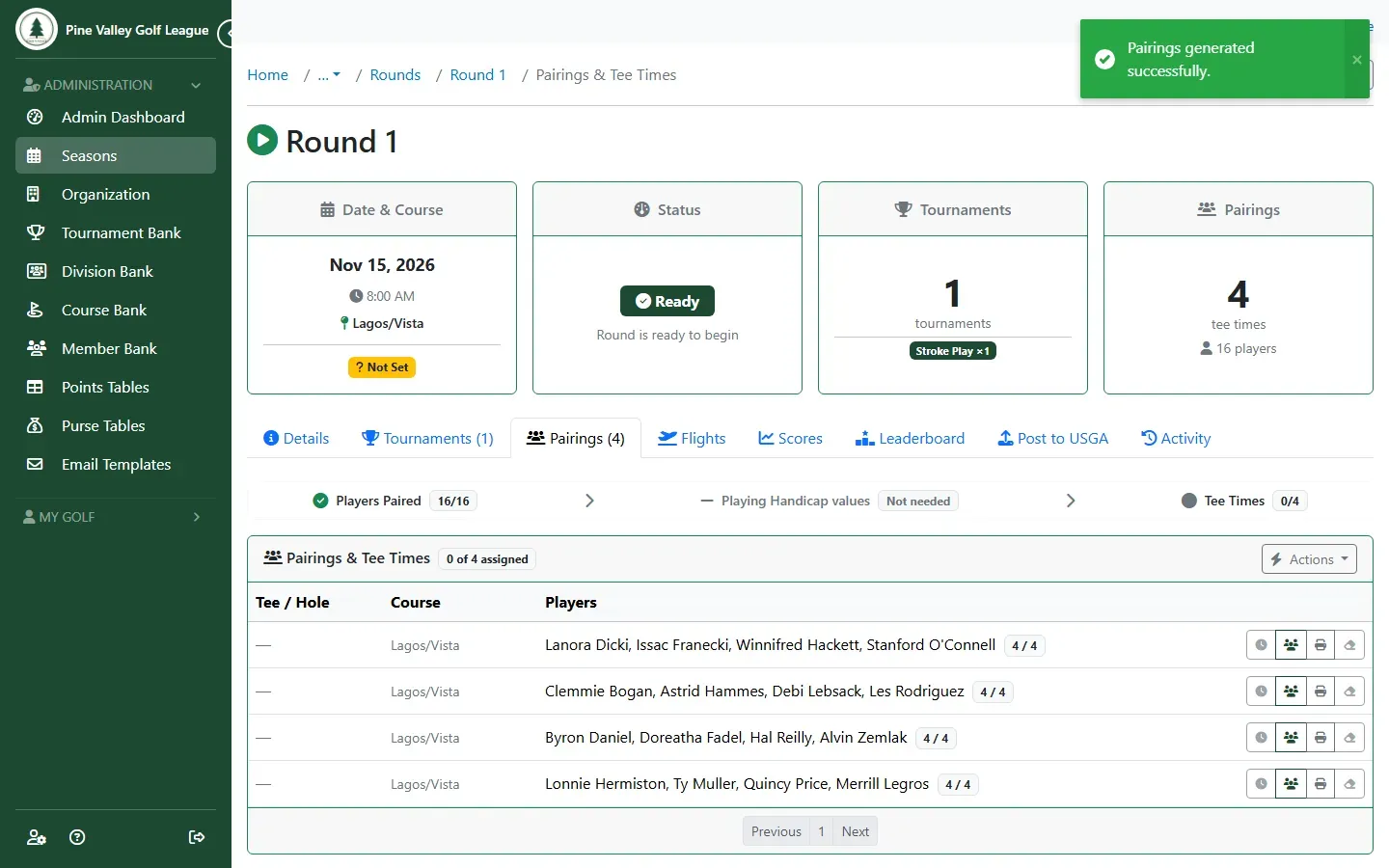
The groups appear on the tee sheet, still without a start. Each row’s buttons let you set its tee time, change its players, print its scorecard or clear it.
-
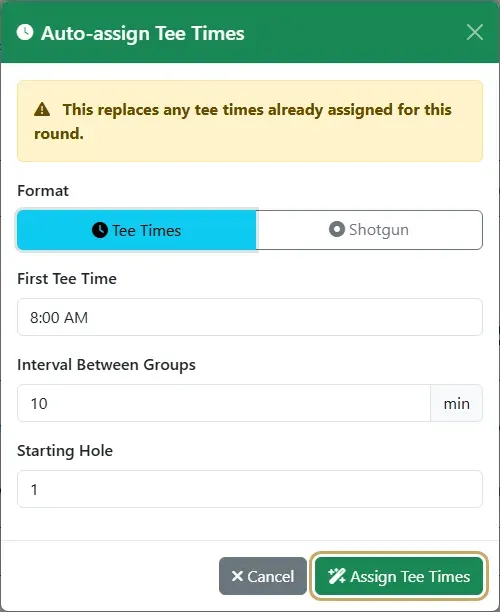
Open Actions again and choose Auto-assign Tee Times. For a tee-time start, choose Tee Times, set the First Tee Time and the Interval between groups, and select Assign Tee Times.
-
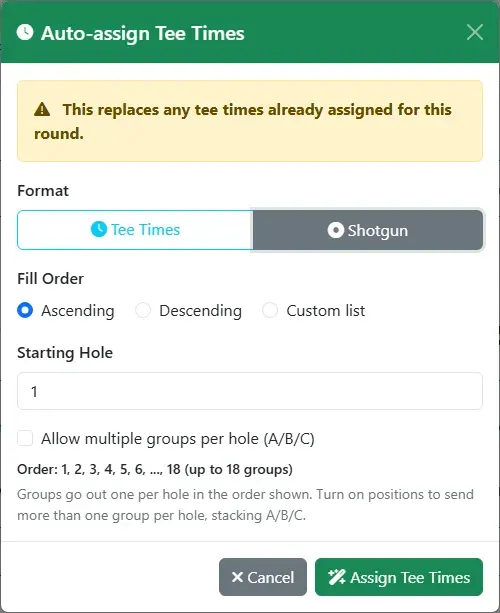
For a shotgun start, choose Shotgun instead. Groups go out one per hole, starting from the Starting Hole, in Ascending or Descending order or a Custom list of holes. Tick Allow multiple groups per hole (A/B/C) to send more than one group off a hole.
-
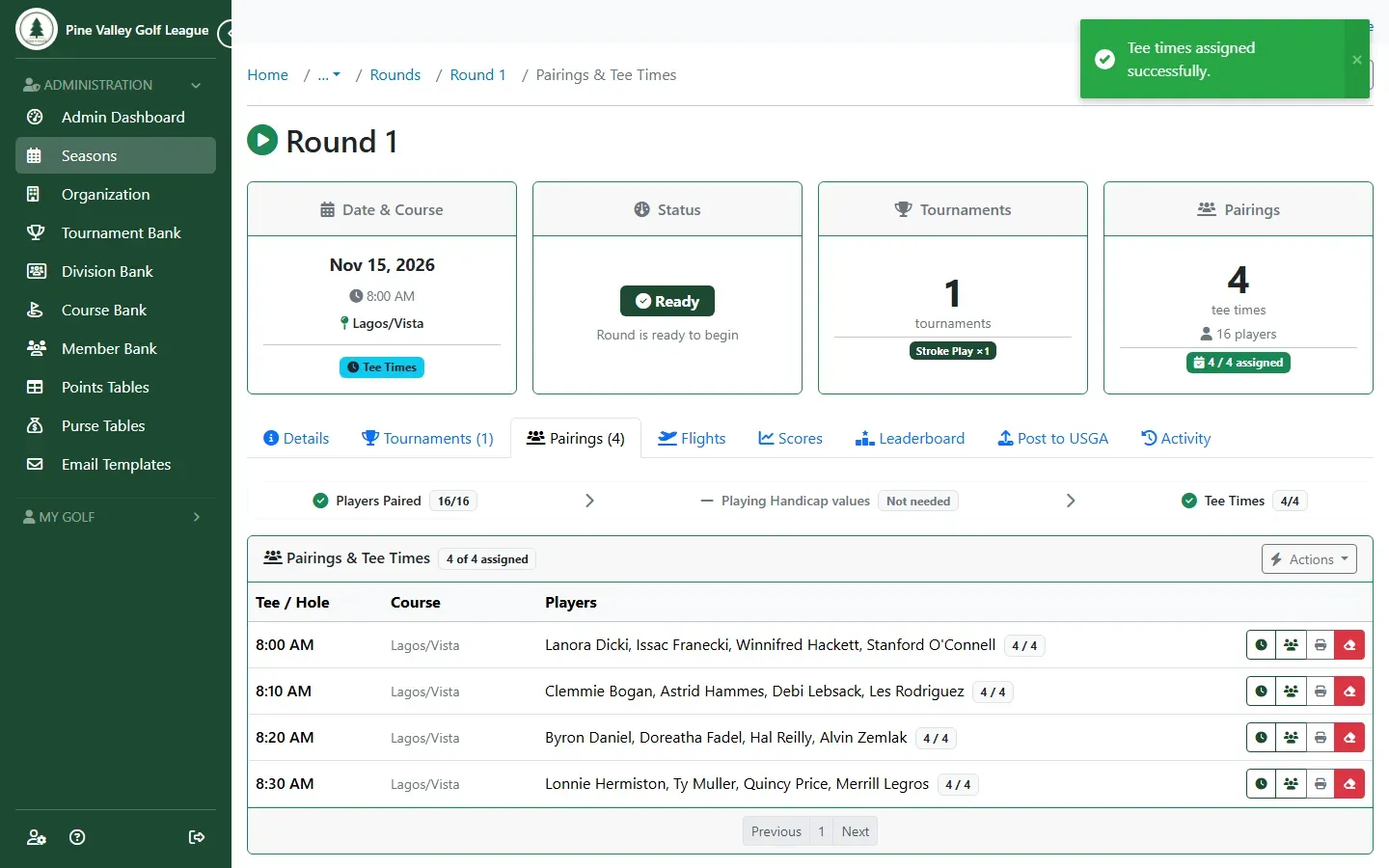
Every group now has its start on the tee sheet.
-
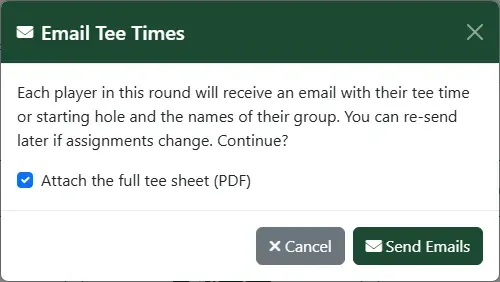
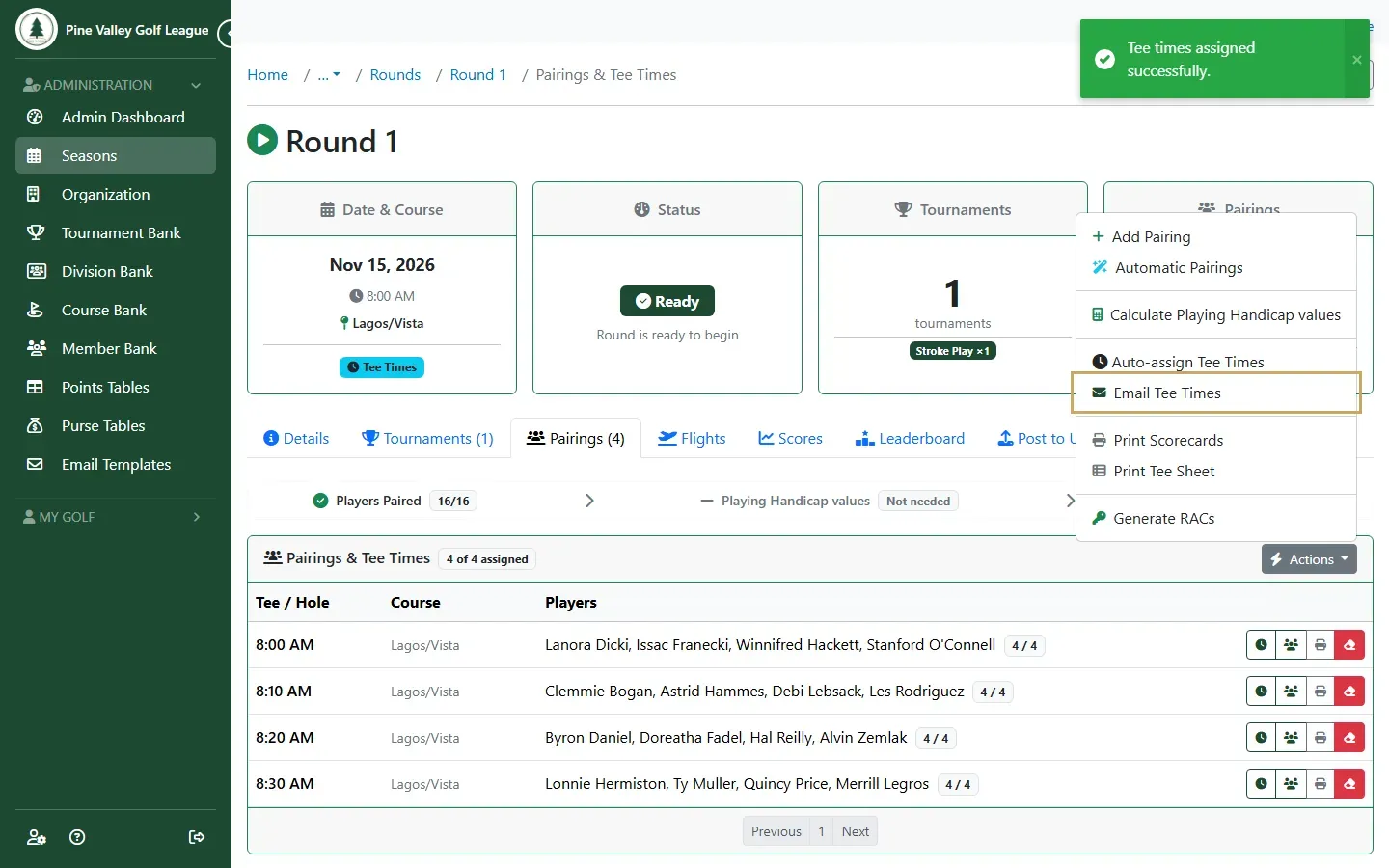
To let your players know, open Actions and choose Email Tee Times. It’s available once every group has a tee time.
-
Each player gets an email with their tee time (or starting hole) and the names of their group. Leave Attach the full tee sheet (PDF) ticked to include the whole tee sheet, and select Send Emails. If the groups change later, send it again.