
Create an event
An event is one outing in your season: a weekly game, a club championship, a member-guest. In this guide you create the event, set when players can sign up and how many can play, and pick the course. Next you’ll add its rounds and tournaments, and then publish it so your players can register.
Before you start: you need a season to put the event in, and the course has to be in your league’s Course Bank.
-
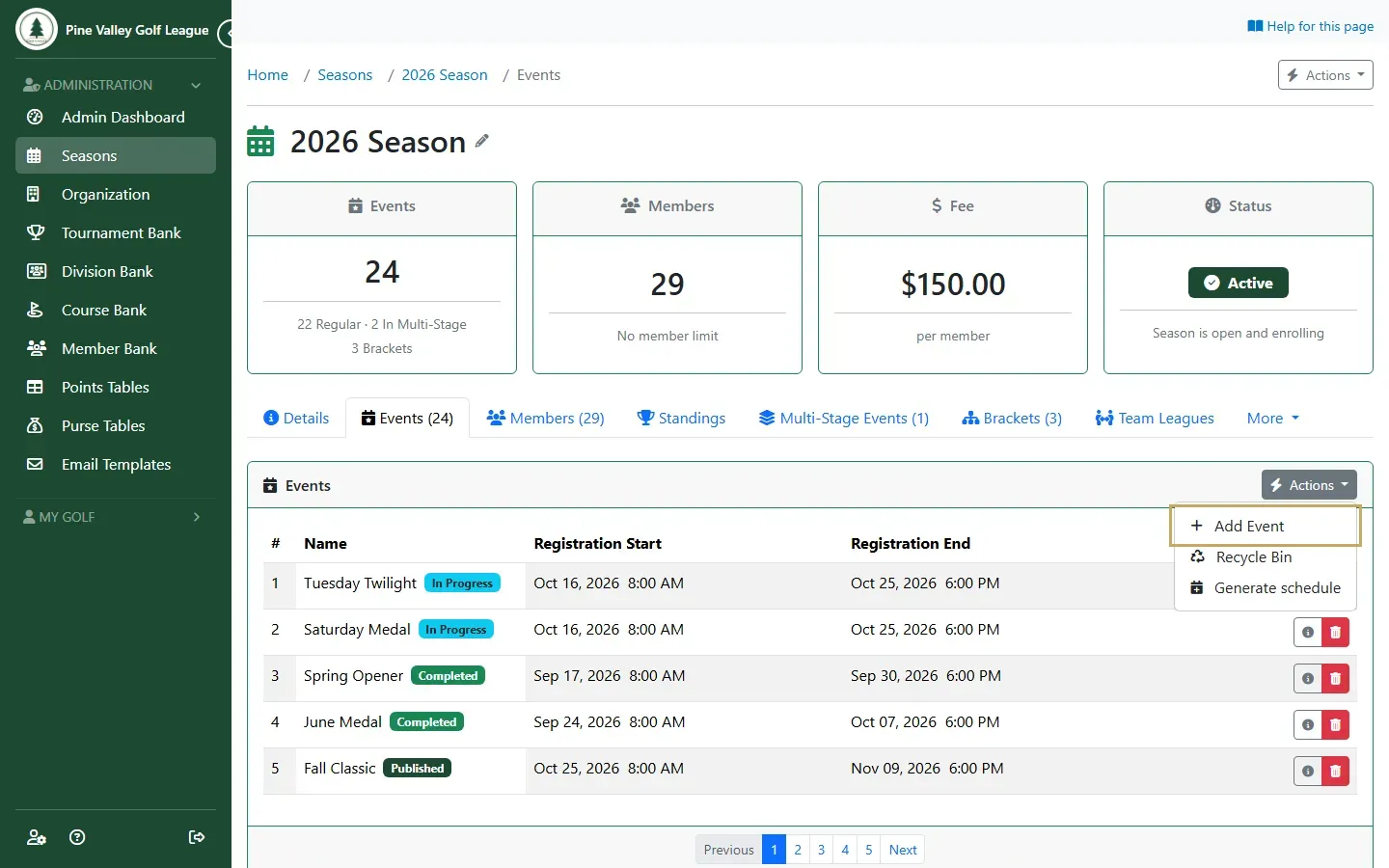
Go to Seasons, open your season and select the Events tab. In the Events box, open Actions and choose Add Event.
-
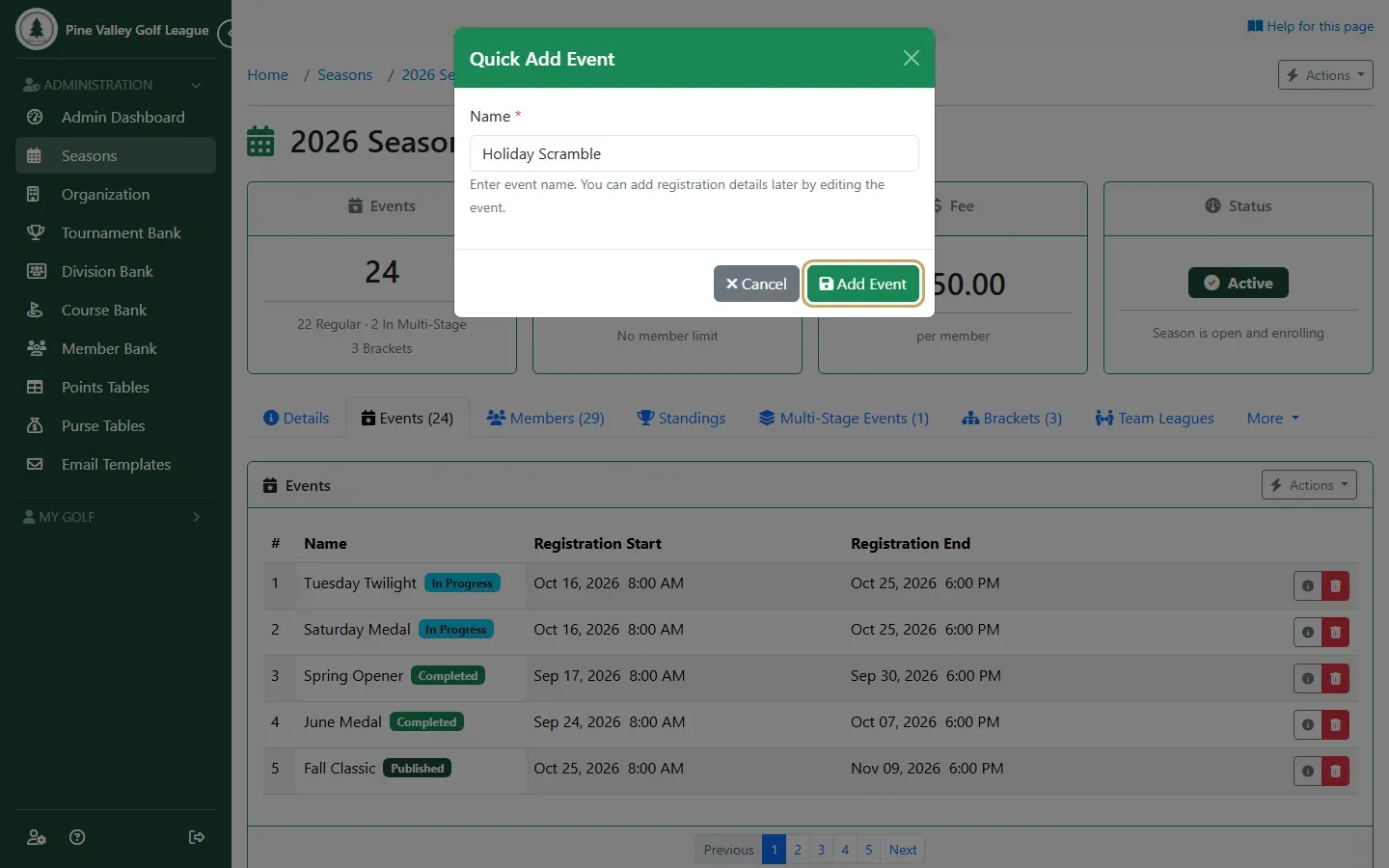
Type the event’s name and select Add Event. You only need the name for now; everything else is set on the event’s own pages.
-
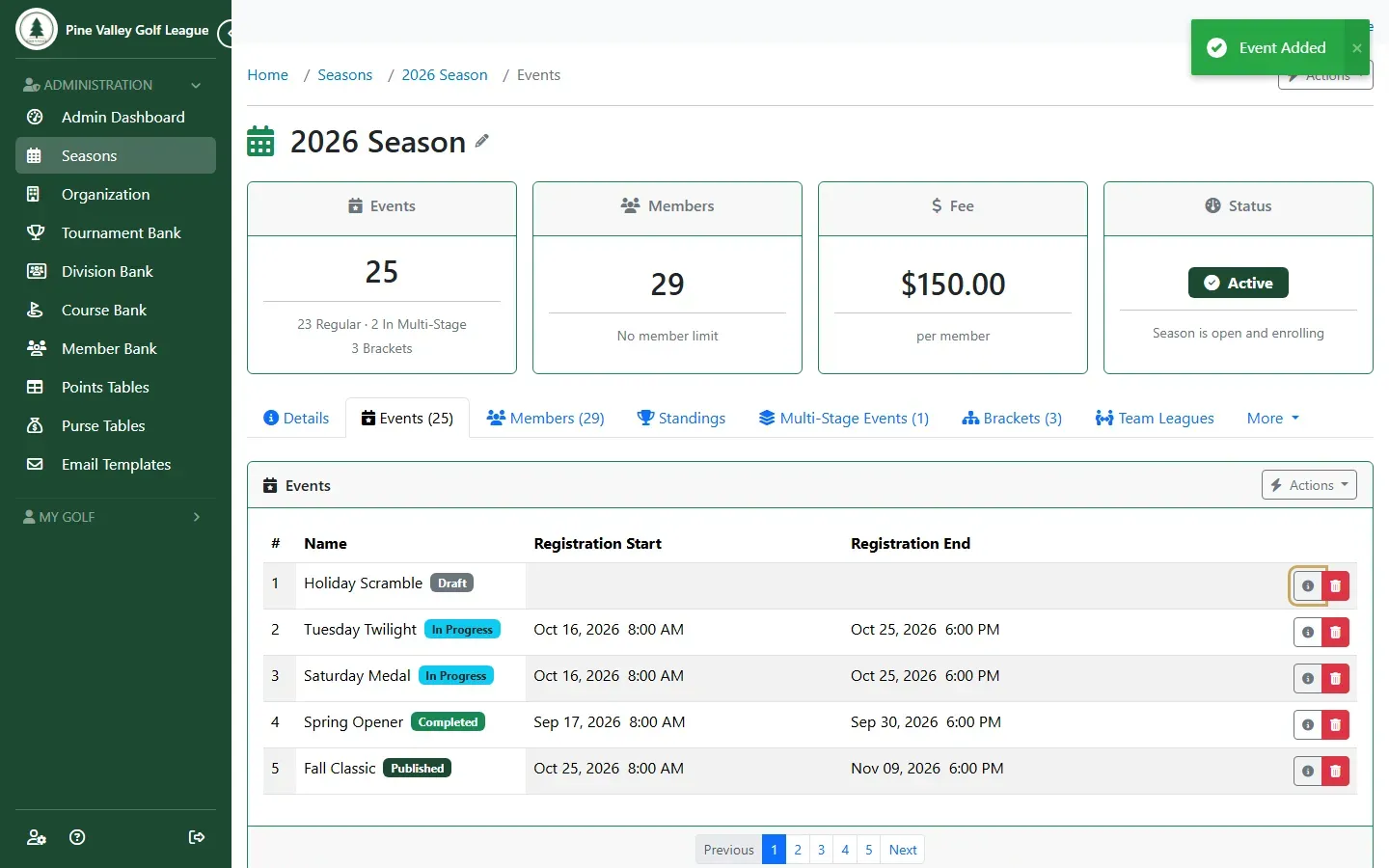
The event appears in the list marked Draft. Players can’t see a draft event, so you can set it up at your own pace. Select the i button to open it.
-
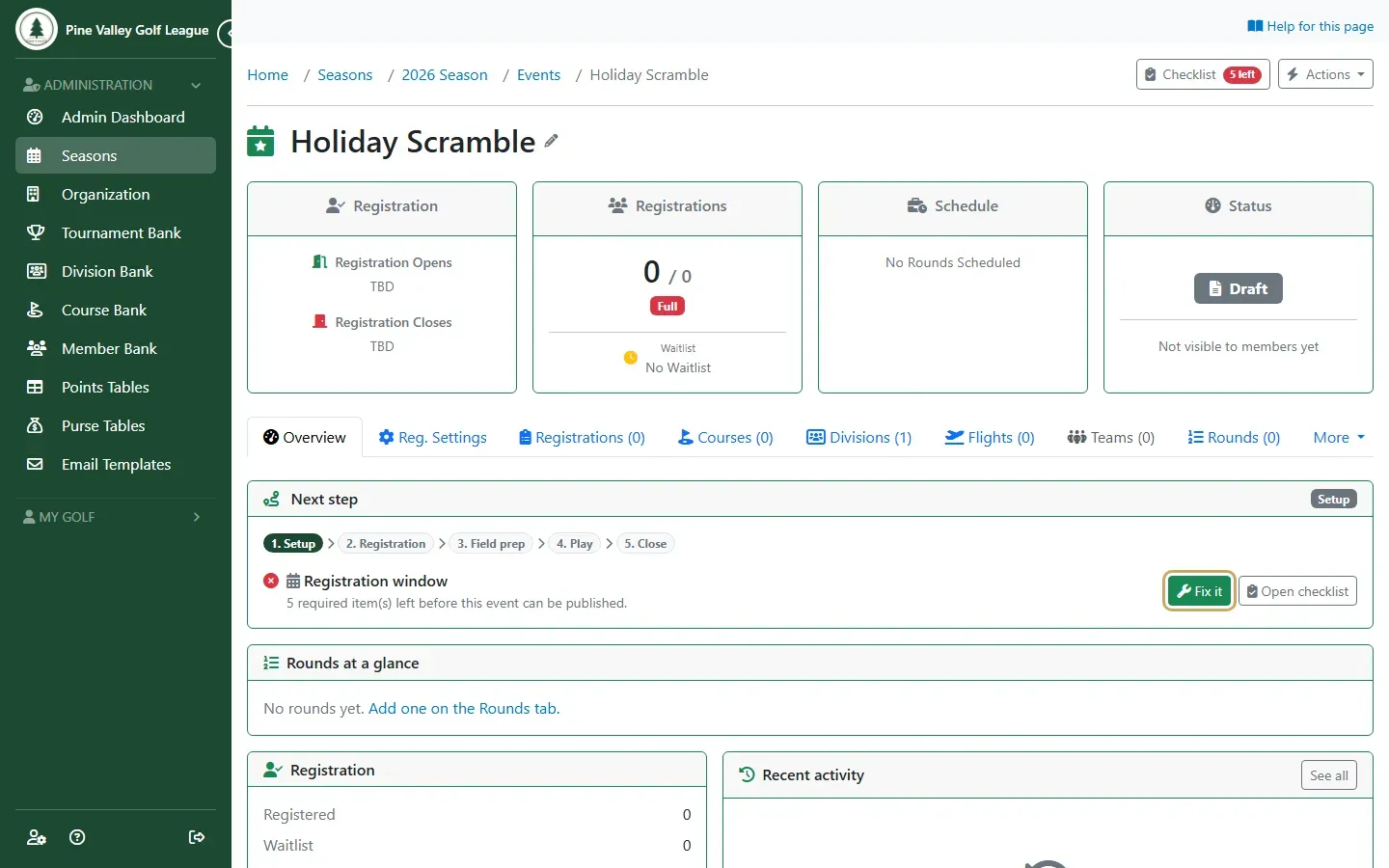
The event’s Overview shows where it is in its life (Setup, Registration, Field prep, Play, Close) and the next thing to do. Fix it takes you straight there. The Checklist button at the top shows everything that’s still missing.
-
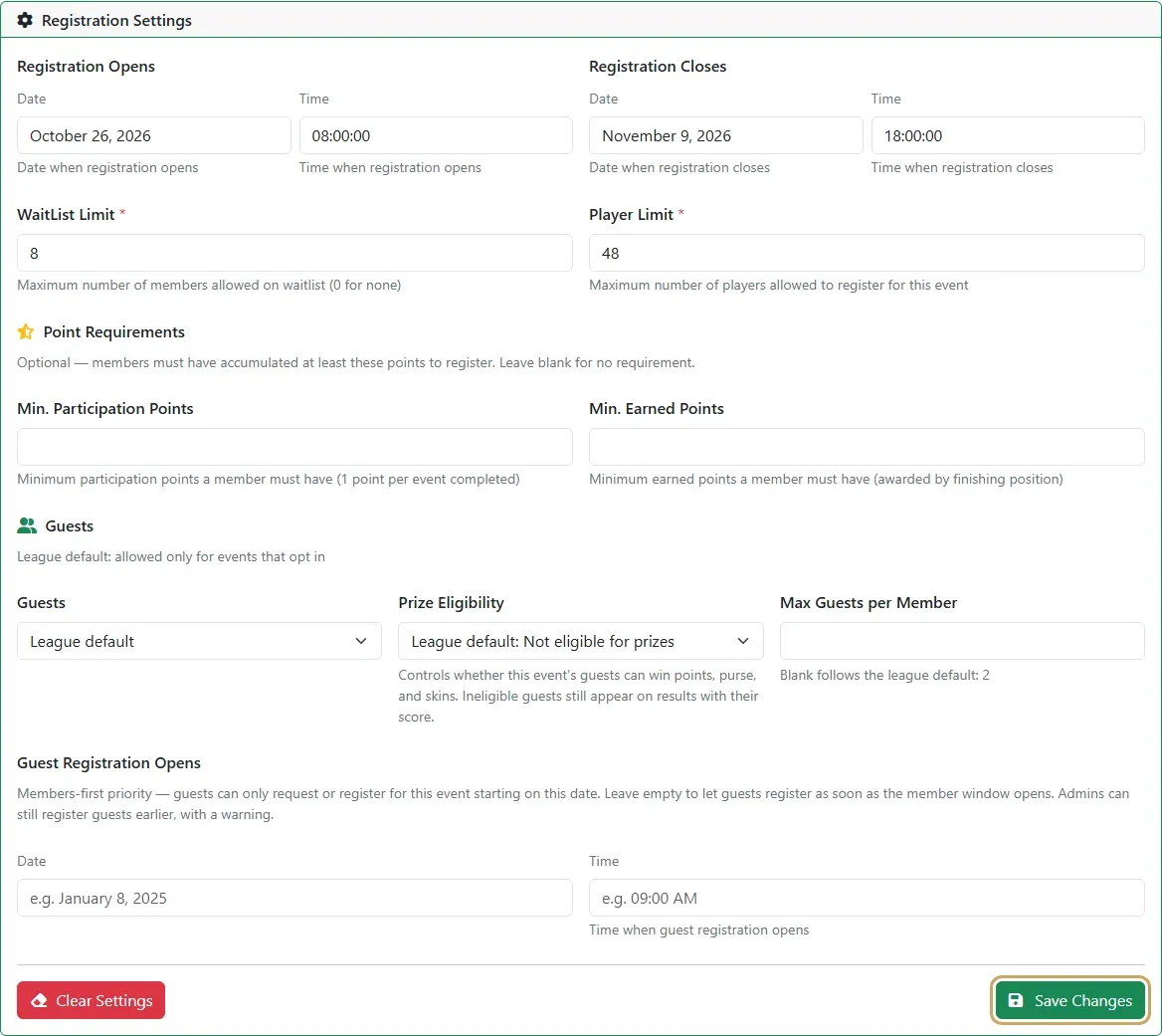
On Reg. Settings, choose when registration opens and closes, the Player Limit (the number of places) and the WaitList Limit (how many players can wait for a place once it’s full, 0 for no wait list). Select Save Changes.
-
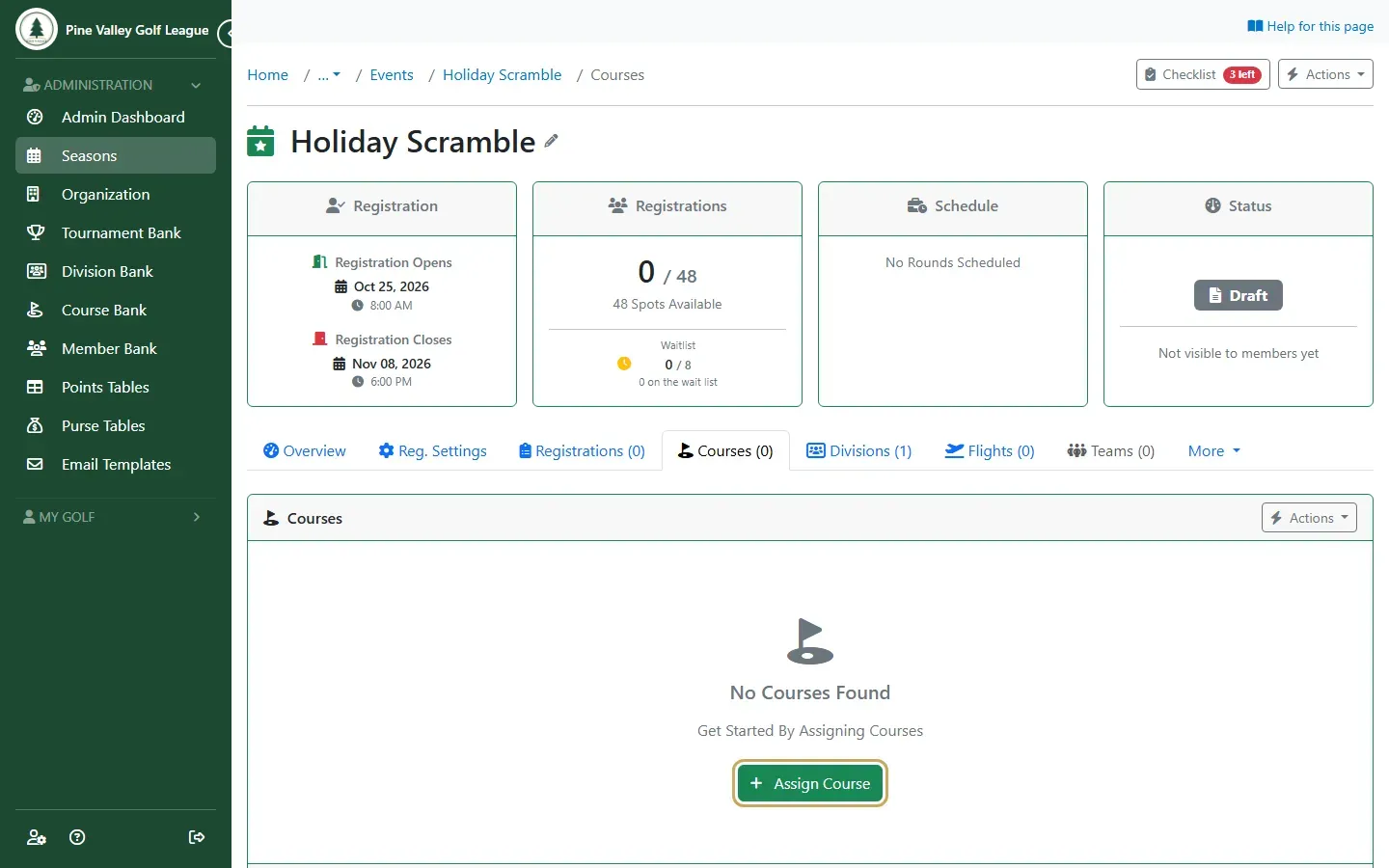
Open the Courses tab and select Assign Course.
-
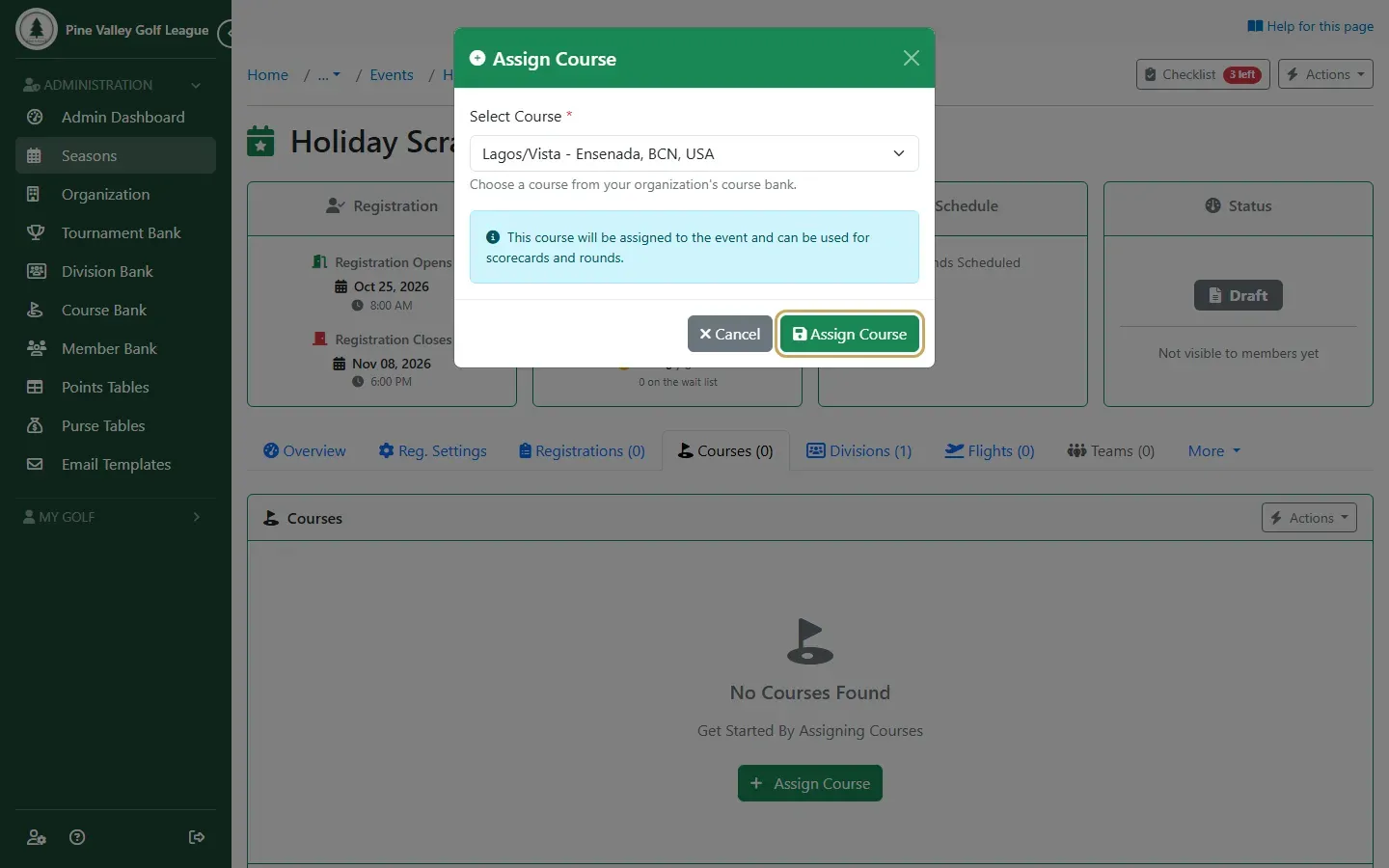
Choose the course from your Course Bank and select Assign Course.
-
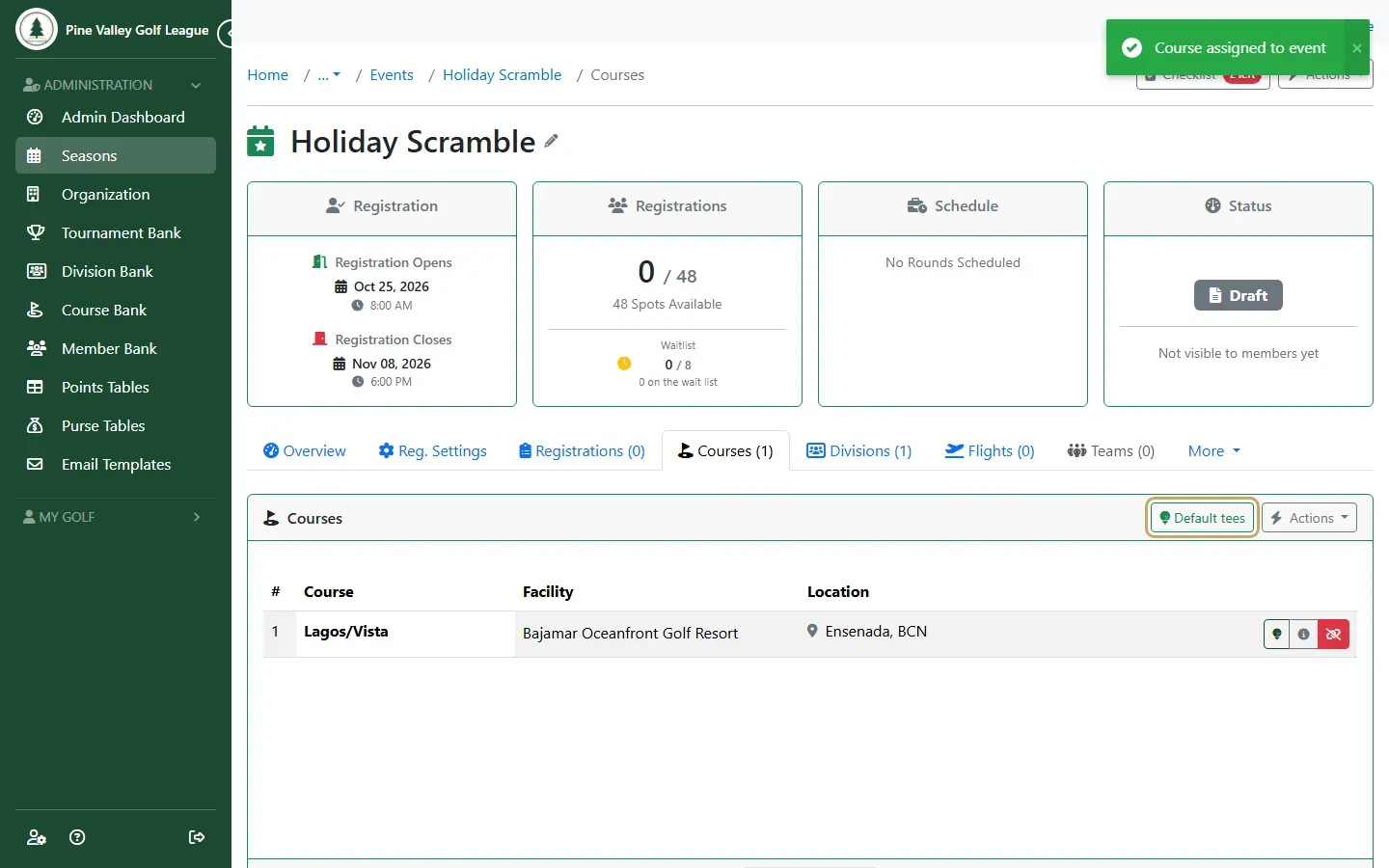
The course is now listed for the event. Select Default tees to choose which tees everyone plays from.
-
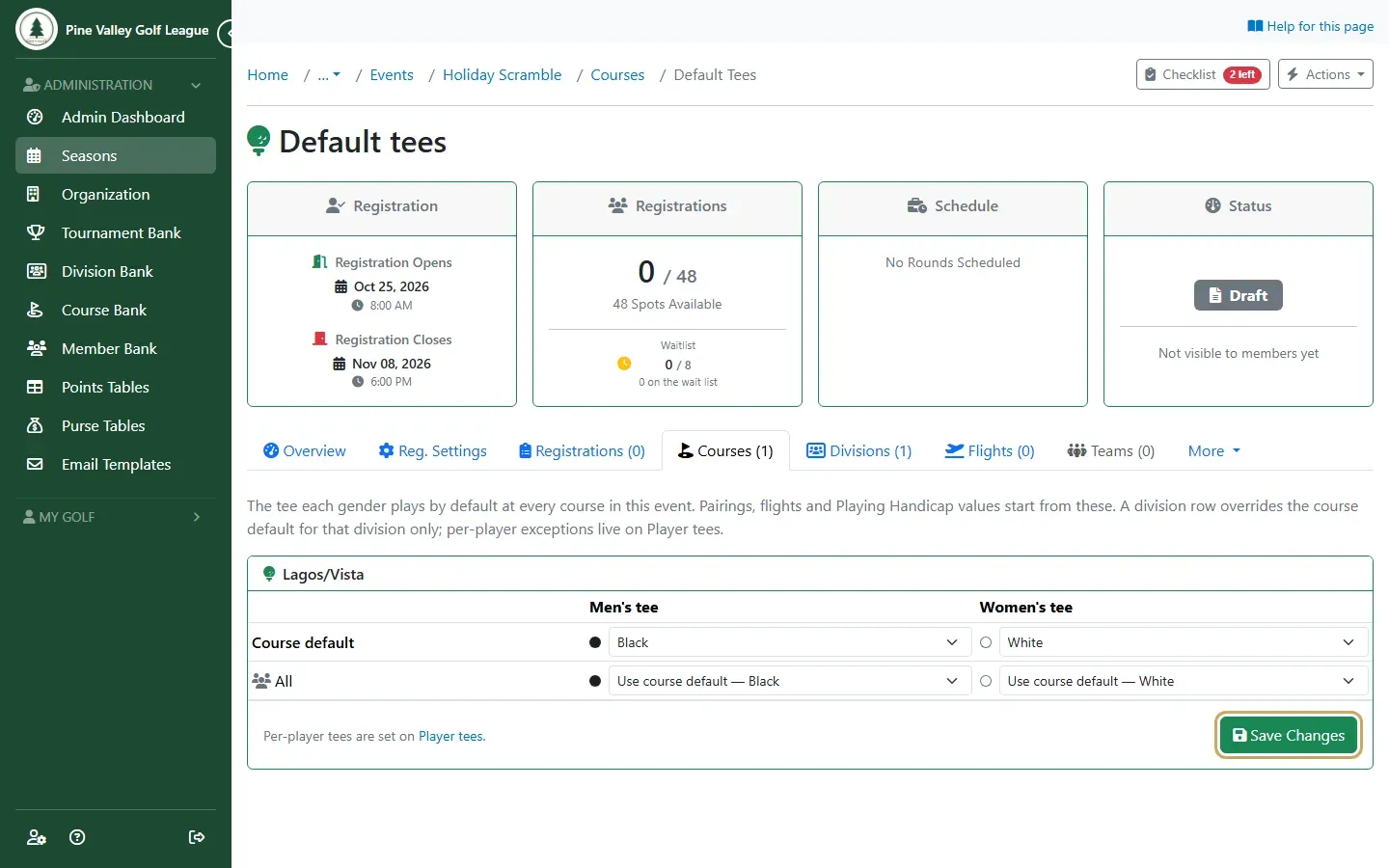
Pick the Men’s tee and Women’s tee for the course and select Save Changes. Pairings, flights and Playing Handicaps all start from these tees, and you can still change an individual player’s tee later.
Your event now has its registration window, its size and its course. Next: add its rounds and tournaments.
Deleted an event by mistake? It waits in the season’s Recycle Bin: see Restore a deleted event or season.
Running a weekly league? Create the whole season’s events at once: see Generate a season schedule.