
Open an event to guests
Each event can change your league’s guest policy for itself: open a member-guest day to guests when your league takes them for special events only, or close one event to guests when your league takes them everywhere. When a member asks to bring a guest, the request waits on the event’s Registrations tab for you to approve or decline.
Before you start: your guest policy isn’t Disabled, and the event has a registration window (Create an event).
-
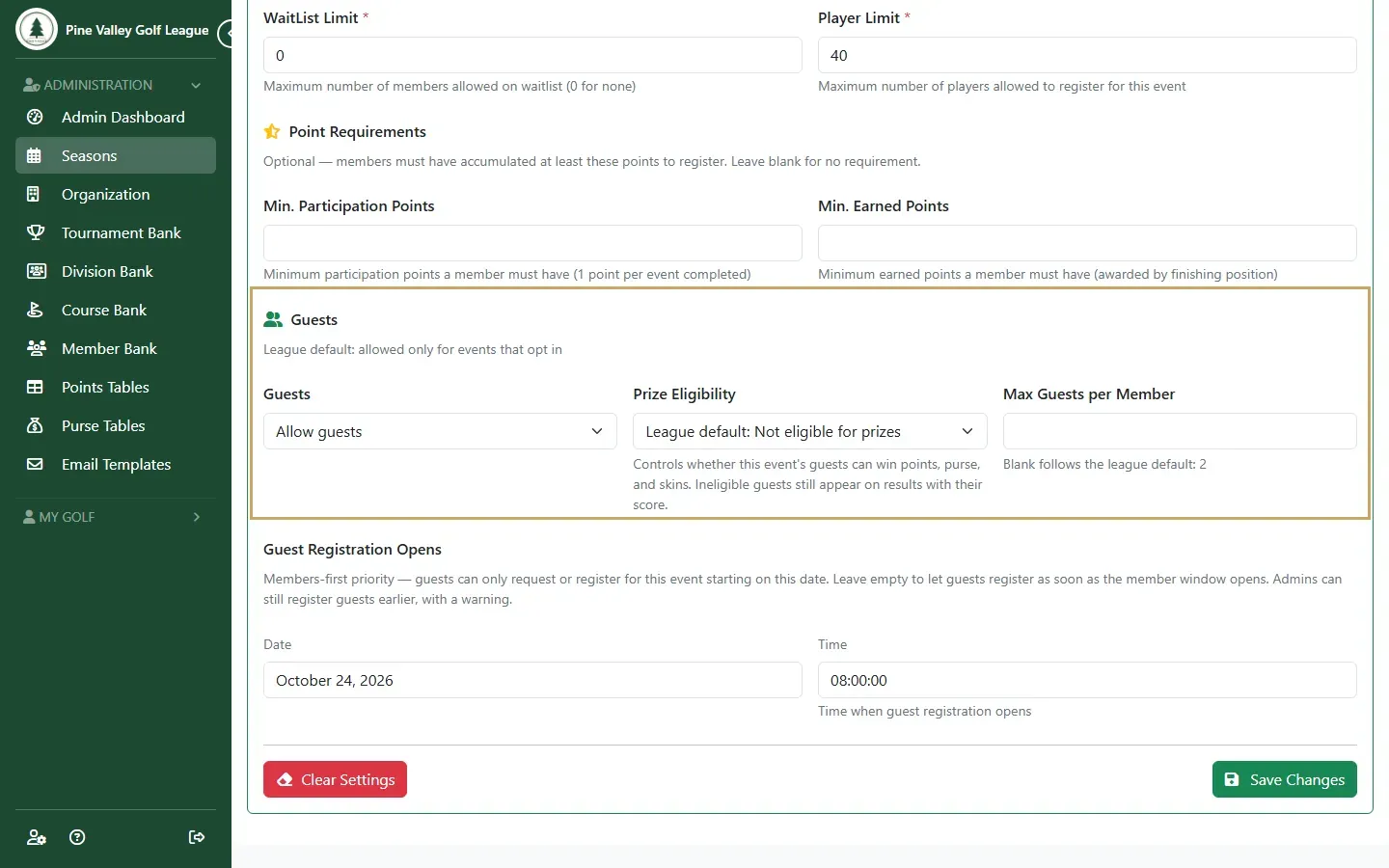
Open the event’s Reg. Settings tab and scroll to Guests. The line under the title shows your league’s default.
- Guests: Allow guests or Don’t allow guests for this event. League default follows your policy.
- Prize Eligibility: whether this event’s guests can win points, purse and skins (Guests and prizes).
- Max Guests per Member: a different limit for this event. Blank follows the league’s.
-
To give members a head start, set Guest Registration Opens to a date and time after registration opens. Members can’t ask to bring a guest before then. Leave it empty and guests can be requested as soon as registration opens. Select Save Changes.
-
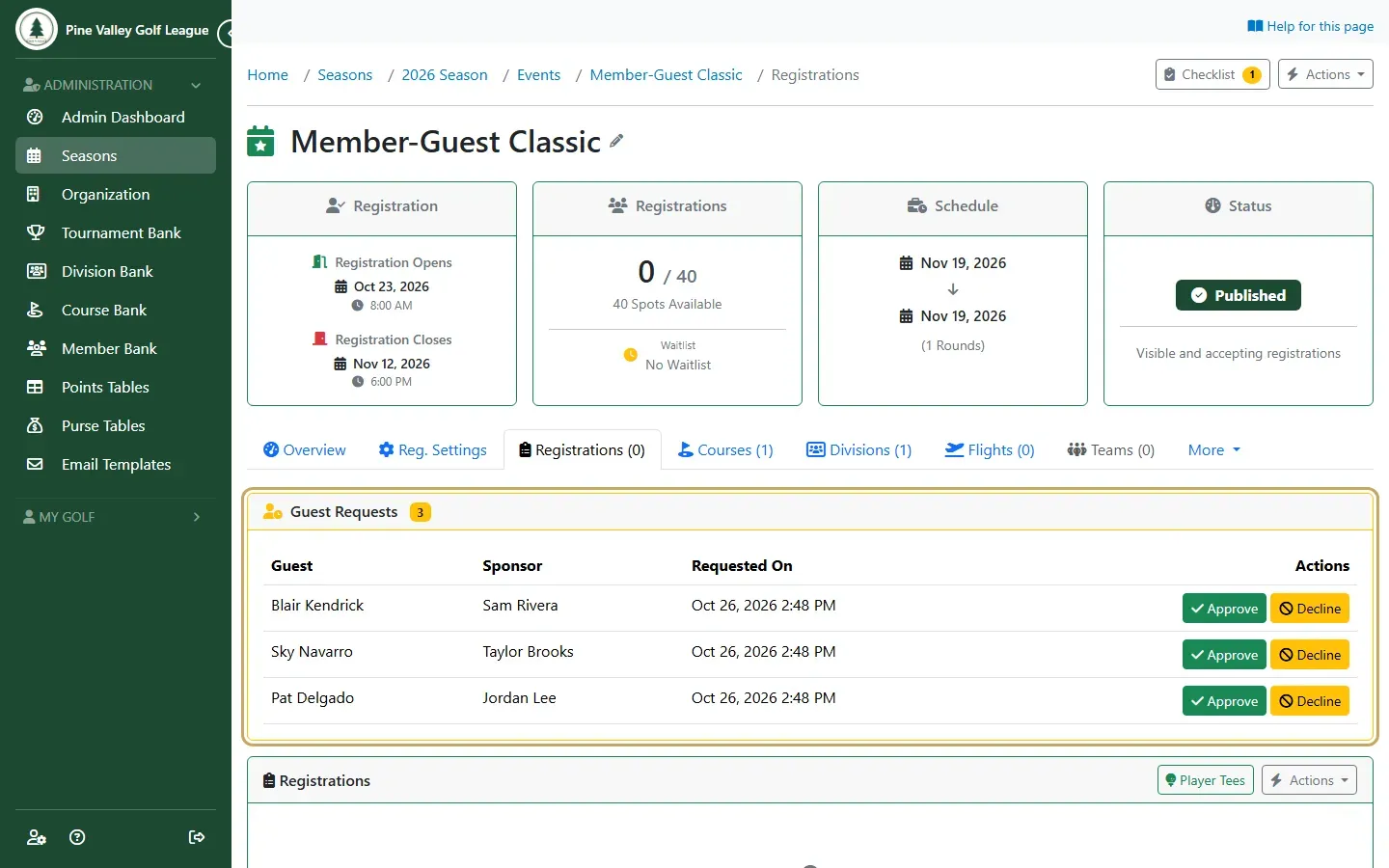
Members’ requests appear in the Guest Requests card at the top of the event’s Registrations tab, with the guest, their sponsor and when they asked.
-
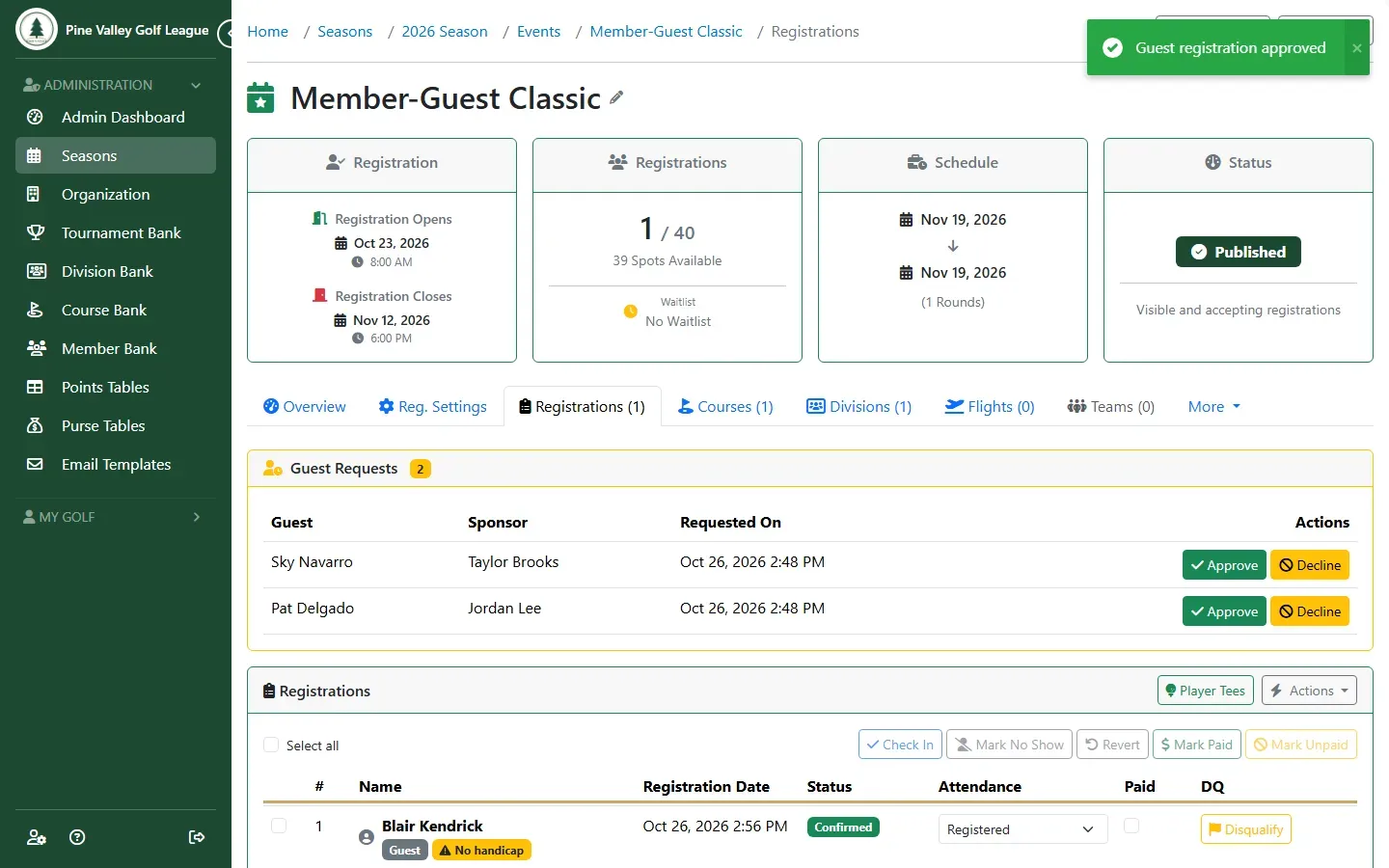
Select Approve. The guest joins the season and the event, and their sponsor gets the registration email. If the event is full and has a wait list, the guest goes on the wait list.
-
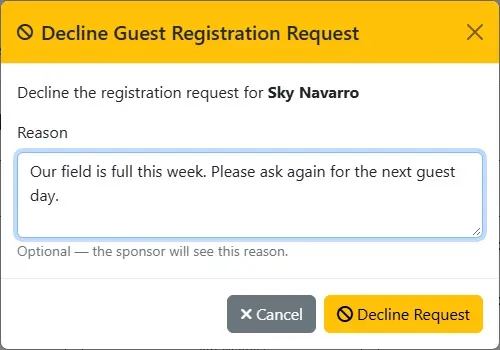
To turn a request down, select Decline. Add a Reason if you like, since the sponsor sees it, and select Decline Request.
-
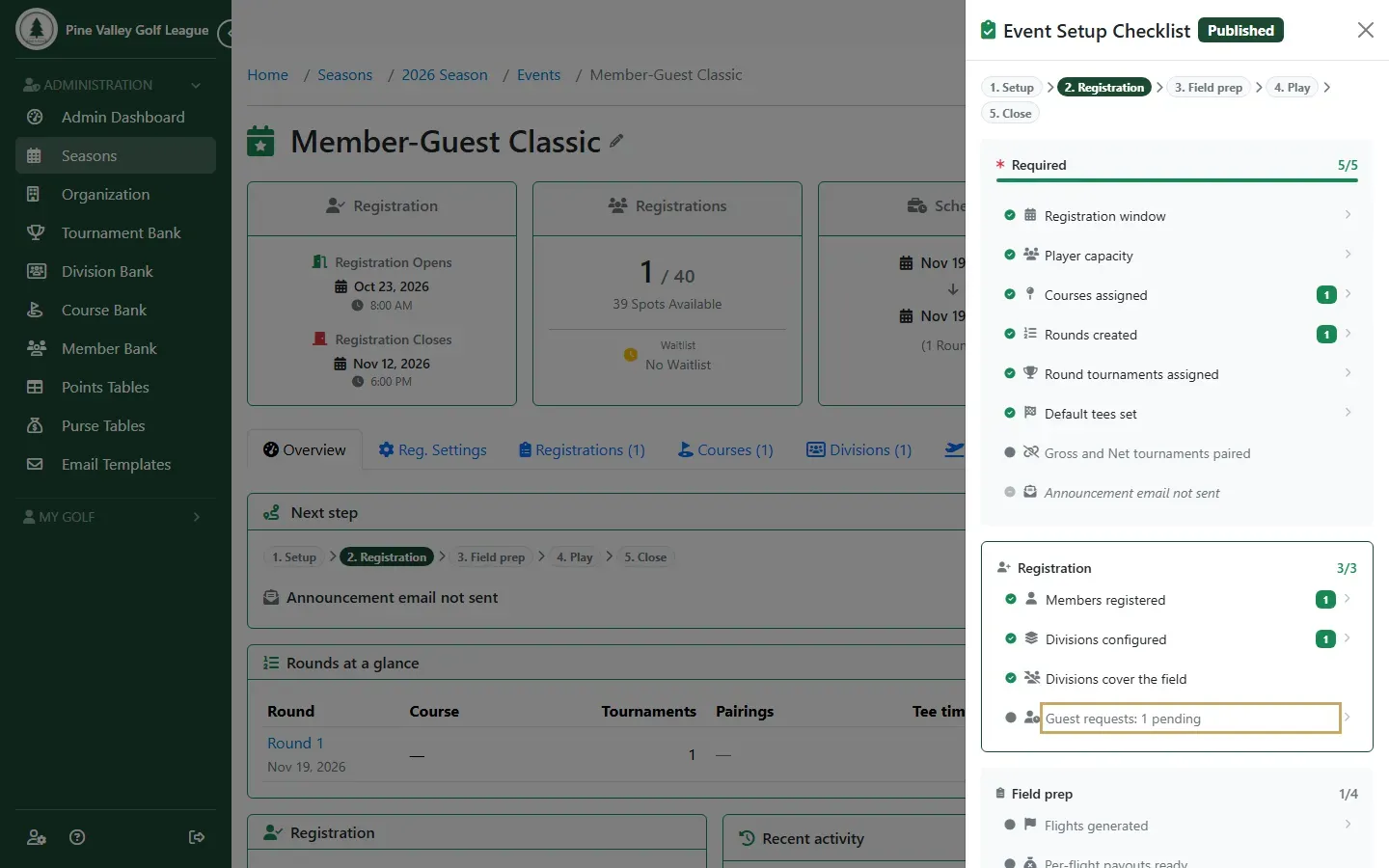
The event’s Checklist counts the requests still waiting, so none is forgotten.
Next: Guests and prizes.