
Add guests and sponsors
Guests live in your Member Bank next to your members, marked with a Guest badge. Members can add their own guests from the player portal (Bring a guest). As an admin you can add one yourself, turn a member into a guest, or turn a guest into a full member.
Before you start: your guest policy lets guests play in at least some events.
-
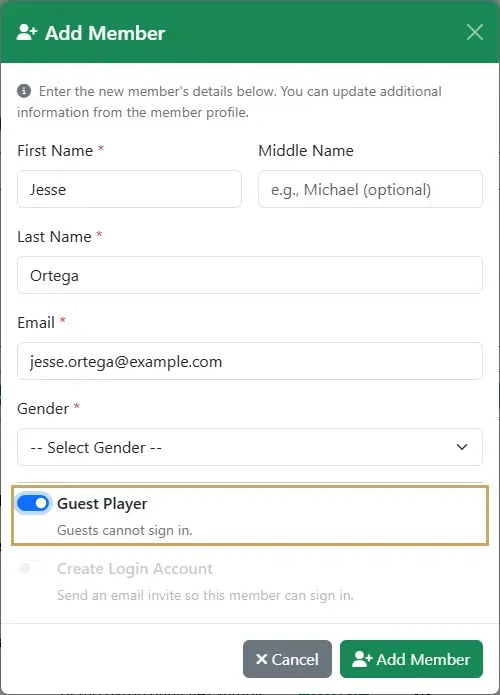
In the Member Bank, open Actions and choose Add Member. Enter the guest’s name, email and gender, and turn on Guest Player. Guests never sign in, so Create Login Account is switched off. Select Add Member.
-
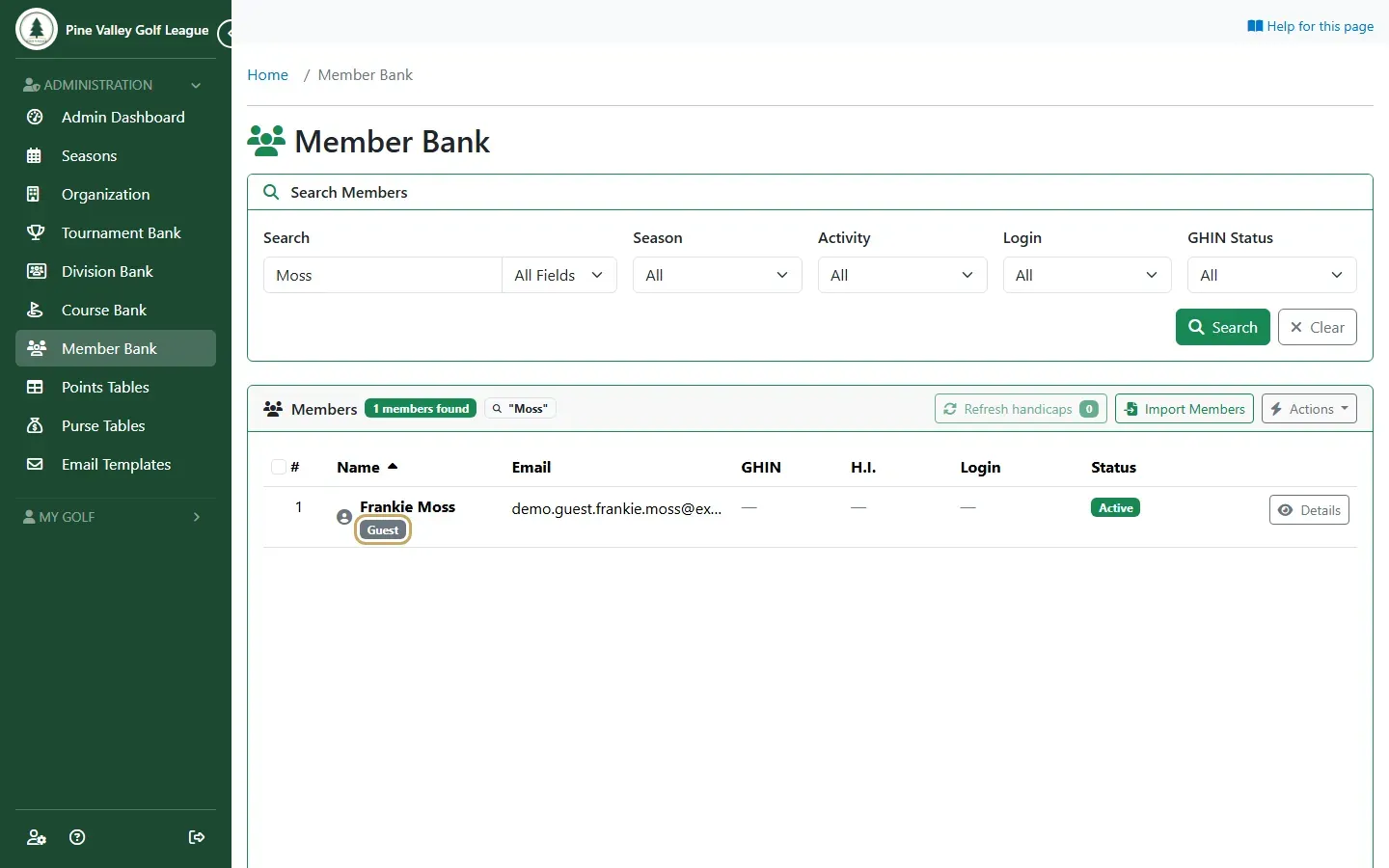
The guest now shows in the Member Bank with a Guest badge.
-
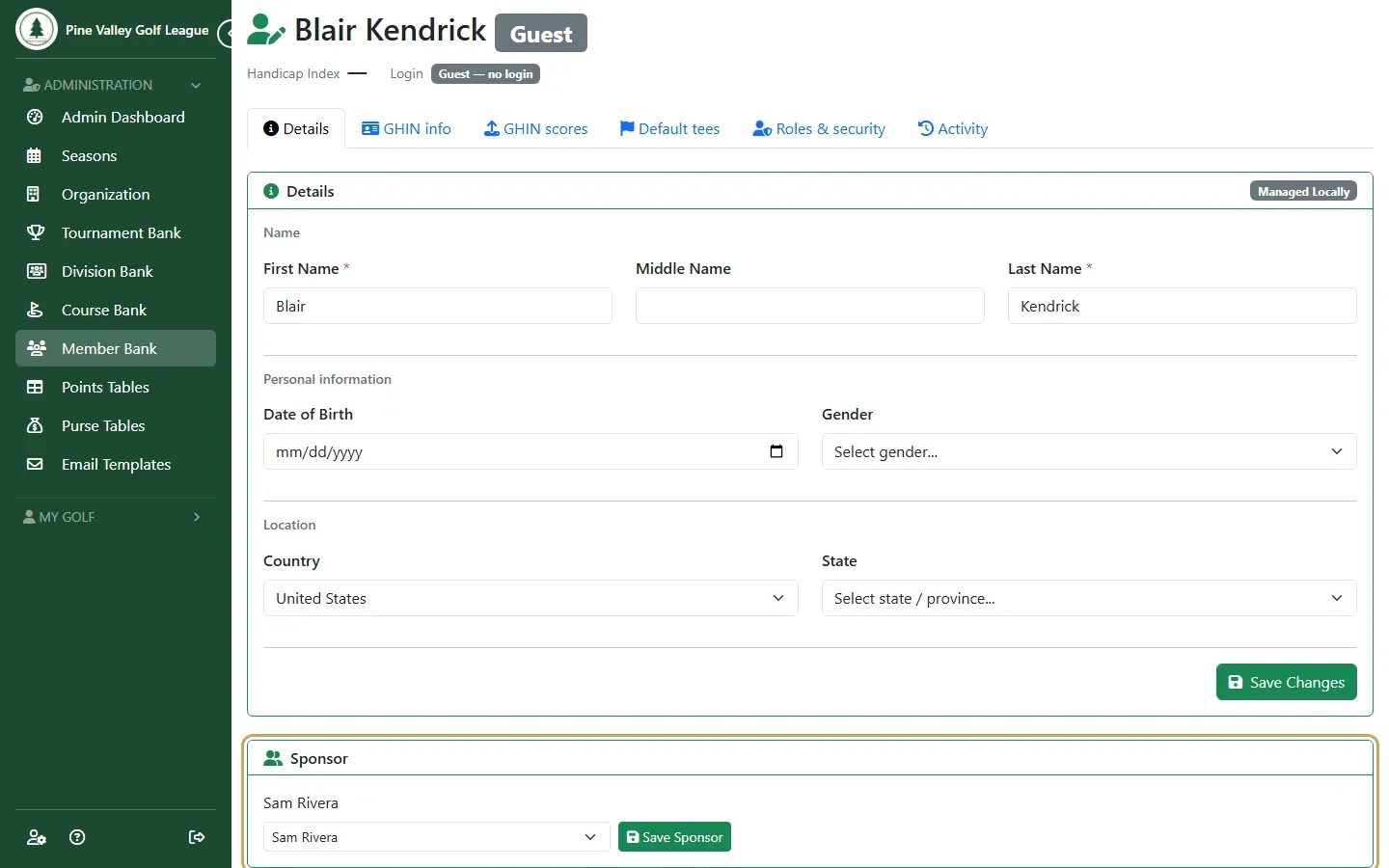
Select Details on the guest. Under Sponsor, choose the member who brings them and select Save Sponsor. The sponsor receives the guest’s registration emails, because the guest has no login and gets none.
-
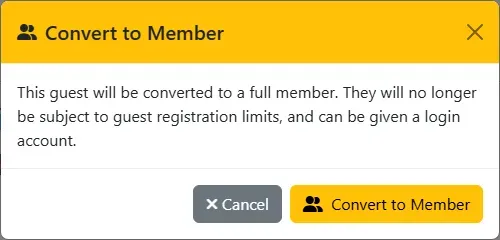
When a regular guest joins your league, open Actions on their Details tab and choose Convert to member. They’re no longer held to the guest limits, and you can give them a login. Mark as guest in the same menu does the opposite, for a member who isn’t really a member.
-
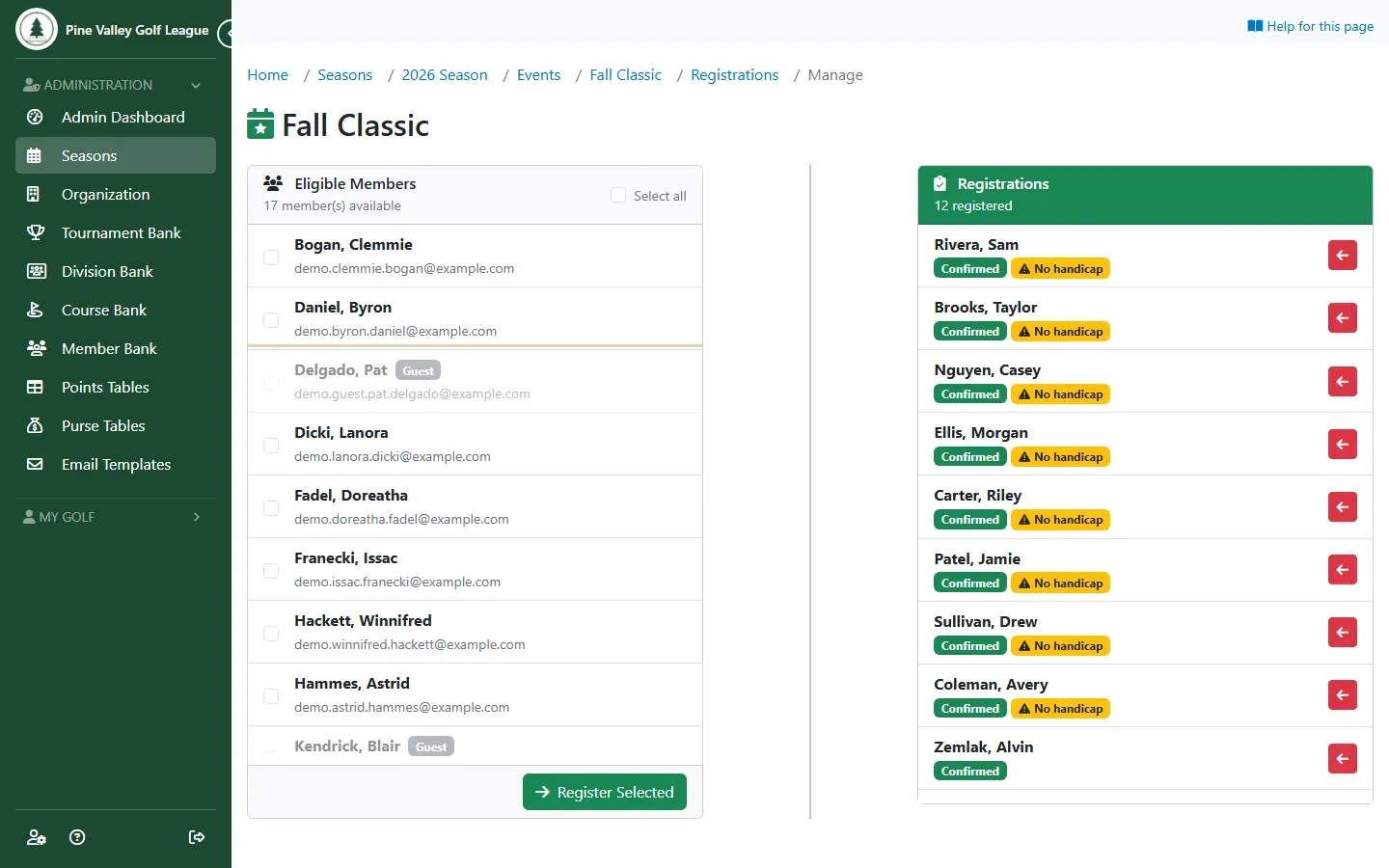
To register a guest yourself, use the event’s Registrations → Manage, as for any member (Manage registrations). When the event doesn’t take guests, every guest is greyed out and can’t be ticked. Your guest policy’s limits still apply: a guest who has reached the season limit, or whose sponsor has already brought the most guests allowed, isn’t registered, and the page says why.
Next: Open an event to guests.