Set up your league
Your league’s name, contact details and logo appear on the pages, emails and printouts your players see. This guide checks the details you entered when you signed up, adds your logo, turns on USGA GHIN, and shows you where everything is on the admin dashboard.
Before you start: sign in as the league admin who created the league.
-
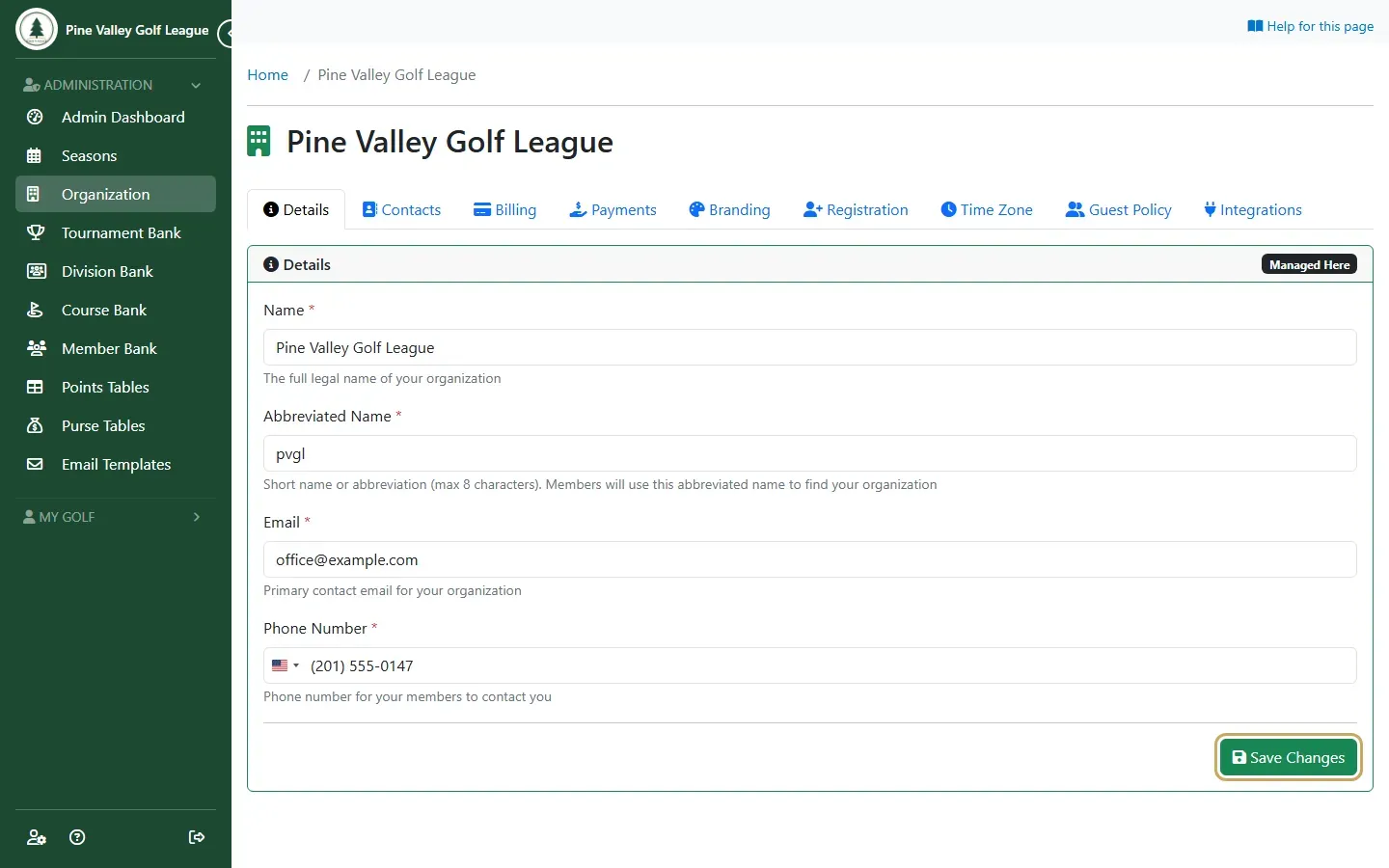
In the menu on the left, select Organization. The Details tab shows your league’s Name, an Abbreviated Name (up to 8 characters, which members use to find your league), and the Email and Phone Number members can contact you on. Fill in anything that’s missing and select Save Changes.
-
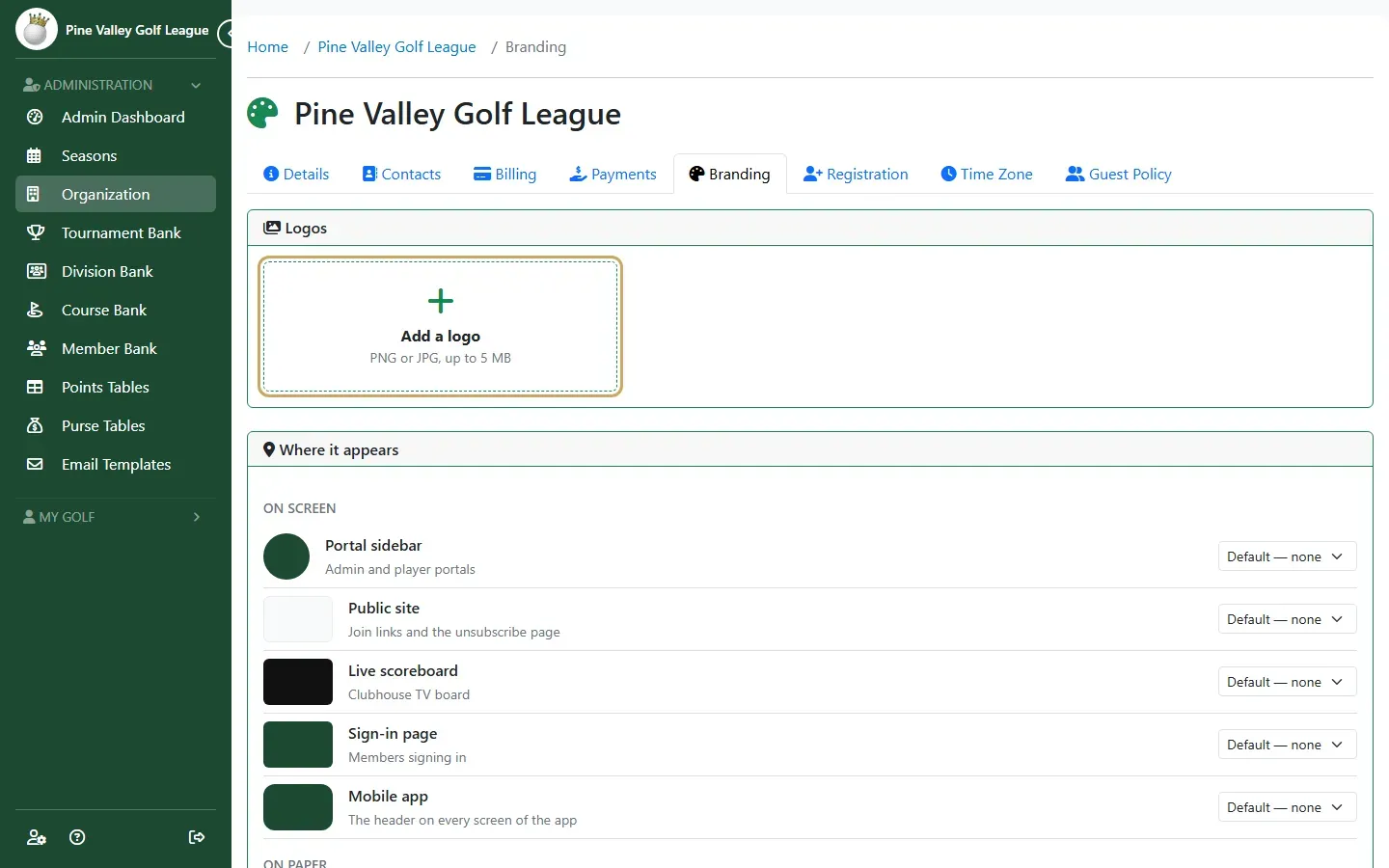
Open the Branding tab and select Add a logo.
-
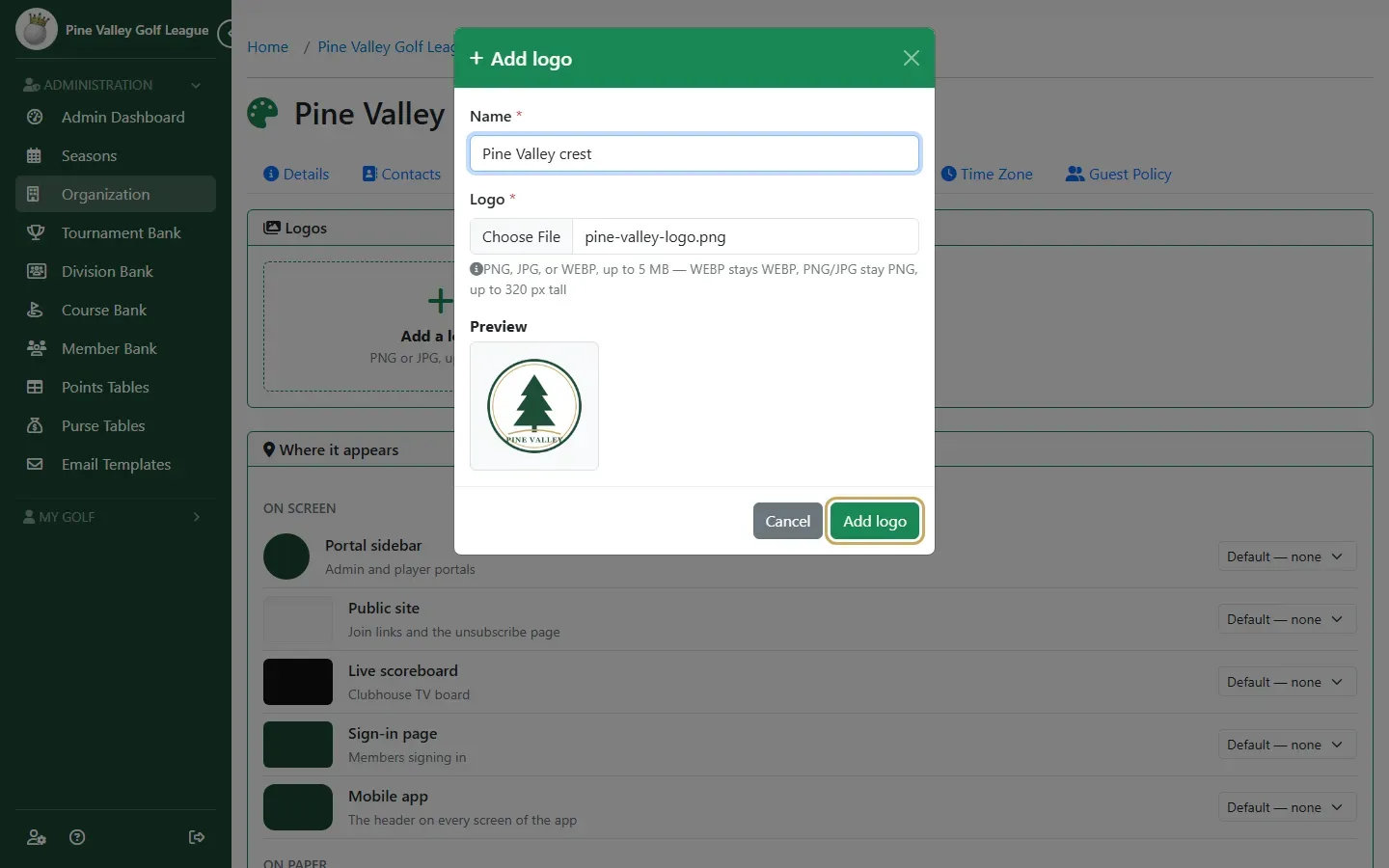
Give the logo a Name, choose the image file (PNG, JPG or WEBP, up to 5 MB) and check the Preview. Select Add logo.
-
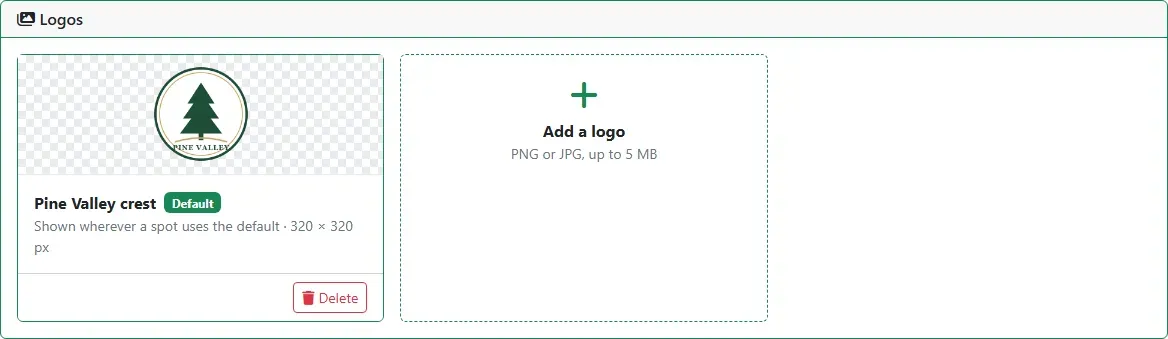
Your first logo becomes the Default: it’s used wherever a spot shows “the default”. You can add more logos, for example a white version for dark backgrounds, and make any of them the default.
-
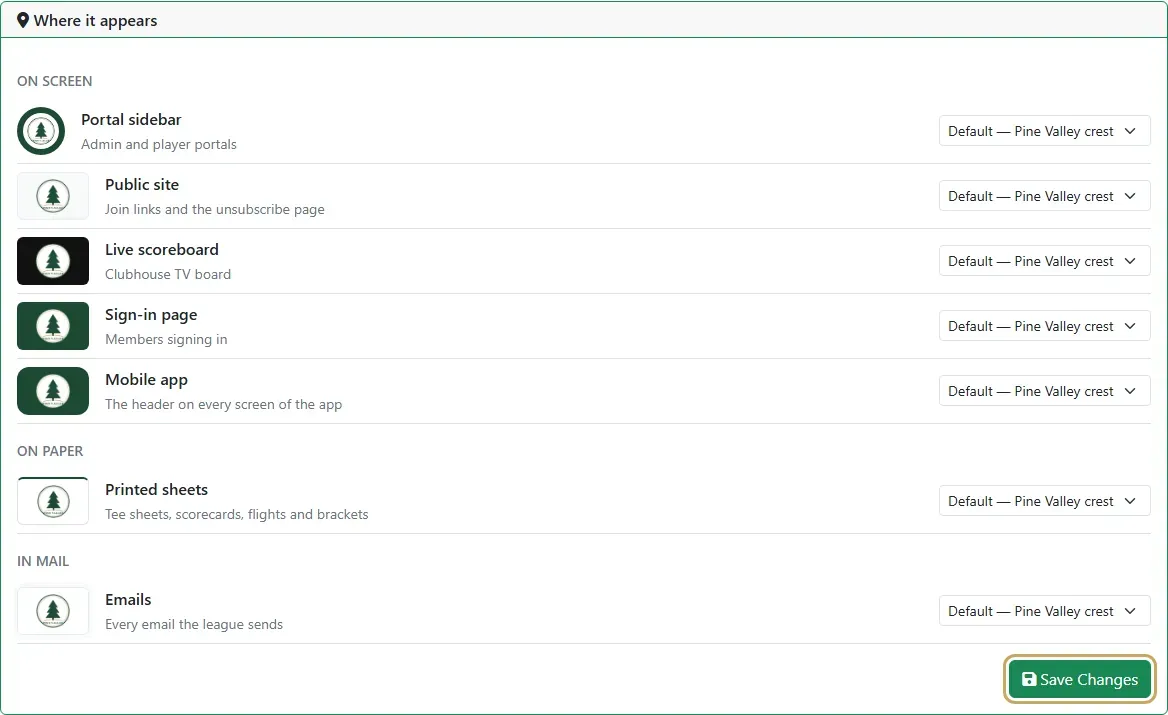
Where it appears lists every place a logo can show: the portal sidebar, the public site, the live scoreboard, the sign-in page, the mobile app, printed sheets and emails. Each one uses the default logo unless you pick another one for it. Select Save Changes after you change any of them.
-
Open the Integrations tab to turn on USGA GHIN. Until it’s on, looking golfers up by GHIN, refreshing Handicap Indexes, consent requests, playing handicaps and posting scores to GHIN are greyed out. Tick the box to agree to the USGA’s terms and select Turn on. The card then shows On, with who turned it on and when. Course search works either way.

-
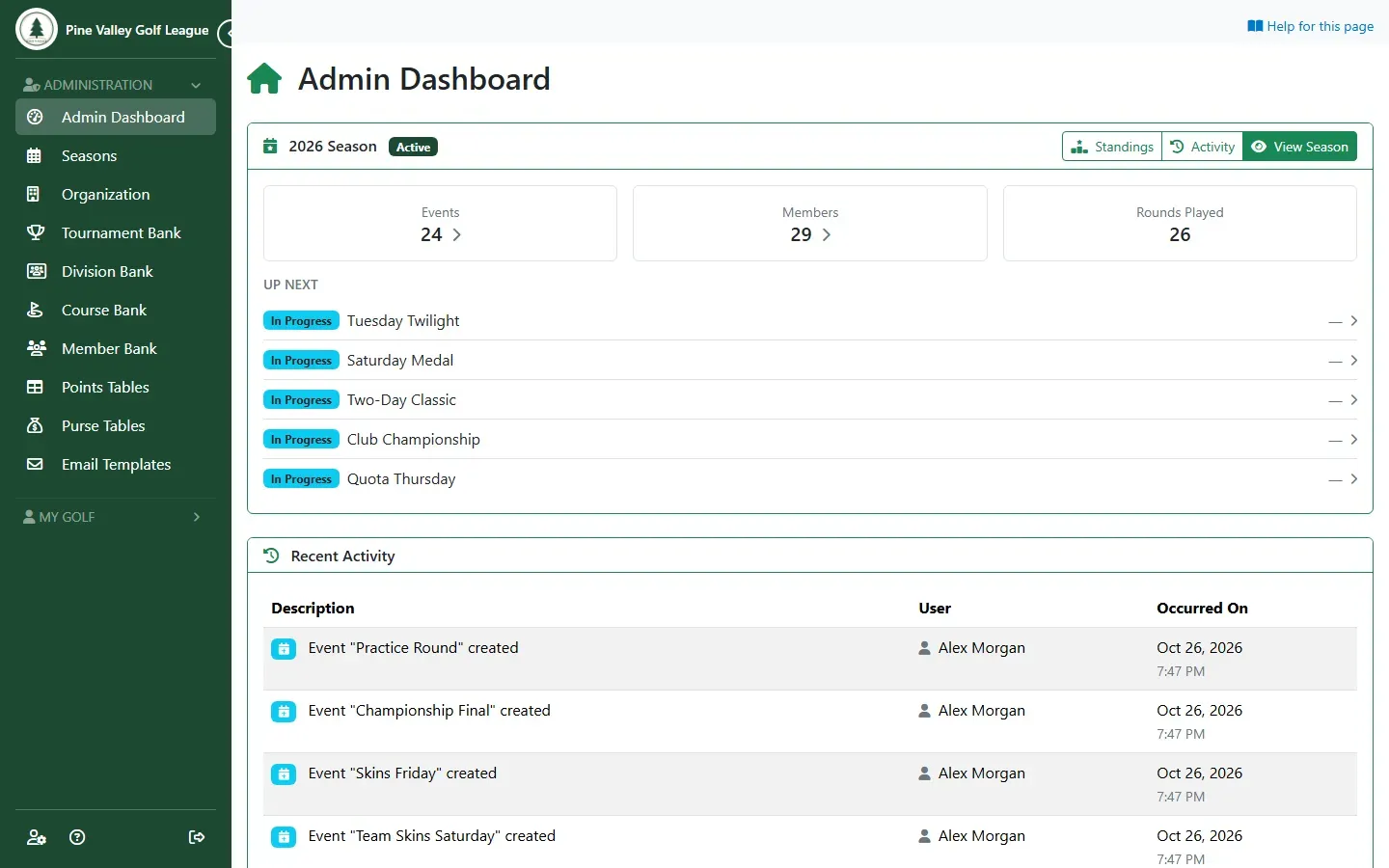
Select Admin Dashboard in the menu. It’s your home page as an admin:
- your current season, with its events, members and rounds played, and links to its Standings and Activity
- Up Next: the events in progress and coming up, each a link to the event
- Recent Activity: what’s changed in your league lately, and who did it