Invite members to sign in
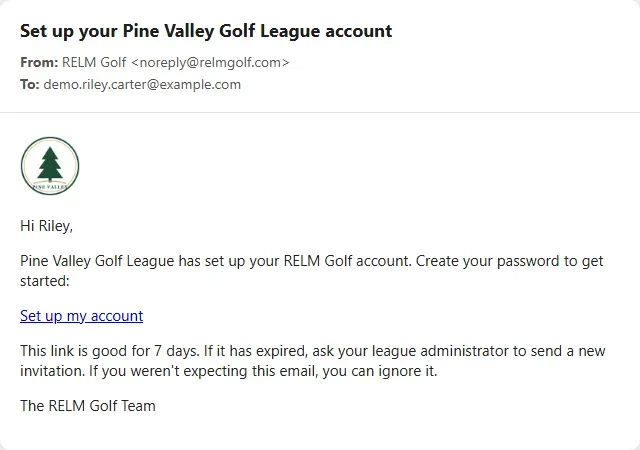
Members sign in to register for events, enter scores and follow their season. They don’t choose a password up front: you invite them, and the invitation email lets each one set their own. This guide sends invitations, to everyone who hasn’t got a login yet or to one member, and shows the email they get.
Before you start: add your members with their email addresses.
-
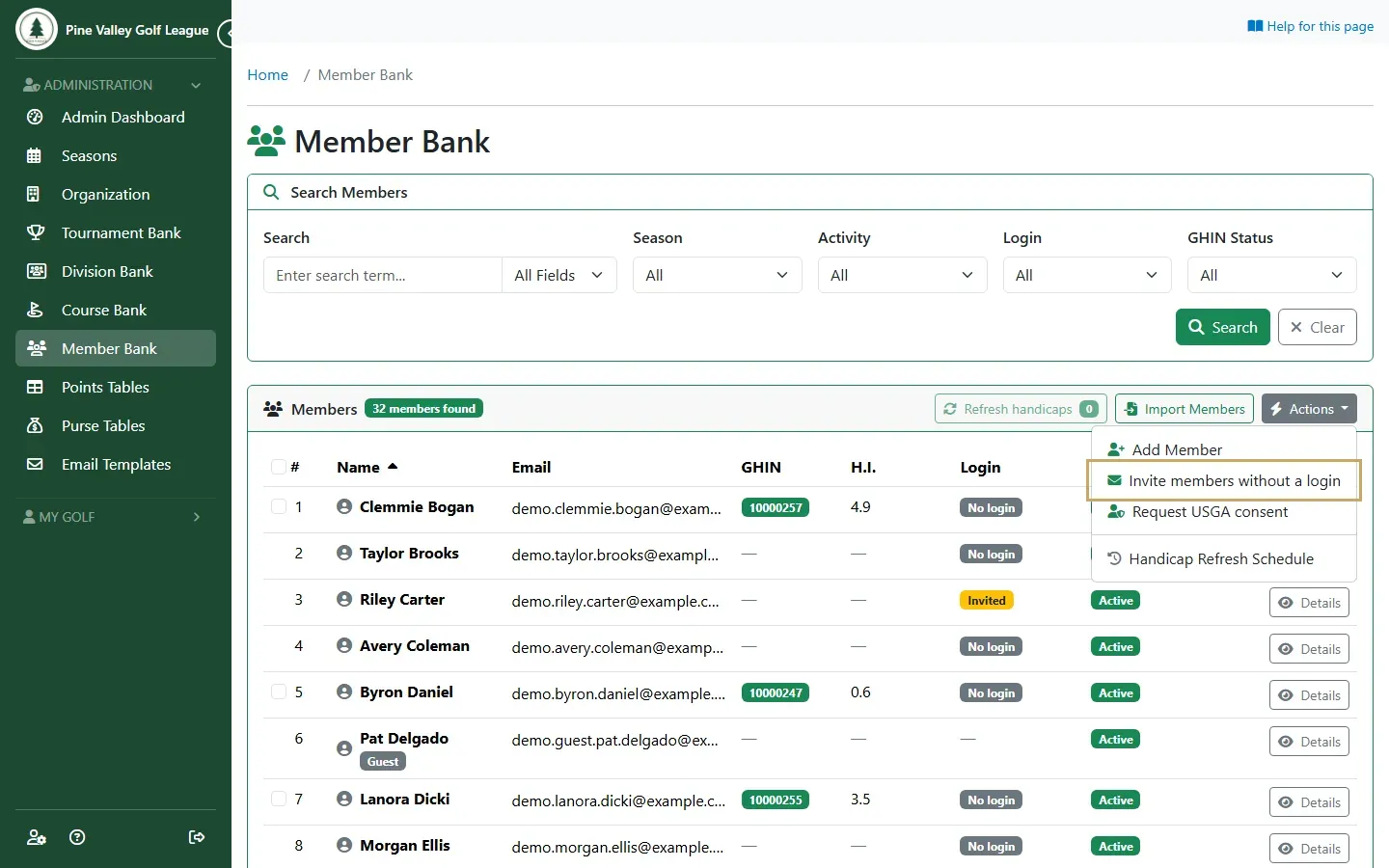
To invite everyone at once, open Actions on the Member Bank and choose Invite members without a login.
-
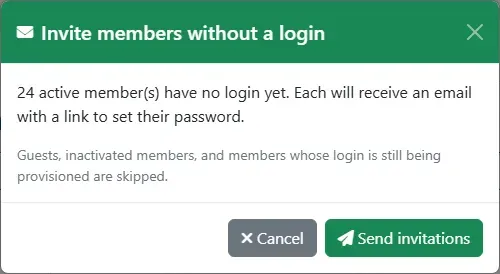
The dialog says how many active members have no login yet. Select Send invitations. Guests, inactive members and anyone whose login is still being set up are skipped.
-
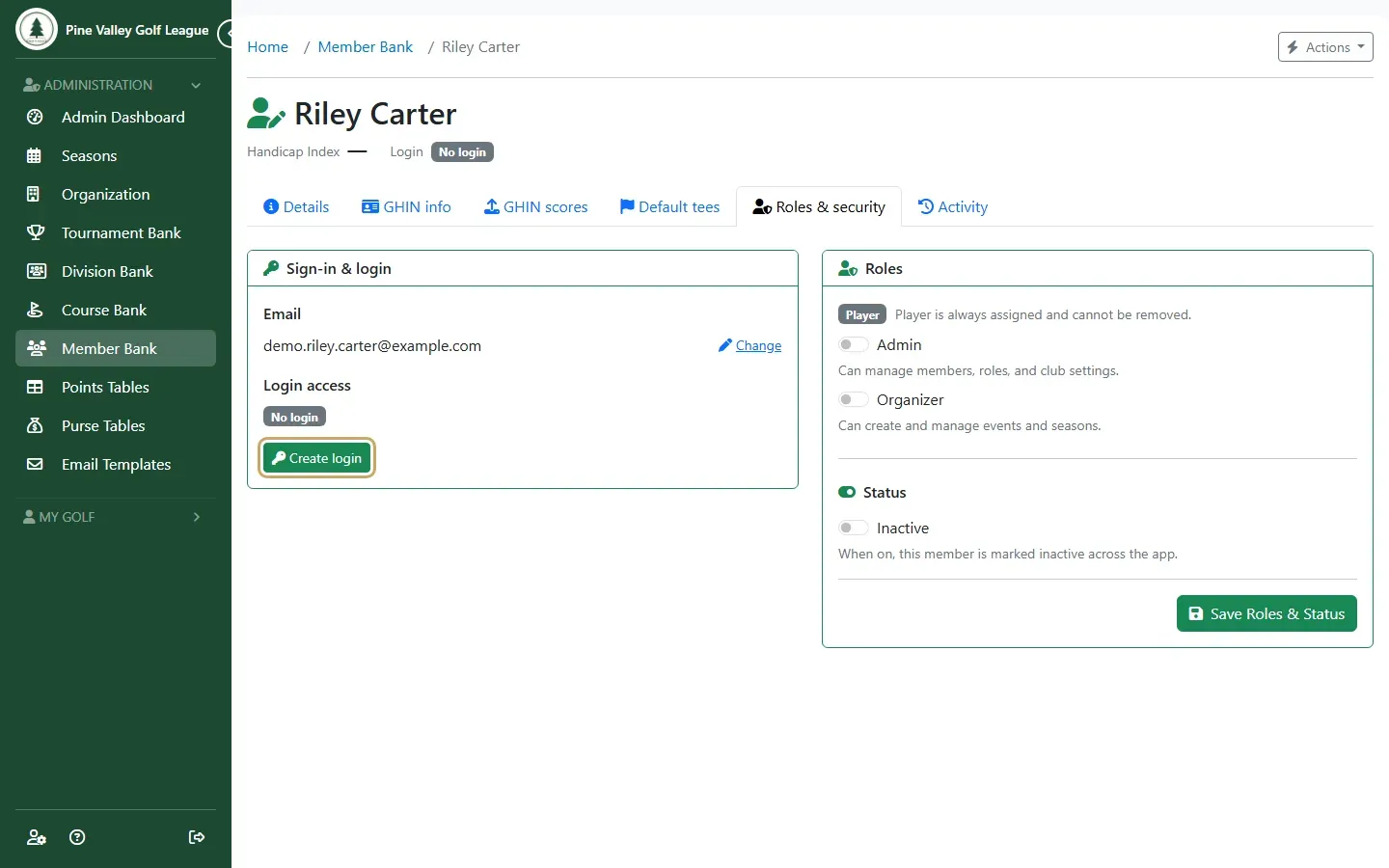
To invite one member, open their Details in the Member Bank and go to the Roles & security tab. Under Sign-in & login, select Create login.
-
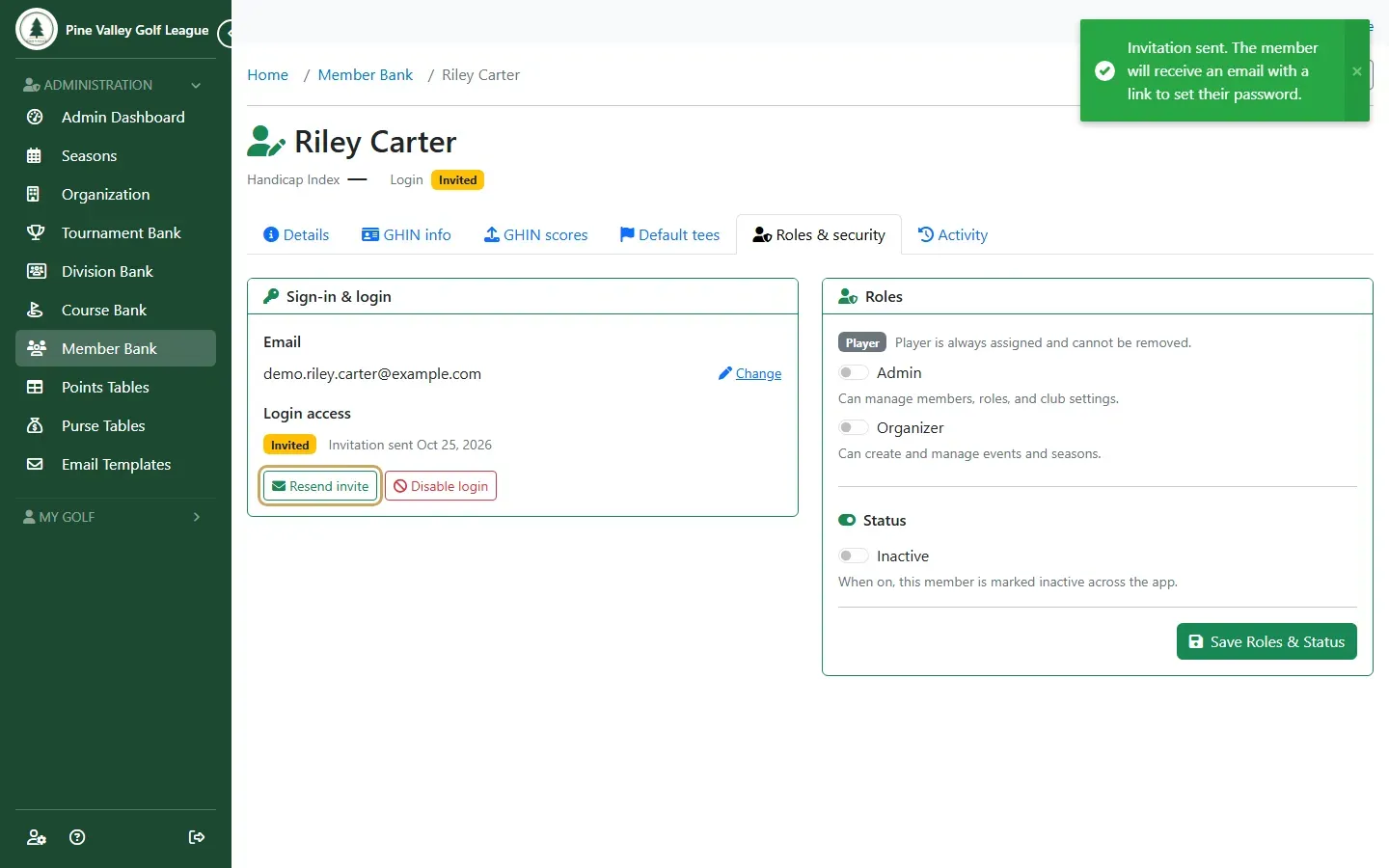
Their login shows Invited with the date the invitation went out. If they can’t find the email, or the link has expired, select Resend invite. Disable login stops them signing in.
-
This is the email your member receives. Set up my account takes them to a page where they choose a password, and then they’re signed in. The link works for 7 days. Sign in for the first time walks through it from their side.